Материал: m933302e
2 - The Visualization Editor in CoDeSys
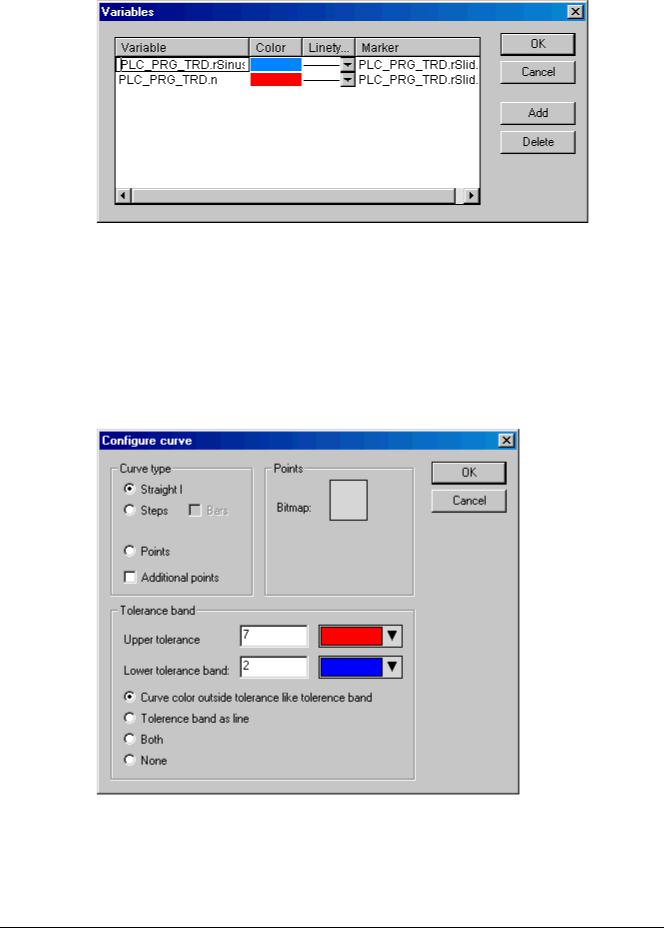
Dialog for configuration of the variables in the trend element
In column Marker you can define a variable, which will provide the currently recorded value when you use the marker function in online mode. The marker will be displayed as a little grey triangle in the upper left corner of the diagram. If you click on the triangle and keep the mousebutton pressed, you can shift a vertical marker line along the horizontal time axis. The variable defined as 'marker' then will read the corresponding value from the record curve of the associated project variable.
Do the settings for all variables you want to record. Via button Add a further line will be added at the end of the list. A line can be deleted by button Delete.
Curve configuration: This button opens the dialog Curve configuration. Here some settings concerning the trend curves can be done:
Dialog for doing the curve configuration for the trend element
Curve type: Select one of the options Straight line, Steps or Points. For the first two types the display of Additional points can be defined. For displaying a point a bitmap can be defined, otherwise a filled rectangle (same color as curve) will be used as point symbol. Press the rectangle next to Bitmap to get the standard dialog for selecting a bitmap file. Via Delete the currently set bitmap can be removed from the configuration.
2-40 |
The CoDeSys Visualization |

2 - The Visualization Editor in CoDeSys
Tolerance band: You can define an upper and lower limit value on the vertical axis to be displayed as a tolerance band. For each band a color (Press the color rectangle to get the selection dialog) can be defined. If the bands should be displayed in online mode, activate option Tolerance band as line. If you want the curve to get displayed in the color defined for the respective band as soon as exceeding the tolerance value, activate Curve color outside tolerance like tolerance band. Activate Both or None if you want to activate both or none of the above described display options at a time.
Example: Display of a trend element in online mode:
1. Declaration in program PLC_PRG:
VAR
in: INT; rSinus:REAL; rValue:REAL;
rSlider1:REAL; (*for marker function*) rSlider2:REAL; (*für marker function*)
END_VAR
2, Program part of PLC_PRG:
n:=n+1;
rValue := rValue + 0.01; rSinus:=SIN(rValue)*50 + 50; IF n>100 THEN
n:=0;
END_IF
3. Configuration of a trend element in a visualization: Orientation Left-Right, History activated
Horizontal axis: Division lines: T#2s, Duration: T#10s, Main: T#1s, Sub scale: T#500ms, Degree if accuracy: T#200ms, Legend: Time Format ('hh':'mm':'ss'), Scaling T#2s. Symbol bar activated.
Vertical axis: Division lines visible, Scale: 10, dotted, grey; Scale left, Start: 0, End: 100, Main: 10, Sub scale: 5; Legend: 10; Symbol bar activated.
Variables:
1.Variable PLC_PRG.rsinus, blue line, Marker: PLC_PRG_TRD.rSlider1;
2.Variable PLC_PRG.n, red line, Marker: PLC_PRG_TRD.rSlider2 Curve configuration: Straight line, no tolerance band
Configuration of two display fields for the current record values provided by the marker variables:
Rectangle element 1: Category Text: insert "%s" in the Content field; Category Variables: insert in field Textdisplay: PLC_PRG.rSlider1
Rectangle element 2: Category Text: insert "%s" in the Content field; Category Variables: insert in field Textdisplay: PLC_PRG.rSlider2
(additionally insert a rectangle element at the left border of the rectangle elements 1 and 2, showing the curve color of the corresponding record variable)
The CoDeSys Visualization |
2-41 |
2 - The Visualization Editor in CoDeSys
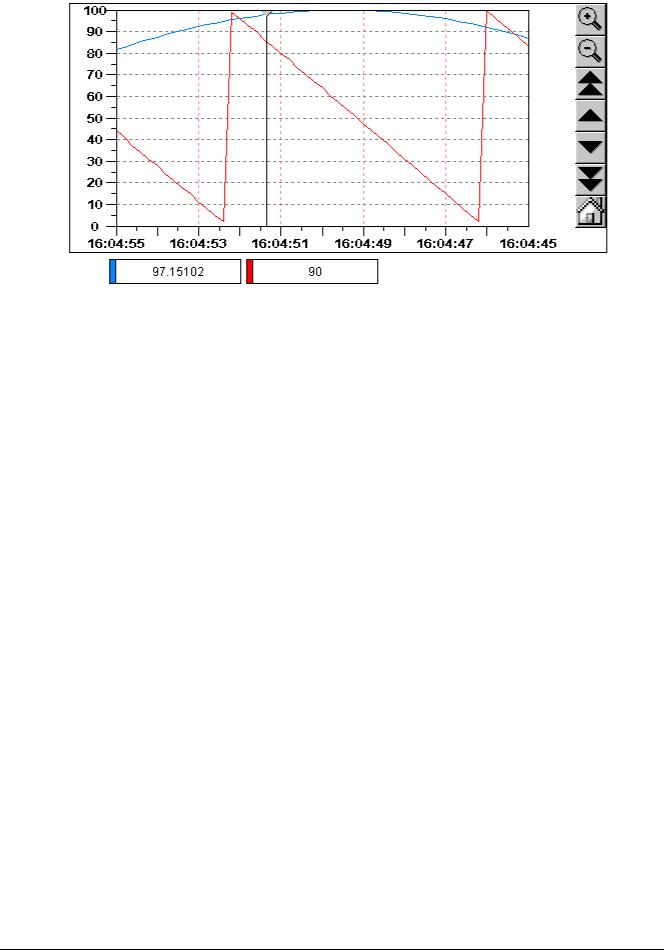
Result in online mode after login and start of the program:
The record is running from the left to the right; the latest value is shown on the leftmost position; every 200 milliseconds the current value will be added to the display. The arrow buttons in the symbol bars allow shifting the displayed time range. Using the simple arrow buttons you can shift step by step, using the double arrows you get to the end resp. start of the record. For example: if you go to the start of the record by pressing the double arrows pointing to the left, you get a still display of the former values. If you then move the marker (grey triangle in the upper left corner) along the time axis, you can read the exact values of each of the both recorded variables for each time in the rectangle elements below the diagram.
Bitmap
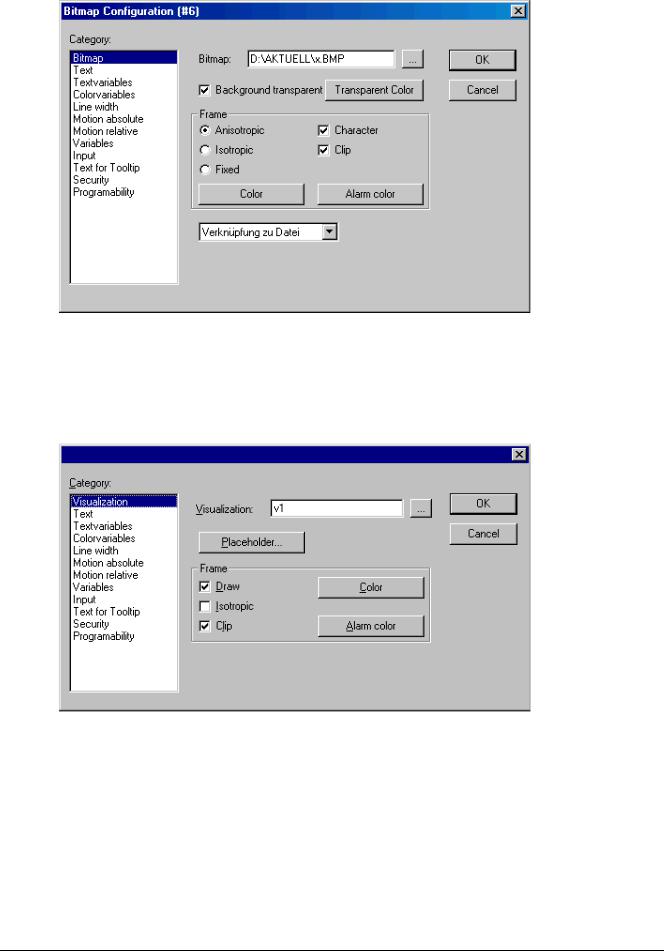
You can enter the options for a bitmap in the Bitmap category within the visualization element configuration dialog box.
Enter the bitmap file and its path in the Bitmap field. You can use the ... button to open the standard Windows Browse dialog box from which you can select the desired bitmap.
All other entries affect the frame of the bitmap.
By selecting Anisotropic, Isotropic or Fixed you specify how the bitmap should react to changes in the size of the frame. Anisotropic means that the bitmap remains the same size as the frame which allows you to change the height and width of the bitmap independently. Isotropic means that the bitmap retains the same proportions even if the overall size is changed (i.e., the relationship between height and width is maintained). If Fixed is selected, the original size of the bitmap will be maintained regardless of the size of the frame.
If the Clip option is selected together with the Fixed setting, only that portion of the bitmap that is contained within the frame will be displayed.
If you select the Draw option, the frame will be displayed in the color selected in the Color and Alarm color buttons in the color dialog boxes. The alarm color will only be used if the variable in the Change Color field in the Variable category is TRUE.
In the selection list in the lower part of the dialog you can define whether the bitmap should be inserted in the project (Insert) or whether just a link to an external bitmap-file (path as entered above in the 'Bitmap' field) should be created (Link to file). It is reasonable to keep the bitmap file in the project directory, because then you can enter a relative path. Otherwise you would enter an absolute path and this might cause problems in case you want to transfer the project to another working environment.
2-42 |
The CoDeSys Visualization |
2 - The Visualization Editor in CoDeSys
Visualization Element Configuration Dialog Box (Bitmap Category)
Visualization
When you insert a visualization as an element in another visualization, you are creating an "instance" (reference) of the visualization.
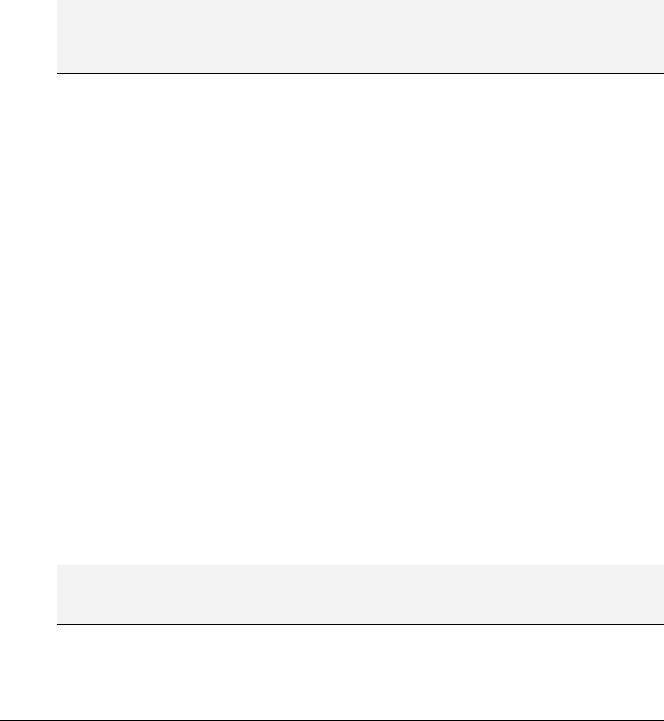
The configuration of this instance can be done in the Visualization category within the visualization element configuration dialog box.
Visualization Element Configuration Dialog Box ( Visualization Category)
Enter the object name for the visualization, which should be inserted, in the Visualization field. Use the ... button to open a dialog box containing the visualizations available in this project. Any visualization may be used with the exception of the current one.
The following entries affect the visualization frame.
•If you select the Draw option, the frame will be displayed in the color selected in the Color and Alarm color buttons in the color dialog boxes. The alarm color will only be used if the variable in the Change Color field in the Variables category is TRUE.
•If Isotropic is selected, the proportions of the visualization will be maintained even if the size changes (i.e., the relationship between height and width will remain the same). Otherwise the proportions can be changed.
The CoDeSys Visualization |
2-43 |
2 - The Visualization Editor in CoDeSys
•If the Clip option is selected in Online mode, only the original portion of the visualization will be displayed. For example, if an object extends beyond the original display area, it will be clipped and may disappear from view completely in the visualization.
The Placeholder button leads to the 'Replace placeholder' dialog. It lists in the 'Placeholder' column all the placeholders which had been inserted in the configuration dialogs of the "mother"-visualization and offers in the 'Replacements' column the possibility of replacing these for the current instance with a definite value. Which replacements are possible in a given case depends on whether a value group was predefined in the 'Extras' 'Placeholder list' dialog in the "mother"-visualization. If this is the case, it will be displayed in a combo box for selection. If nothing was pre-defined, double clicking on the corresponding field in the Replacements column opens an editing field which can be filled in as desired.
A further possibility for replacing placeholders in instances occurs directly when you define the call of a visualization by an entry into the Zoom to vis. option field in the configuration dialog ('Input' category).
Note: No control of the chronological sequence of replacements is possible! Therefore no placeholders should be replaced with text that also contains placeholders!
Note: When using placeholders it is no longer possible to check for invalid entries in the configuration of the visualization element immediately upon compilation of the project. Hence the appropriate error messages are first issued in Online mode (...Invalid Watch expression..).
Example of an application of the placeholder concept:
Instances of a function block can easily be displayed with the help of instances of the same visualization. For example, in configuring the visualization visu, which visualizes the variables of function block, one could begin each variable entry with the placeholder $FUB$ (e.g. $FUB$.a). If an instance of visu is then used (by inserting visu in another visualization or by calling via 'Zoom to vis.'), then in the configuration of this instance the placeholder $FUB$ can then be replaced with the name of the function block instance to be visualized.
This might look like shown in the following:
In the project define a function block containing the following declarations:
FUNCTION_BLOCK fu VAR_INPUT
changecol : BOOL; (* should cause a color change in the visualization *`) END_VAR
In PLC_PRG define two instances of 'fu':
inst1_fu : fu; inst2_fu : fu;
Create a visualization object 'visu'. Insert an element and open the configuration dialog, category 'Variables'. Enter in field 'Change color' the following: "$FUB$.changecol". Open category 'Input' and enter in field 'Tap Variable' "$FUB$.changecol". Open category 'Text' and enter"$FUB$ - change color ".
Create another visualization object 'visu1'.
Insert visualization 'visu' twice in 'visu1' (two instances of 'visu').
Mark the first instance of 'visu' and open the configuration dialog of category 'Visualization'. Press button 'Placeholder', so that the placeholder list will be displayed. There replace entry 'FUB' by 'PLC_PRG.inst_1'.
Now mark the second instance of 'visu' and (like described for the first one) replace 'FUB' by 'PLC_PRG.inst_2'.
Now in online mode the values of the variables which are used to configure the two instances of 'fu' will be visualized in the corresponding instance of 'visu'.
Of course the placeholder $FUB$ can be used at all places in the configuration of 'visu' where variables or text strings are entered.
Attention: Online behaviour of a visualization instance: If you insert a visualization and then select and configure this instance, it will be regarded as a single object and in online mode will react to inputs correspondingly to its configuration. In contrast: if you do not configure the instance, then in online mode its particular visualization elements will react exactly like those of the original visualization.
2-44 |
The CoDeSys Visualization |