Материал: m912201e
174 • The Editors
The Text Editors
The display is the same as in the declaration part. That means that when the PLC is running, the present values of the respective variables will be displayed.
The following should be noted when monitoring expressions or Bit-addressed variables: in the case of expressions, the value of the entire expression is always displayed. Example: a AND b is displayed in blue or with ":=TRUE" if both a and b are TRUE. For Bit-addressed variables, the bit value that is addressed is always monitored (e.g. a.3 is displayed in blue or with ":=TRUE, if a has the value 4).
If you place the mouse pointer briefly above a variable, then the type, the address and the comment about the variable will be displayed in a Tooltip.
5.3.1.7 'Extras' 'Monitoring Options'
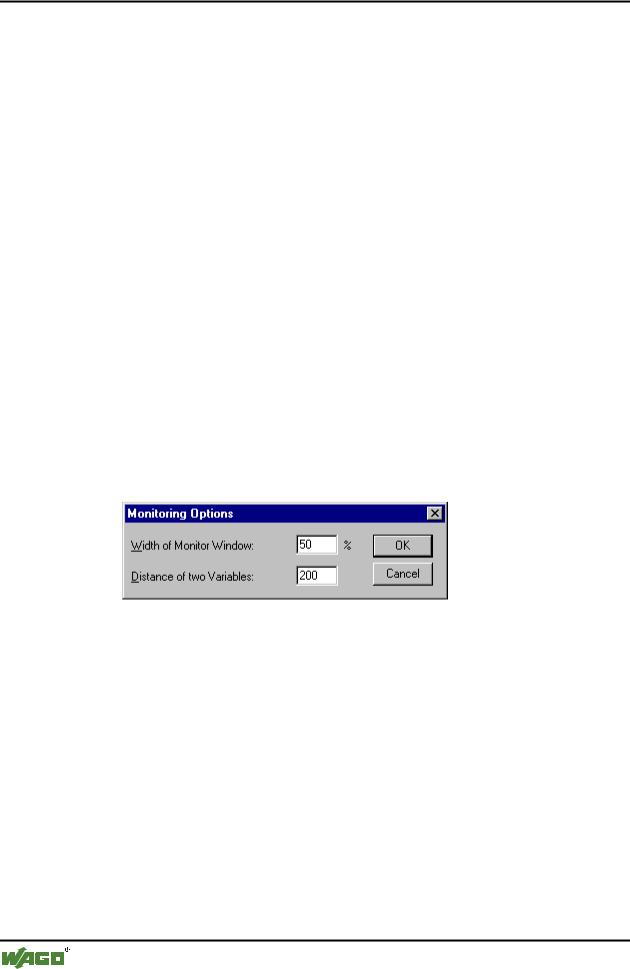
With this command you can configure your monitoring window. In the text editors, the window is divided into two halves during monitoring. The program is located in the left half. In the right half, all variables that are located in the corresponding program line are monitored.
You can specify the Monitor Window Width and which Distance two variables should have in a line. An distance declaration of 1 corresponds, in this case, to a line height in the selected font.
x Monitoring Options Dialog Box
5.3.1.8 Breakpoint Positions in Text Editor
Since in WAGO-I/O-PRO 32 several IL lines are internally combined into a single C-code line, breakpoints can not be set in every line. Breakpoint positions include all positions in a program at which values of variables can change or where the program flow branches off. (Exception: function calls. If necessary, a breakpoint in the function must be set here.) At the positions lying inbetween, a breakpoint would not even make sense, since nothing has been able to change in the data since the preceding breakpoint position.
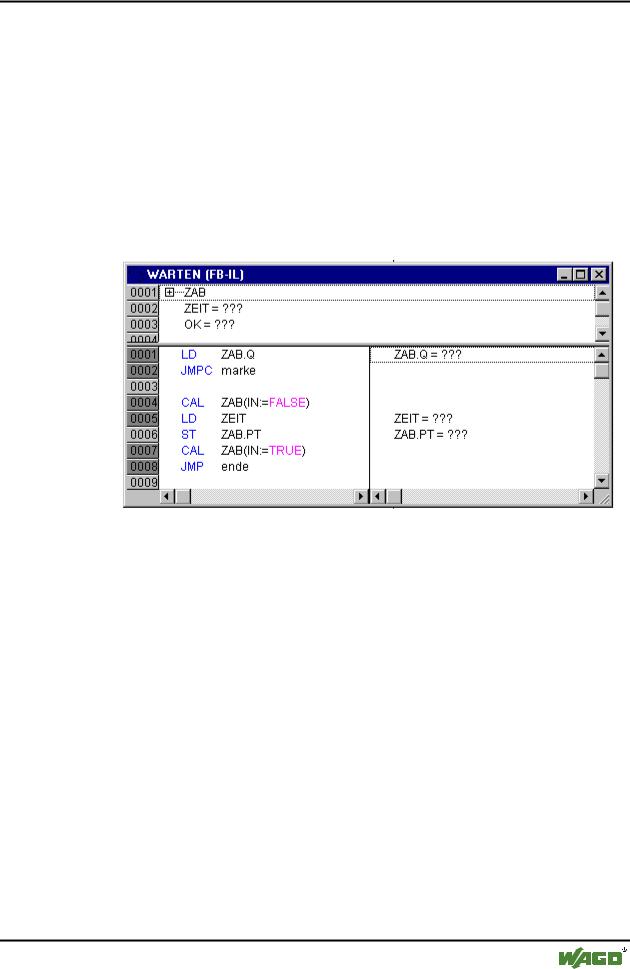
This results in the following breakpoint positions in the IL:
At the start of the POU
At every LD, LDN (or, in case a LD is located at a label, then at the label)
At every JMP, JMPC, JMPCN
At every label
At every CAL, CALC, CALCN
WAGO-I/O-SYSTEM 759 WAGO-I/O-PRO 32
The Editors • 175
The Text Editors
At every RET, RETC, RETCN
At the end of the POU
Structured Text accommodates the following breakpoint positions:
At every assignment
At every RETURN and EXIT instruction
in lines where conditions are being evaluated (WHILE, IF, REPEAT)
At the end of the POU
Breakpoint positions are marked by the display of the line number field in the color which is set in the project options.
x IL Editor with Possible Breakpoint Positions (darker number fields)
5.3.1.9 How do you set a breakpoint?
In order to set a breakpoint, click the line number field of the line where you want to set a breakpoint. If the selected field is a breakpoint position, then the color of the line numbers field will change from dark gray to light blue, and the breakpoint will be activated in the PLC.
5.3.1.10Deleting Breakpoints
Correspondingly, in order to delete a breakpoint, click on the line number field of the line with the breakpoint to be deleted.
Setting and deleting of breakpoints can also be selected via the menu ('Online' 'Toggle Breakpoint'), via the function key <F9>, or via the symbol in the tool bar.
5.3.1.11What happens at a breakpoint?
If a breakpoint is reached in the PLC, then the screen will display the break with the corresponding line. The line number field of the line where the PLC is positioned will appear in red. The user program is stopped in the PLC.
WAGO-I/O-SYSTEM 759 WAGO-I/O-PRO 32

176 • The Editors
The Text Editors
If the program is at a breakpoint, then the processing can be resumed with 'Online' 'Run'.
In addition, with 'Online' 'Step over' or 'Step in' you can cause the program to run to the next breakpoint position. If the instruction where you are located is a CAL command, or, if there is a function call in the lines up to the next breakpoint position, then you can use 'Step over' to bypass the function call. With 'Step in', you will branch to the open POU
5.3.1.12Line Number of the Text Editor
The line numbers of the text editor give the number of each text line of an implementation of a POU.
In Off-line mode, a simple click on a special line number will mark the entire text line.
In Online mode, the background color of the line number indicates the breakpoint status of every line. The standard settings for the colors are
dark gray: This line is a possible position for a breakpoint.
light blue: a breakpoint has been set in this line.
red: The program has reached this point.
In Online mode, simply clicking the mouse will change the breakpoint status of this line.
5.3.2 The Instruction List Editor
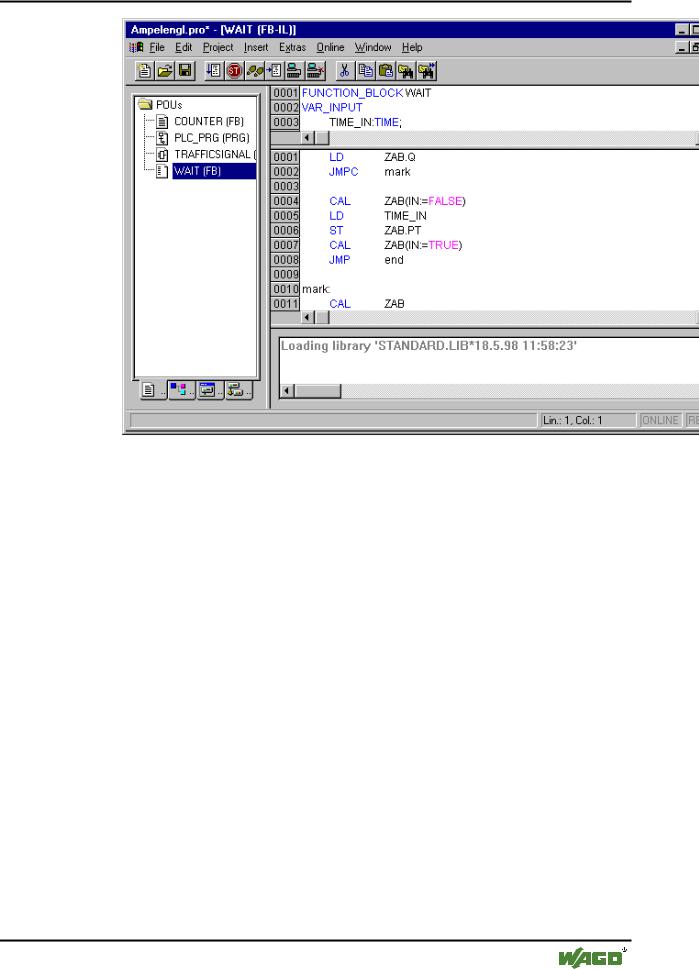
This is how a POU written in the IL looks under the corresponding WAGO- I/O-PRO 32 editor:
WAGO-I/O-SYSTEM 759 WAGO-I/O-PRO 32
The Editors • 177
The Text Editors
All editors for POUs consist of a declaration part and a body. These are separated by a screen divider.
The Instruction List editor is a text editor with the usual capabilities of Windows text editors. The most important commands are found in the context menu (right mouse button or <Ctrl>+<F10>).Multiline POU calls are also possible: Example:
CAL CTU_inst( CU:=%IX10,
PV:=(
LD A
ADD 5
)
)
For information concerning the language, see Instruction List (IL).
5.3.2.1 IL in Online mode
With the 'Online' 'Flow control' command, an additional field in which the accumulator contents is displayed is inserted in the IL editor on the left side of every line.
For further information concerning the IL editor in Online mode, see 'The Text Editors in Online Mode'.
WAGO-I/O-SYSTEM 759 WAGO-I/O-PRO 32
178 • The Editors
The Graphic Editors
5.3.3 The Editor for Structured Text
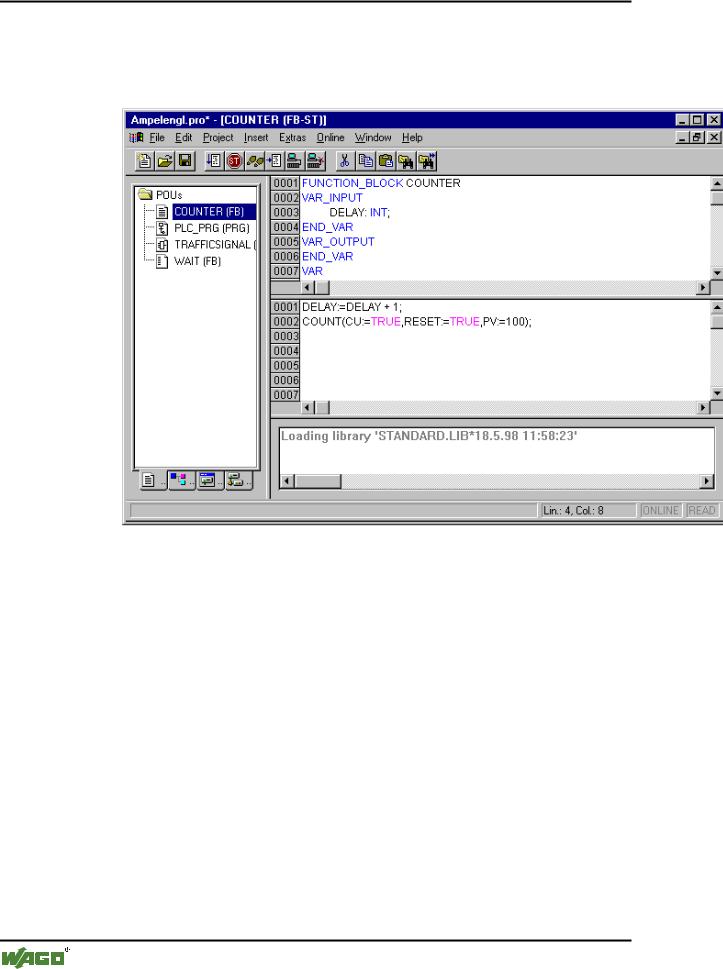
This is how a POU written in ST appears under the corresponding WAGO- I/O-PRO 32 editor:
All editors for POUs consist of a declaration part and a body. These are separated by a screen divider.
The editor for Structured Text is a text editor with the usual capabilities of Windows text editors. The most important commands are found in the context menu (right mouse button or <Ctrl>+<F10>).
See also:
For information about the language, see 'Structured Text (ST).
5.4 The Graphic Editors
The editors of the graphically oriented languages, sequential function chart SFC, ladder diagram LD and function block diagram FBD and of free graphic function block diagrams have many points in common. In the following paragraphs these features will be summarized; the specific descriptions of LD, FBD an CFC, as well as the Sequential Function Chart language SFC follow in separate sections. The implementation in the graphics editors is supported by syntax coloring.
WAGO-I/O-SYSTEM 759 WAGO-I/O-PRO 32