Материал: m912201e
The Editors • 169
Declaration Editor
{flag off}
VAR
{flag noinit on} a : INT;
b : INT;
{flag off}
END_VAR
The flags "noread" and "nowrite" are used, in a POU that has read and/or write permission, to provide selected variables with restricted access rights. The default for the variable is the same as the setting for the POU in which the variable is declared. If a variable has neither read nor write permission, it will not be exported into the symbol file.
Examples:
If the POU has read and write permission, then with the following pragmas variable a can only be exported with write permission, while variable b can not be exported at all:
VAR
a |
: |
INT |
{flag noread}; |
b |
: |
INT |
{flag noread, nowrite}; |
END_VAR
VAR
{flag noread on} a : INT;
{flag noread, nowrite on} b : INT;
{flag off}
END_VAR
Neither variable a nor b will be exported to the symbol file:
{ flag noread, nowrite on }
VAR
a : INT; b : INT; END_VAR
{flag off}
VAR
{ flag noread, nowrite on} a : INT;
WAGO-I/O-SYSTEM 759 WAGO-I/O-PRO 32
170 • The Editors
Declaration Editor
b : INT; {flag off}
END_VAR
The pragma operates additively on all subsequent variable declarations.
Example: (all POUs in use will be exported with read and write permission)
a : afb;
...
FUNCTION_BLOCK afB VAR
b : bfb {flag nowrite}; c : INT;
END_VAR
...
FUNCTION_BLOCK bfB VAR
d : INT {flag noread}; e : INT {flag nowrite}; END_VAR
"a.b.d": |
Will not be exported |
"a.b.e": |
Will be exported only with read permission |
"a.c": |
Will be exported with read and write permission. |
5.2.21Declaration Editors in Online Mode
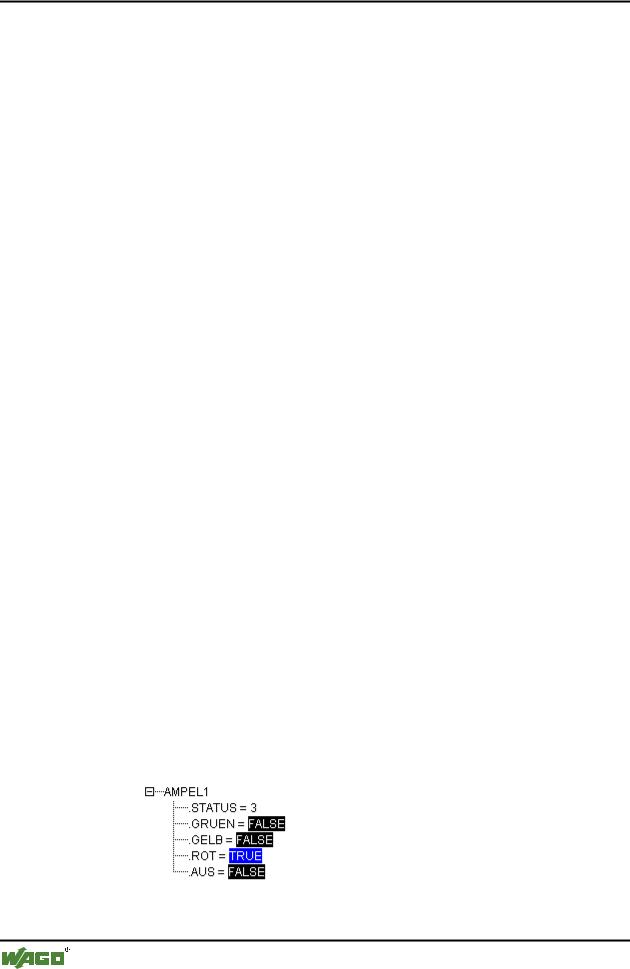
In online mode , the declaration editor changes into a monitor window. In each line there is a variable followed by the equal sign (=) and the value of the variable. If the variable at this point is undefined, three question marks (???) will appear. For function blocks, values are displayed only for open instances (command: 'Project' 'Open instance').
In front of every multi-element variable there is a plus sign. By pressing <Enter> or after doubleclicking on such a variable, the variable is opened up. In the example, the traffic signal structure would be opened up.
WAGO-I/O-SYSTEM 759 WAGO-I/O-PRO 32
The Editors • 171
The Text Editors
When a variable is open, all of its components are listed after it. A minus sign appears in front of the variable. If you doubleclick again or press <Enter>, the variable will be closed, and the plus sign will reappear.
Pressing <Enter> or doubleclicking on a single-element variable will open the dialog box to write a variable. Here it is possible to change the present value of the variable. In the case of Boolean variables, no dialog box appears; these variables are toggled.
The new value is displayed after the variable, in pointed brackets and in turquoise color, and remains unchanged. If the 'Online' 'Write values' command is given, then all variables are placed in the selected list and are once again displayed in black.
If the 'Online' 'Force values' command is given, then all variables will be set to the selected values, until the 'Release force' command is given. In this event, the color of the force value changes to red
5.3 The Text Editors
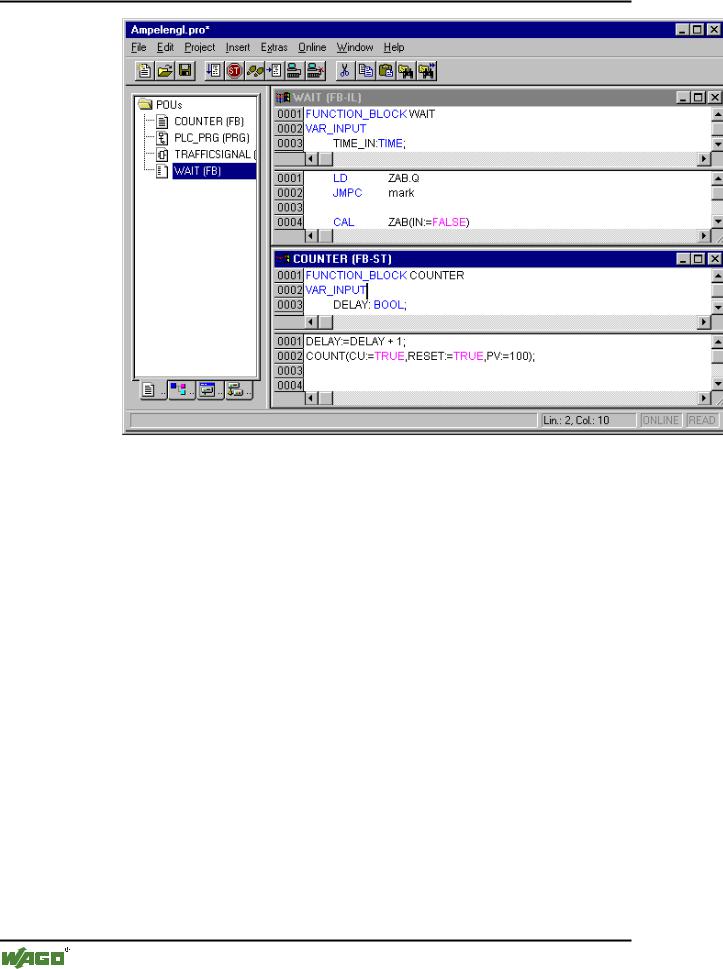
The text editors used for the implementation portion (the Instruction List editor and the Structured Text editor) of WAGO-I/O-PRO 32 provide the usual Windows text editor functions.
The implementation in the text editors is supported by syntax coloring.
In Overwrite mode the status bar shows a black OV. You can switch between Overwrite mode and Insert mode by key <Ins>
WAGO-I/O-SYSTEM 759 WAGO-I/O-PRO 32
172 • The Editors
The Text Editors
The most important commands are found in the context menu (right mouse button or <Ctrl>+<F10>).
The text editors use the following menu commands in special ways:
5.3.1.1 'Insert''Operators'in text editors
With this command all of the operators available in the current language are displayed in a dialog box.
If one of the operators is selected and the list is closed with OK, then the highlighted operator will be inserted at the present cursor position. (This is managed here just as it is in the Input Assistant).
5.3.1.2 'Insert''Operand'in text editors
With this command all variables in a dialog box are displayed. You can select whether you would like to display a list of the global, the local, or the system variables.
If one of the operands is chosen, and the dialog box is closed with OK, then the highlighted operand will be inserted at the present cursor position. (This is managed here just as it is in the Input Assistant).
WAGO-I/O-SYSTEM 759 WAGO-I/O-PRO 32
The Editors • 173
The Text Editors
5.3.1.3 'Insert''Function' in text editors
With this command all functions will be displayed in a dialog box. You can choose whether to have a list displaying user-defined or standard functions.
If one of the functions is selected and the dialog box is closed with OK, then the highlighted function will be inserted at the current cursor position. (The management will proceed, as in the input selection.)
If the With arguments option was selected in the dialog box, then the necessary input and output variables will also be inserted.
5.3.1.4 'Insert''Function Block' in text editors
With this command all function blocks are displayed in a dialog box. You can choose whether to have a list displaying user-defined or standard function blocks.
If one of the function blocks is selected and the dialog box is closed with OK, then the highlighted function block will be inserted at the current cursor position. (This is managed here just as it is in the Input Assistant).
If the With arguments option was selected in the dialog box, then the necessary input variables of the function block will also be inserted.
5.3.1.5 Calling POUs with output parameters in text editors
The output parameters of a called POU can be directly assigned upon being called in the text languages IL and ST. Example: Output parameter out1 of afbinst is assigned variable a.
IL:
CAL afbinst(in1:=1, out1=>a)
ST:
afbinst(in1:=1, out1=>a);
5.3.1.6 The text editors in Online mode
The online functions in the editors are set breakpoint and single step processing (steps). Together with the monitoring, the user thus has the debugging capability of a modern Windows standard language debugger.
In Online mode, the text editor window is vertically divided in halves. On the left side of the window you will then find the normal program text; on the right side you will see a display of the variables whose values were changed in the respective lines.
WAGO-I/O-SYSTEM 759 WAGO-I/O-PRO 32