Материал: m912201e
164 • The Editors
Declaration Editor
An address (as in %MD12) is extended around the ATATDeclaration>Proc... attribute(Example 4.).
A text after a semicolon (;) becomes a comment (Example 4.).
All other characters in the line are ignored (e.g., the exclamation point in Example 5.).
Examples: |
|
Shortcut |
Declaration |
A |
A: BOOL; |
A B I 2 |
A, B: INT := 2; |
ST S 2; A string |
ST:STRING(2); (* A string *) |
X %MD12 R 5 Real Number |
X AT %MD12: REAL := 5.0;(* Real |
|
Number *) |
B ! |
B: BOOL; |
5.2.16Autodeclaration
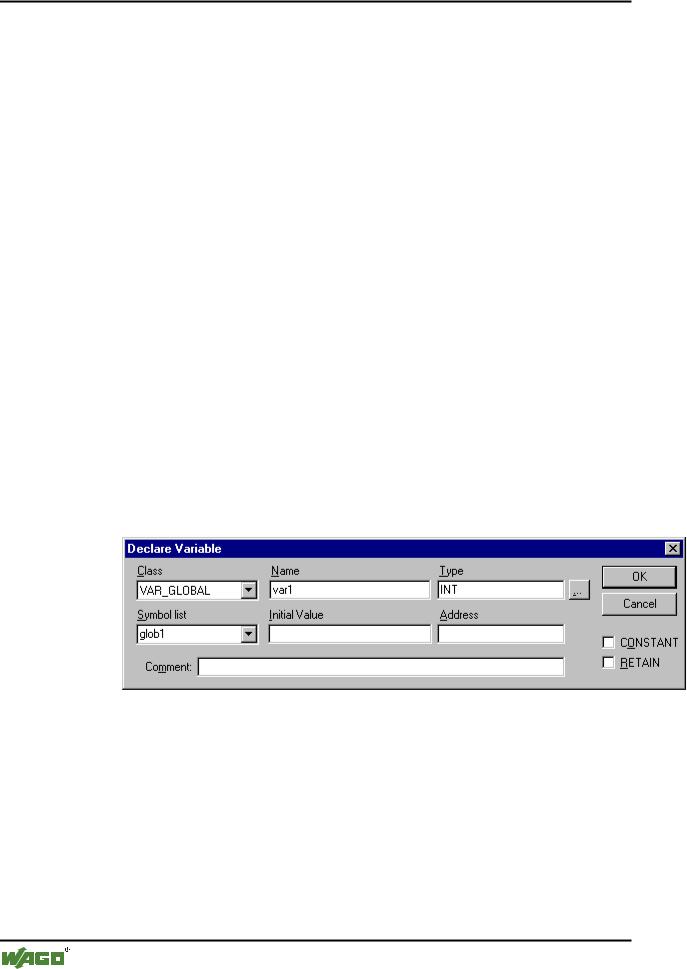
If the Autodeclaration option has been chosen in the Editor category of the Options dialog box , then a dialog box will appear in all editors after the input of a variable that has not yet been declared. With the help of this dialog box, the variable can now be declared.
x Dialog Box for Declaration of Variables
With the help of the Class combobox, select whether you are dealing with a local variable (VAR), input variable( (VAR_INPUT), output variable (VAR_OUTPUT), input/output variable (VAR_INOUT), or a global variable (VAR_GLOBAL).
With the CONSTANT and RETAIN options, you can define whether you are dealing with a constant or a retain variable
The variable name you entered in the editor has been entered in the Name
field, BOOL has been placed in the Type field. The  button opens the Input Assistant dialog which allows you to select from all possible data types.
WAGO-I/O-SYSTEM 759 WAGO-I/O-PRO 32
The Editors • 165
Declaration Editor
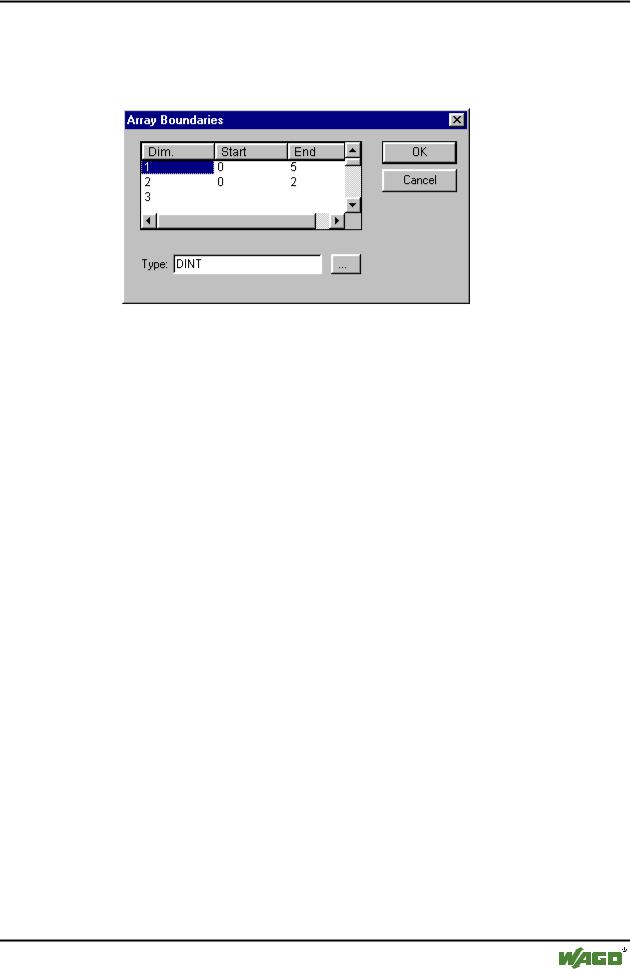
If ARRAY is chosen as the variable type, the dialog for entering array boundaries appears.
x Dialog for determining array boundaries during automatic declaration
For each of the three possible dimensions (Dim.), array boundaries can be entered under Start and End by clicking with the mouse on the corresponding field to open an editing space. The array data type is entered in the Type field.
In doing this, the  button can be used to call up an input assistant dialog.
Upon leaving the array boundaries dialog via the OK button, variable declarations in IEC format are set up based on the entries in the Type field in the dialog. Example: ARRAY [1..5, 1..3] OF INT
In the field Initial value, you may enter the initial value of the variable being declared. If this is an array or a valid structure, you can open a special
initialization dialog via the  button or <F2>, or open the input assistant dialog for other variable types.
In the initialization dialog for an array you are presented a list of array elements; a mouse click on the space following ":="opens an editing field for entering the initial value of an element.
In the initialization dialog for a structure, individual components are displayed in a tree structure. The type and default initial value appear in brackets after the variable name; each is followed by ":=". A mouse click on the field following ":=" opens an editing field in which you can enter the desired initial value. If the component is an array, then the display of individual fields in the array can be expanded by a mouse click on the plus sign before the array name and the fields can be edited with initial values.
After leaving the initialization dialog with OK, the initialization of the array or the structure appears in the field Initial value of the declaration dialog in IEC format.
Example:
x:=5,field:=2,3,struct2:=(a:=2,b:=3)
WAGO-I/O-SYSTEM 759 WAGO-I/O-PRO 32
166 • The Editors
Declaration Editor
In the Address field, you can bind the variable being declared to an IEC address (AT declaration).
If applicable, enter a Comment. The comment can be formatted with line breaks by using the key combination <Ctrl> + <Enter>.
By pressing OK, the declaration dialog is closed and the variable is entered in the corresponding declaration editor in accordance to the IEC syntax.
Note:
The dialog box for variable declaration you also get by the command 'Edit' 'Declare Variable'. If the cursor is resting on a variable in Online mode, the Autodeclare window can be opened with <Shift><F2> with the current variable-related settings displayed.
5.2.17Line Numbers in the Declaration Editor
In offline mode, a simple click on a special line number will mark the entire text line.
In the online mode, a single click on a specific line number will open up or close the variable in this line, in case a structural variable is involved.
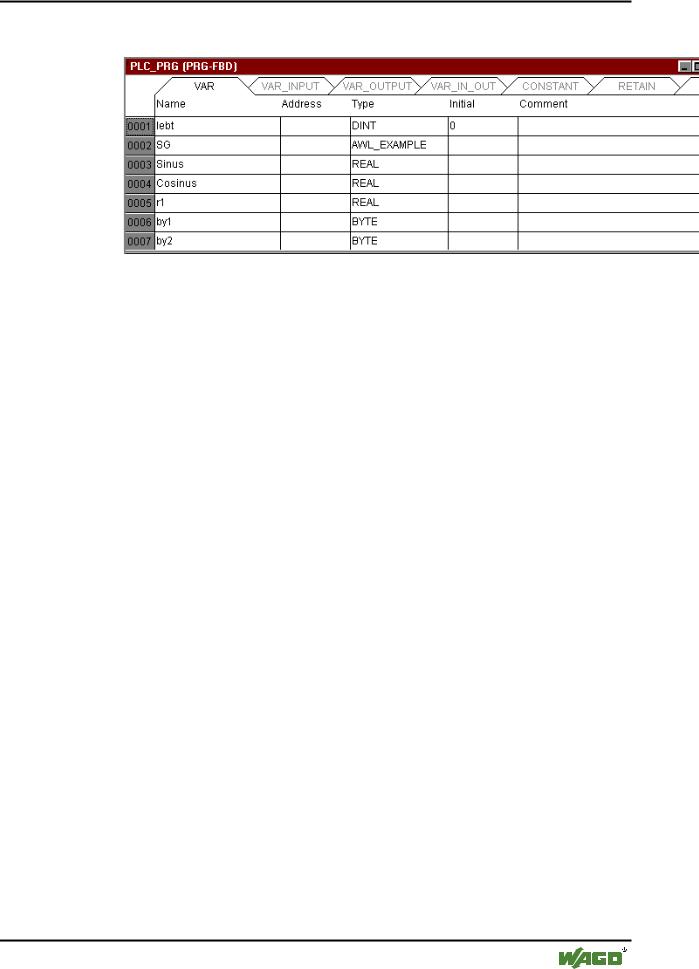
5.2.18Declarations as tables
If the Declarations as table option is activated in the Options dialog box in the category, the declaration editor looks like a table. As in a card-index box, you can select the register cards of the respective variable types and edit the variables.
For each variable you are given the following entry fields.
Name: |
Input the identifier of the variable. |
Address: |
If necessary, input the address of the variable (AT |
|
declaration) |
Type: |
Input the type of the variable. (Input the function block |
|
when instantiating a function block) |
Initial: |
Enter a possible initialization of the variable |
|
(corresponding to the ":= " assignment operator). |
Comment: |
Enter a comment here. |
Both of the display types of the declaration editor can be changed without causing any problems. In the online mode, there are no differences for the display.
In order to edit a new variable, select the 'Insert' 'New Declaration' command.
WAGO-I/O-SYSTEM 759 WAGO-I/O-PRO 32
The Editors • 167
Declaration Editor
x Declaration Editor as a Table
5.2.19'Insert' 'New Declaration'
With this command you bring a new variable into the declaration table of the declaration editor. If the present cursor position is located in an field of the table, then the new variable will be pasted in the preceding line; otherwise, the new variable is pasted at the end of the table. Moreover, you can paste a new declaration at the end of the table by using the right arrow key or the tab key in the last field of the table.
You will receive a variable that has "Name" located in the Name field, and "Bool" located in the Type field, as its default setting. You should change these values to the desired values. Name and type are all that is necessary for a complete declaration of variables.
5.2.20Pragma instructiion
The pragma instruction is used to affect the properties of a variable concerning the compilation process. It can be used in with supplementary text in a program line of the declaration editor or in its own line.
The pragma instruction is enclosed in curly brackets, upperand lower-case are ignored: { <Instruction text> }
If the compiler cannot meaningfully interpret the instruction text, the entire pragma is handled as a comment and read over. A warning is issued, however: "Ignore compiler directive ‚<Instruction text>’!"
Depending on the type and contents of pragma, the pragma either operates on the line in which it is located or on all subsequent lines until it is ended by an appropriate pragma, or the same pragma is executed with different parameters, or the end of the file is reached. By file we mean here: declaration part, implementation portion, global variable list, type declaration.
The opening bracket may immediately follow a variable name. Opening and closing brackets must be located on the same line.
The following pragma may currently be used:
WAGO-I/O-SYSTEM 759 WAGO-I/O-PRO 32

168 • The Editors
Declaration Editor
{flag [<flags>] [off|on]}
<flags> can be a combination of the following flags:
noinit: |
The variable will not be initialized. |
nowatch: |
The variable can not be monitored |
noread: |
The variable is exported to the symbol file without |
|
read permission |
nowrite: |
The variable is exported to the symbol file without |
|
write permission |
noread, nowrite: |
Die Variable wird nicht in die Symboldatei |
|
exportiert |
With the "on" modifier, the pragma operates on all subsequent variable declarations until it is ended by the pragma {flag off}, or until overwritten by another {flag <flags> on} pragma.
Without the "on" or "off" modifier, the pragma operates only on the current variable declaration (that is the declaration that is closed by the next semicolon).
Examples:
The variable a will not be initialized and will not be monitored. The variable b will not be initialized:
VAR
a |
: |
INT |
{flag noinit, nowatch}; |
b |
: |
INT |
{flag noinit }; |
END_VAR
VAR
{flag noinit, nowatch on} a : INT;
{flag noinit on} b : INT;
{flag off}
END_VAR
Neither variable will be initialized:
{flag noinit on}
VAR
a : INT; b : INT;
END_VAR
WAGO-I/O-SYSTEM 759 WAGO-I/O-PRO 32