Материал: m912201e
154• Components of WAGO-I/O-PRO 32
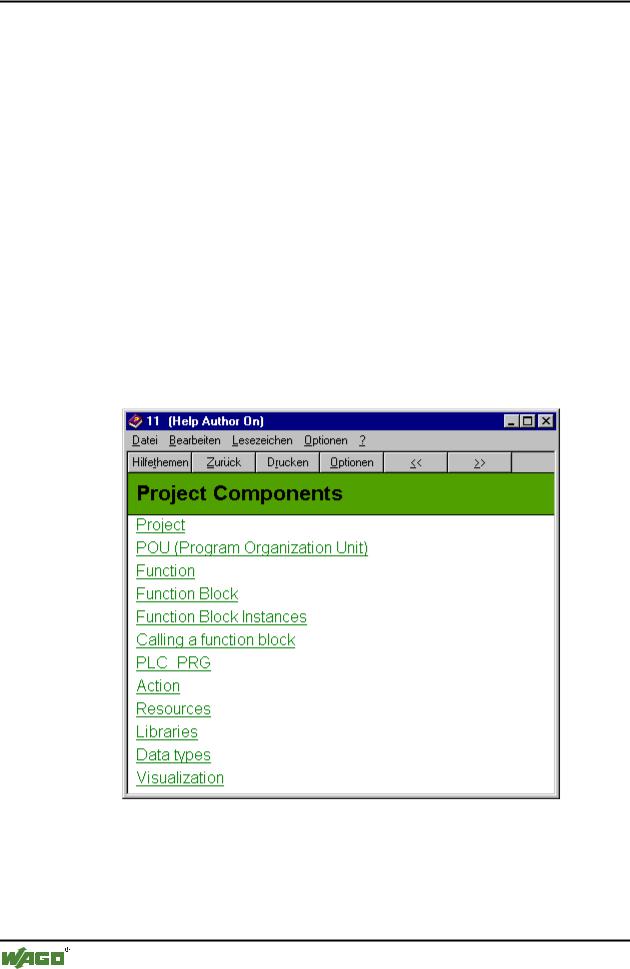
Help when you need it
If you have made an annotation to a help entry, a small green paper clip will appear in the upper left-hand corner. By clicking the mouse on the paper clip, you can open the dialog box with the annotation that has been made.
If you would like to mark a page from help, then you can set a bookmark. To do so, choose the "Define" "Bookmark" command. A dialog box will appear in which you can enter a new name (The name of the page can serve as a starter) or can delete an old bookmark. If bookmarks were defined, then these will be displayed in the "Bookmark" menu. By choosing these menu items, you can access the desired page.
Under "Options", you can define whether the help window always appears in the foreground or in the background or in the standard setting.
With "Display previous topics" under "Options", you are furnished with a selection window with the previously displayed help topics. Doubleclick the entry you wish to view.
Under "Options", you can select the desired "Font" in small, normal, or large.
If "Options" "Use System Color" has been chosen, help will not be displayed in the colors that were set, but in the system colors instead.
x Main Help Window
4.9.3 Index Window
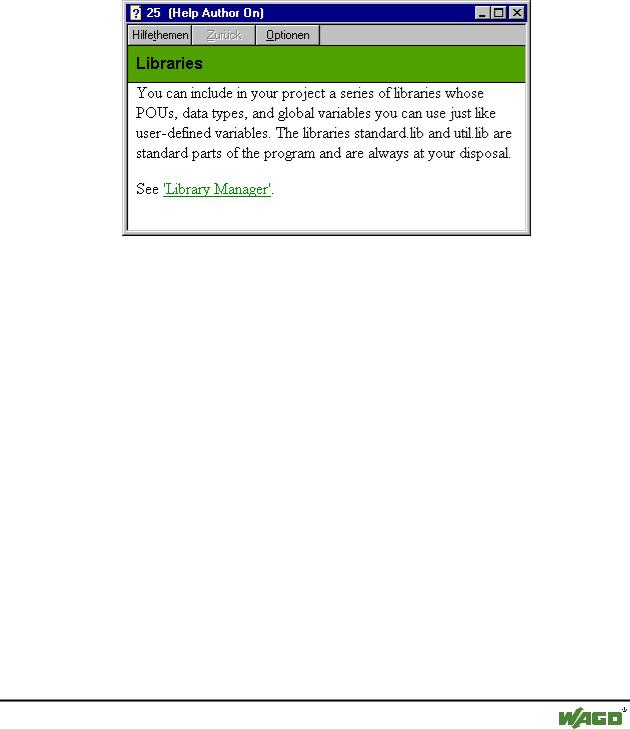
The index window contains explanations about the menu commands, terms, or sequences.
WAGO-I/O-SYSTEM 759 WAGO-I/O-PRO 32
Components of WAGO-I/O-PRO 32 |
• 155 |
Help when you need it |
|
|
|
The index window will always remain on the surface by default, unless the help option is placed in the background in the main window of help.
The following buttons are available:
Help topics opens the help topics window
Back shows the help entry that was previously displayed
Print opens the dialog box for printing
<< shows the help entry directly prior to the present entry
>> shows the help entry that is next in sequence
x Index Window
4.9.4 Context Sensitive Help
Shortcut: <F1>
You can use the <F1> key in an active window, in a dialog box, or above a menu command. When you perform a command from the menu, the help for the command called up at that time is displayed.
You can also highlight a text (for example, a key word or a standard function) and have the help displayed for that item.
WAGO-I/O-SYSTEM 759 WAGO-I/O-PRO 32
156 • The Editors
Help when you need it
5 The Editors
All editors for POUs (Program Organization Units) consist of a declaration part and a body. These are separated by a screen divider that can be dragged, as required, by clicking it with the mouse and moving it up or down. The body can consist of other a text or a graphic editor; the declaration portion is always a text editor.
5.1.1.1 Print margins
The vertical and horizontal margins that apply when the editor contents are printed, are shown by red dashed lines if the 'Show print range' option in the project options in the dialog 'Workspace' was selected. The properties of the printer that was entered apply, as well as the size of the print layout selected in the 'File' 'Printer Setup' menu. If no printer setup or no print layout is entered, a default configuration is used (Default.DFR and default printer). The horizontal margins are drawn as if the options 'New page for each object' or 'New page for each sub-object' were selected in 'Documentation settings'. The lowest margin is not displayed.
Note:
An exact display of the print margins is only possible when a zoom factor of 100% is selected.
5.1.1.2 Comment
User comments must be enclosed in the special symbol sequences "(*" and "*)". Example: (*This is a comment.*)
Comments are allowed in all text editors, at any location desired, that is in all declarations, the IL and ST languages and in self-defined data types. If the Project is printed out using a template, the comment that was entered during variable declaration appears in text-based program components after each variable.
In the FBD and LD graphic editors, comments can be entered for each network. To do this, search for the network on which you wish to comment and activate 'Insert' 'Comment'. In CFC there are special comment POUs which can be placed at will.
In SFC, you can enter comments about a step in the dialog for editing step attributes.
Nested comments are also allowed if the appropriate option in the 'Project' 'Options' 'Build Options' dialog is activated.
In Online mode, if you rest the mouse cursor for a short time on a variable, the type and if applicable the address and comment of that variable are displayed in a tooltip.
WAGO-I/O-SYSTEM 759 WAGO-I/O-PRO 32
The Editors • 157
Declaration Editor
5.1.1.3 Zoom to POU
Shortcut: <Alt>+<Enter>
With this command a selected POU is loaded into its editor. The command is available in the context menu (<F2>) or in the 'Extras' menu, if the cursor is positioned on the name of a POU in a text editor or if the POU box is selected in a graphic editor.
If you are dealing with a POU from a library, then the library manager is called up, and the corresponding POU is displayed.
5.1.1.4 Open instance
This command corresponds to the 'Project' 'Open instance' command.
This command corresponds to the command 'Project' 'Open instance'. It is available in the context menu (<F2>) or in the 'Extras' menu, if the cursor is positioned on the name of a function block in a text editor or if the function block box is selected in a graphic editor.
5.2 Declaration Editor
The declaration editor is used to declare variables of POUs and global variables, for data type declarations, and in the Watch and Receipt Manager. It gives access to the usual Windows functions, and even those of the IntelliMouse can be used if the corresponding driver is installed.
In Overwrite mode, 'OV' is shown in black on the status bar; switching between Overwrite and Insert modes can be accomplished with the <Ins> key.
The declaration of variables is supported by syntax coloring.
The most important commands are found in the context menu (right mouse button or <Ctrl>+<F10>).
5.2.1 Declaration Part
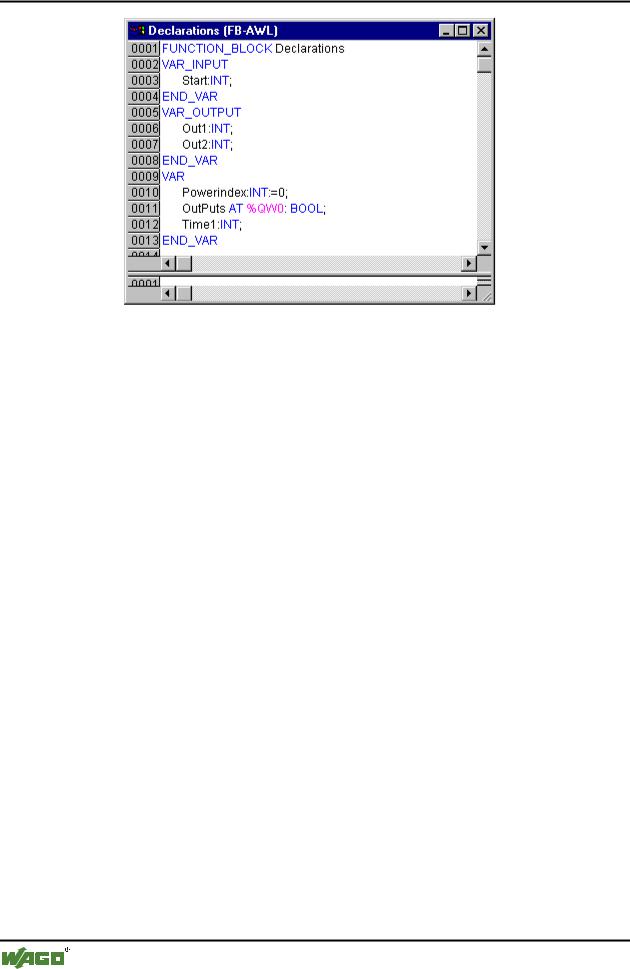
All variables to be used only in this POU are declared in the declaration part of the POU. These can include: input variables, output variables, input/output variables, local variables, retain variables, and constants. The declaration syntax is based on the IEC61131-3 standard. An example of a correct declaration of variables in WAGO-I/O-PRO 32-Editor:
WAGO-I/O-SYSTEM 759 WAGO-I/O-PRO 32
158 • The Editors
Declaration Editor
5.2.2 Input Variable
Between the key words VAR_INPUT and END_VAR, all variables are declared that serve as input variables for a POU. That means that at the call position, the value of the variables can be given along with a call.
Example:
VAR_INPUT
in1:INT |
(* 1. Inputvariable*) |
END_VAR
5.2.3 Output Variable
Between the key words VAR_OUTPUT and END_VAR, all variables are declared that serve as output variables of a POU. That means that these values are carried back to the POU making the call. There they can be answered and used further.
Example:
VAR_OUTPUT
out1:INT; (* 1. Outputvariable*)
END_VAR
5.2.4 Input and Output Variables
Between the key words VAR_IN_OUT and END_VAR, all variables are declared that serve as input and output variables for a POU.
WAGO-I/O-SYSTEM 759 WAGO-I/O-PRO 32