Материал: m912201e

Components of WAGO-I/O-PRO 32 |
• 149 |
Log |
|
|
|
and in the selection window enter the directory on your computer into which it is to be loaded as soon as the dialog is closed with the "Save" button.
4.7 Log
The log stores in chronological order actions that occur during an Online session. For this purpose a binary log file (*.log) is set up. Afterward, the user can store excerpts from the appropriate project log in an external log.
The log window can be opened in either Offline or Online mode and can thus serve as a direct monitor online.
4.7.1 'Window' 'Log'
To open, select the menu item 'Window' 'Log'.
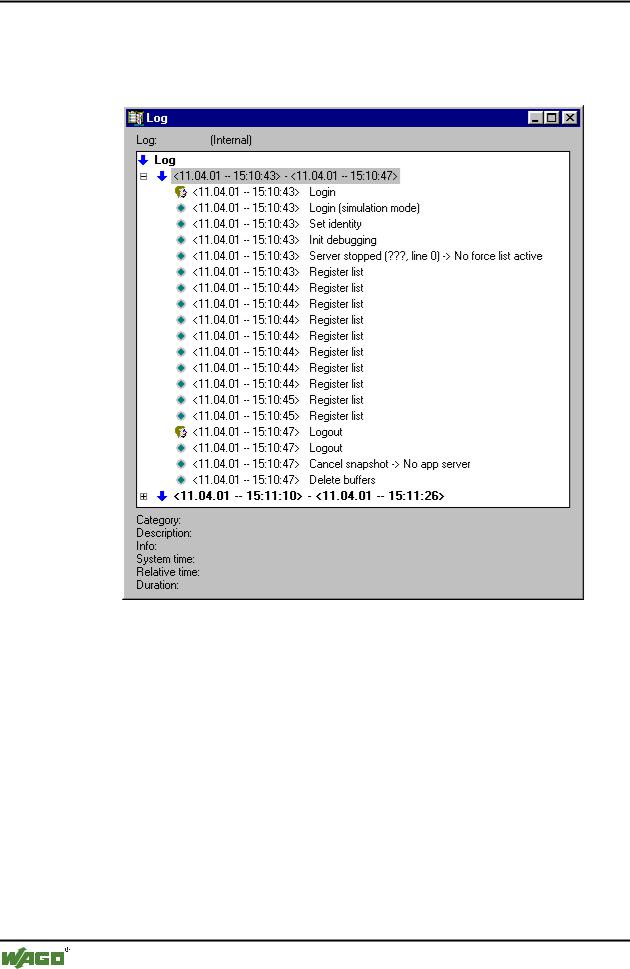
x Log window
In the log window, the filename of the currently displayed log appears after Log:. If this is the log of the current project, the word "(Internal)" will be displayed.
Registered entries are displayed in the log window. The newest entry always appears at the bottom.
Only actions belonging to categories that have been activated in the 'Filter' field of the menu 'Project' 'Options' 'Log' will be displayed.
Available information concerning the currently selected entry is displayed below the log window:
Category: The category to which the particular log entry belongs. The following four categories are possible:
User action: The user has carried out an Online action (typically from the Online menu).
Internal action: An internal action has been executed in the Online layer (e.g. Delete Buffers or Init Debugging).
Status change: The status of the runtime system has changed (e.g. from Running to Break, if a breakpoint is reached).
Exception: An exception has occurred, e.g. a communication error. Description: The type of action. User actions have the same names as their corresponding menu commands; all other actions are in English and have the
same name as the corresponding OnlineXXX() function.
Info: This field contains a description of an error that may have occurred during an action. The field is empty if no error has occurred.
System time: The system time at which the action began, to the nearest second.
WAGO-I/O-SYSTEM 759 WAGO-I/O-PRO 32
150• Components of WAGO-I/O-PRO 32
Log
Relative time: The time measured from the beginning of the Online session, to the nearest millisecond.
Duration: Duration of the action in milliseconds.
4.7.2 Menu Log
When the log window has the input focus, the menu option Log appears in the menu bar instead of the items 'Extras' and 'Options'.
The menu includes the following items:
Load… |
An external log file *.log can be loaded and displayed using the |
|
standard file open dialog. |
|
The log that is present in the project will not be overwritten by the |
|
command. If the log window is closed and later opened again, or |
|
a new Online session is started then the version that is loaded will |
|
again be replaced by the project log. |
WAGO-I/O-SYSTEM 759 WAGO-I/O-PRO 32
|
Components of WAGO-I/O-PRO 32 |
• 151 |
|
Window set up |
|
|
|
|
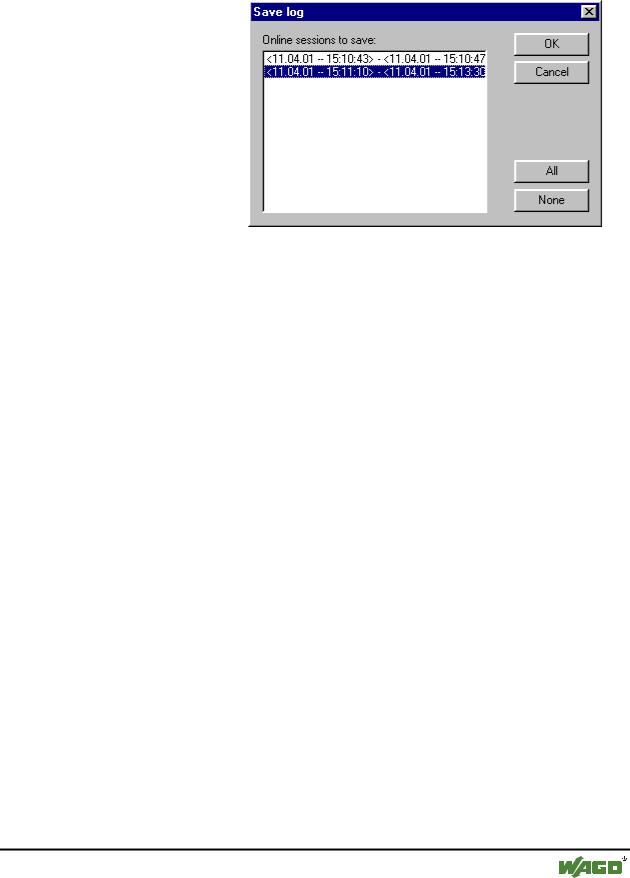
Save… |
This menu item can only be selected if the project log is currently |
|
|
displayed. It allows an excerpt of the project log to be stored in an |
|
|
external file. For that, the following dialog will be displayed, in |
|
|
which the Online sessions to be stored can be selected: |
|
After successful selection, the standard dialog for storing a file opens ('Save Log').
Display Project Log This command can only be selected if an external log is currently displayed. It switches the display back to the project log.
4.7.3 Storing the project log
Regardless of whether or not the log is stored in an external file (see above), the project log is automatically stored in a binary file entitled <projectname>.log. If a different path is not explicitly given in the 'Project' 'Options' 'Log' dialog, the file is stored in the same directory as that in which the project is stored.
The maximum number of Online sessions to be stored can be entered in the 'Project' 'Options' 'Log' dialog. If this number is exceeded during recording, the oldest session is deleted to make room for the newest one.
4.8 Window set up
Under the 'Window' menu item you will find all commands for managing the windows. There are commands both for the automatic set up of your window as well as for opening the library manager and for changing between open windows. At the end of the menu you will find a list of all open windows in the sequence they were opened. You can switch to the desired window by clicking the mouse on the relevant entry. A check will appear in front of the active window.
4.8.1 'Window' 'Tile Horizontal'
With this command you can arrange all the windows horizontally in the work area so that they do not overlap and will fill the entire work area.
WAGO-I/O-SYSTEM 759 WAGO-I/O-PRO 32

152• Components of WAGO-I/O-PRO 32
Help when you need it
4.8.2 'Window' 'Tile Vertical'
With this command you can arrange all the windows vertically in the work area so that they do not overlap and will fill the entire work area.
4.8.3 'Window' 'Cascade'
With this command you can arrange all the windows in the work area in a cascading fashion, one behind another.
4.8.4 'Window' 'Arrange Symbols'
With this command you can arrange all of the minimized windows in the work area in a row at the lower end of the work area.
4.8.5 'Window' 'Close All'
With this command you can close all open windows in the work area.
4.8.6 'Window' 'Messages'
Shortcut: <Shift>+<Esc>
With this command you can open or close the message window with the messages from the last compiling, checking, or comparing procedure.
If the messages window is open, then a check ( ) will appear in front of the command.
4.9 Help when you need it
An Online Help system is available to you for using WAGO-I/O-PRO 32. There you will find all the information that is also contained in this handbook.
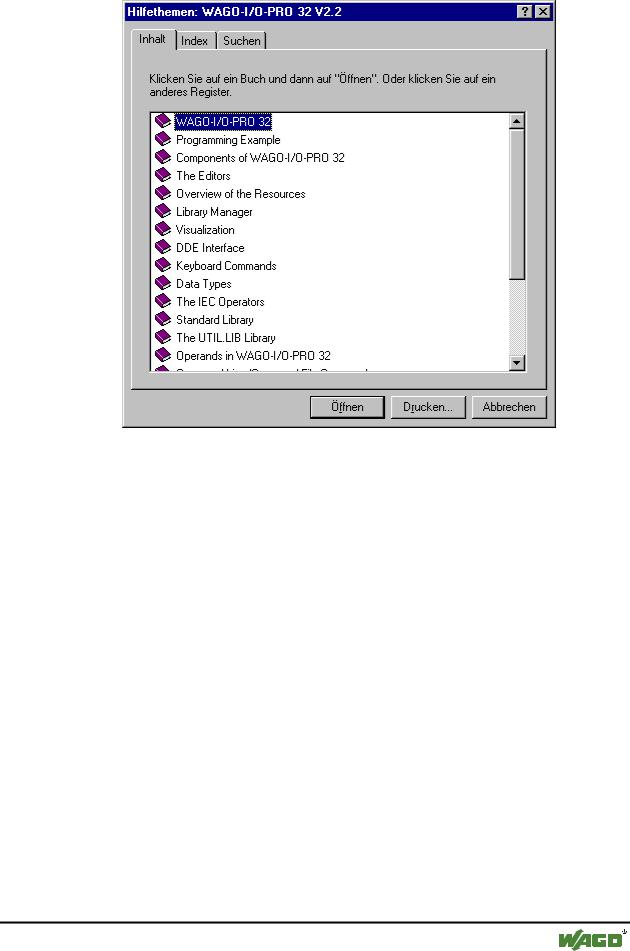
4.9.1 'Help' 'Contents and Index'
With this command you can open the help topics window.
Under the Contents register card you will find the contents. The books can be opened and closed using a doubleclick or the corresponding button. Doubleclicking or activating the Show button on a highlighted topic will display the topic in the main window of help or in the index window.
Click on the Index register card to look for a specific word, and click on the Search register card to select a full-text search. Follow the instructions in the register cards.
x Help Topics Window
WAGO-I/O-SYSTEM 759 WAGO-I/O-PRO 32
Components of WAGO-I/O-PRO 32 |
• 153 |
Help when you need it |
|
|
|
4.9.2 Main Help Window
In the main help window topics are displayed with index entries listed below them.
The following buttons available:
Help topics opens the help topics window
Back shows the help entry that was previously displayed
Print opens the dialog box for printing
<< shows the help entry that comes prior in sequence to the present entry
>> shows the help entry that is next in sequence
In addition you can use the following menu commands:
With 'File' ''Print Topics' you can print out the present help entry.
If you use the 'Edit' "Copy" command, the selected text will be copied into the clipboard. From here you can insert the text into other applications and use it there.
If you use the 'Edit' "Annotate" command, a dialog box will be opened. There is an editing field on the left side of the dialog box in which you can enter an annotation to the help page.
On the right side there are buttons for storing the text, for canceling the program, for deleting the notation, for copying a highlighted text on the clipboard , and for pasting a text from the clipboard.
WAGO-I/O-SYSTEM 759 WAGO-I/O-PRO 32