Материал: m912201e
Components of WAGO-I/O-PRO 32 |
• 109 |
Managing Projects |
|
|
|
4.3.21'Project' 'Global Search'
With this command you can search for the location of a text in POUs, data types, or in the objects of the global variables.
When the command is entered, a dialog box opens in which you can choose the desired object. The selection is made as in the 'Project' 'Document' description.
If the selection is confirmed with OK, the standard dialog for Search will be opened. This appears immediately when the command 'Global Search' is
invoked via the symbol  in the menu bar; the search is then automatically carried out in all searchable parts of the project. The most recently entered search strings can be selected through the combo box of the Search for field. If a text string is found in an object, the object is loaded into the corresponding editor or in the library manager and the location where the string was found is displayed. The display of the text that is found, as well as the search and find next functions behave similarly to the command 'Edit' 'Search'.
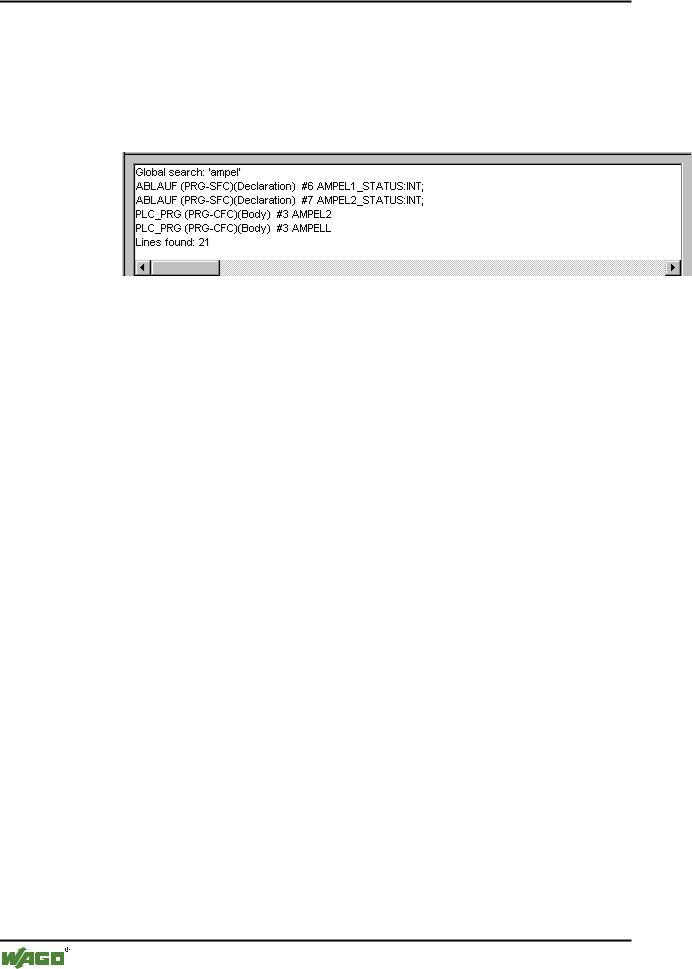
If you select the In message window button, all locations where the series of symbols searched for appears in the selected object will be listed line by line in tabular form in the message window. Afterward, the number of locations found will be displayed.
If the report window was not opened, it will be displayed. For each location that is found, the following will be displayed:
Object name
WAGO-I/O-SYSTEM 759 WAGO-I/O-PRO 32
110• Components of WAGO-I/O-PRO 32
Managing Projects
Location of the find in the Declaration (Decl) or in the Implementation (Impl) portion of a POU
Line and network number if any
The full line in the text editors
Complete text element in the graphic editors
x Message window with search result display
If you double-click the mouse on a line in the message window or press <Enter>, the editor opens with the object loaded. The line concerned in the object is marked. You can jump rapidly between display lines using the function keys <F4> and <Shift>+<F4>.
4.3.22'Project' 'Global replace'
With this command you can search for the location of a text in POUs, data types, or the objects of the global variables and replace this text by another. This is executed in the same way as with 'Project' 'Global Search' or 'Edit' 'Replace'. The libraries, however, are not offered for selection and no display in the message window is possible.
Results are displayed in the message window.
4.3.23'Project' 'Check'
Each of these functions tests the state of the most recent compilation. The project must therefore have been compiled error-free at least once, before the test can be carried out; if not, the menu items are "greyed out".
4.3.23.1Unused Variables
This function in the 'Project' 'Check' menu searches for variables that have been declared but not used in the program. They are outputted by POU name and line, e.g.: PLC_PRG (4) – var1. Variables in libraries are not examined.
Results are displayed in the message window.
4.3.23.2Overlapping memory areas
This function in the 'Project' 'Check' menu tests whether in allocation of variables via the "AT" declaration overlaps have arisen at specific memory areas. For example, an overlap occurs when allocating the variables "var1 AT %QB21: INT" and "var2 AT %QD5: DWORD" because they both use byte 21. The output then appears as follows:
WAGO-I/O-SYSTEM 759 WAGO-I/O-PRO 32

Components of WAGO-I/O-PRO 32 |
• 111 |
Managing Projects |
|
|
|
%QB21 is referenced by the following variables:
PLC_PRG (3): var1 AT %QB21
PLC_PRG (7): var2 AT %QD5
Results are displayed in the message window.
4.3.23.3Access conflict
This function in the 'Project' 'Check' menu searches for memory areas which are referenced in more than one task. No distinction is made here between read and write access. The output is for example:
%MB28 is referenced in the following tasks:
Task1 – PLC_PRG (6): %MB28 [read-only access]
Task2 – POU1.ACTION (1) %MB28 [write access]
Results are displayed in the message window.
4.3.23.4Multiple writes to output
This function of the 'Project' 'Check' menu searches for memory areas to which a single project gains write access at more than one place. The output then appears as follows:
%QB24 is written to at the following locations:
PLC_PRG (3): %QB24
PLC_PRG.POU1 (8): %QB24
Results are displayed in the message window.
4.3.23.5User groups
In WAGO-I/O-PRO 32 up to eight user groups with different access rights to the POUs, data types, visualizations, and resources can be set up. Access rights for single objects or all of them can be established. Only a member of a certain user group can open a project. A member of such a user group must identify himself by means of a password.
The user groups are numbered from 0 to 7, whereby the Group 0 has the administrator rights, i.e. only members of group 0 may determine passwords and access rights for all groups and/or objects.
When a new project is launched, then all passwords are initially empty. Until a password has been set for the 0 group, one enters the project automatically as a member of the 0 group.
WAGO-I/O-SYSTEM 759 WAGO-I/O-PRO 32
112• Components of WAGO-I/O-PRO 32
Managing Projects
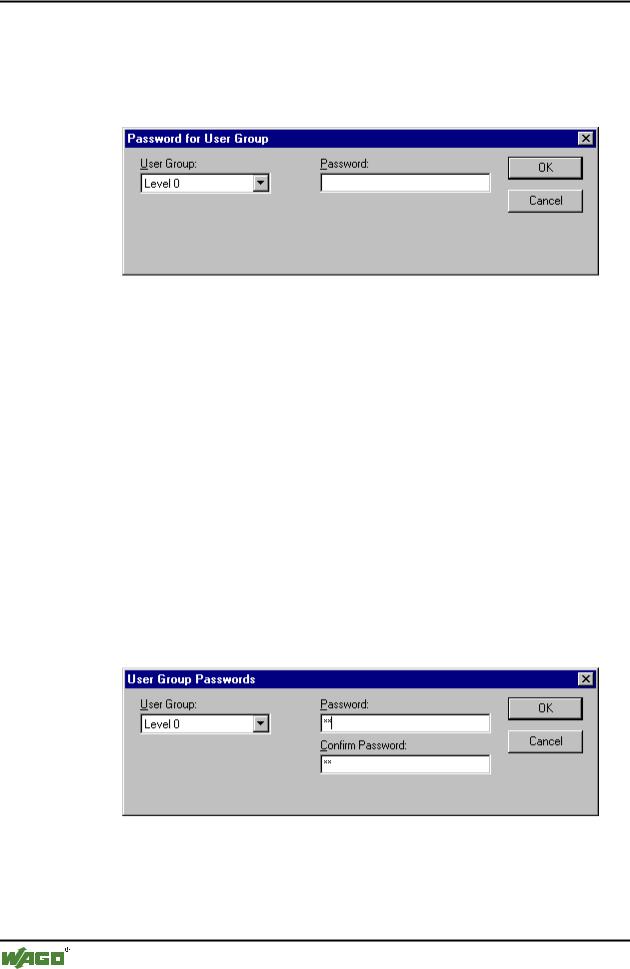
If a password for the user group 0 is existing while the project is loaded, then a password will be demanded for all groups when the project is opened. For this the following dialog box appears:
x Dialog box for password entry
In the combobox User group on the left side of the dialog box, enter the group to which you belong and enter on the right side the relevant password. Press OK. If the password does not agree with the saved password, then the message appears:
"The password is not correct."
Only when you have entered the correct password the project can be opened.
With the command 'Passwords for user group' you can assign the passwords, and with 'Object' 'Access rights' you can define the rights for single objects or for all of them.
4.3.24'Project' 'Passwords for user groups'
With this command you open the dialog box for password assignment for user groups. This command can only be executed by members of group 0. When the command has been given, then the following dialog box appears:
x Dialog box for password assignment
In the left combobox User group you can select the group. Enter the desired password for the group in the field Password. For each typed character an asterisk (*) appears in the field. You must repeat the same password in the field Confirm password. Close the dialog box after each password entry with OK. If you get the message:
WAGO-I/O-SYSTEM 759 WAGO-I/O-PRO 32
Components of WAGO-I/O-PRO 32 |
• 113 |
Managing Objects in a Project |
|
|
|
"The password does not agree with the confirmation",
then you made a typing error during one of the two entries. In this case repeat both entries until the dialog box closes without a message.
Then, if necessary, assign a password for the next group by calling the command again.
Note:
If passwords are not assigned to all user groups, a project can be opened by way of a group to which no password was assigned!
Use the command 'Object' 'Access rights' to assign the rights for single objects or all of them.
4.4 Managing Objects in a Project
Now we shall explain how to work with objects and what help is available to keep track of a project (Folders, Call tree, Cross reference list,..).
4.4.1 Object
POUs, data types, visualizations and the resources global variables, the variable configuration, the Sampling Trace, the PLC Configuration, the Task Configuration, and the Watch and Receipt Manager are all defined as "objects". The folders inserted for structuring the project are partially involved. All objects of a project are in the Object Organizer.
If you hold the mouse pointer for a short time on a POU in the Object Organizer, then the type of the POU (Program, Function or Function block) is shown in a Tooltip. For the global variables the tooltip shows the keyword (VAR_GLOBAL, VAR_CONFIG).
With drag & drop you can shift objects (and also folders, see 'Folder') within an object type. For this, select the object and shift it to the desired spot by holding down the left mouse button. If the shift results in a name collision, the newly introduced element will be uniquely identified by an appended, serial number (e.g. "Object_1").
4.4.2 Folder
In order to keep track of larger projects you should group your POUs, data types, visualizations, and global variables systematically in folders.
You can set up as many levels of folders as you want. If a plus sign is in front
of a closed folder symbol  , then this folder contains objects and/or additional folders. With a click on the plus sign the folder is opened and the subordinated objects appear. With a click on the minus (which has replaced the plus sign) the folder can be closed again. In the context menu you find the commands 'Expand nodes' and 'Collapse nodes' with the same functions.
WAGO-I/O-SYSTEM 759 WAGO-I/O-PRO 32