Материал: m912201e
Components of WAGO-I/O-PRO 32 |
• 99 |
Managing Projects |
|
|
|
Please check that the translated Identifier and Names remain valid concerning the standard and that strings and comments are in correct brackets.
Note:
The following parts of a translation file should not be modified without detailed knowledge: Language block, Flag block, Position information, Original texts.
4.3.14.3Translate Project (into another Language)
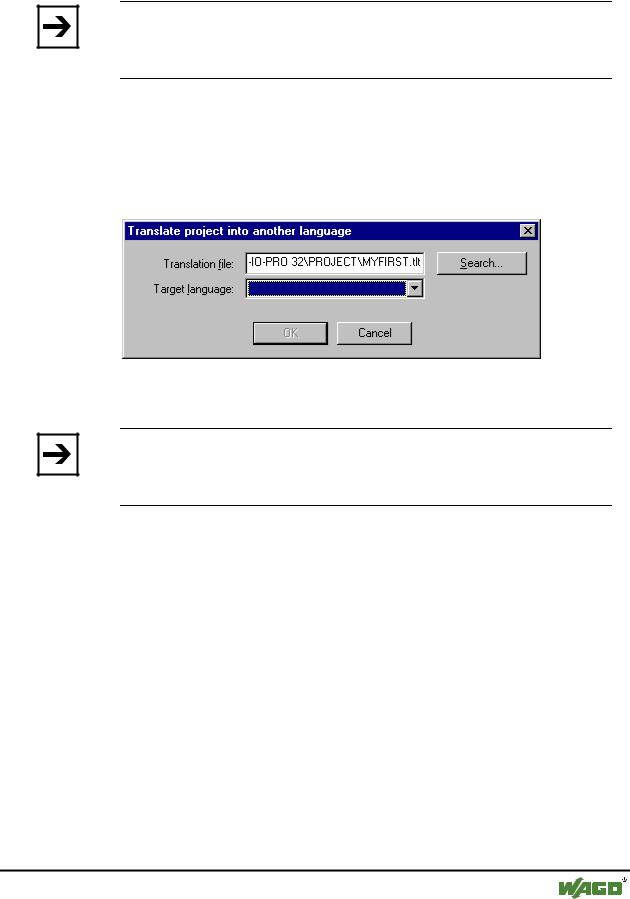
This command in the 'Project' 'Translate into Another Language' menu opens the 'Translate Project into Another Language' dialog.
x Dialog for translating the project into another language
The current project can be translated into another language if an appropriate translation file is used.
Note:
If you want to save the version of the project in the language in which it was originally created, save a copy of the project prior to translation under a different name. The translation process cannot be undone.
In the field Translation file, provide the path to the translation file to be used. By pressing Search you may access the standard Windows file selection dialog.
The field Target language contains a list of the language identifiers entered in the translation file, from which you can select the desired target language.
OK starts the translation of the current project into the chosen target language with the help of the specified translation file. During translation, a progress dialog is displayed, as well as error messages, if any. After translation, the dialog box and all open editor windows of the project are closed.
Cancel closes the dialog box without modification to the current project.
If the translation file contains erroneous entries, an error message is displayed after OK is pressed, giving the file path and the erroneous line, e.g.: "[C:\Programs\WAGO-I/O-PRO 32\projects\visu.tlt (78)]; Translation text expected"
WAGO-I/O-SYSTEM 759 WAGO-I/O-PRO 32
100• Components of WAGO-I/O-PRO 32
Managing Projects
4.3.15'Project' 'Document'
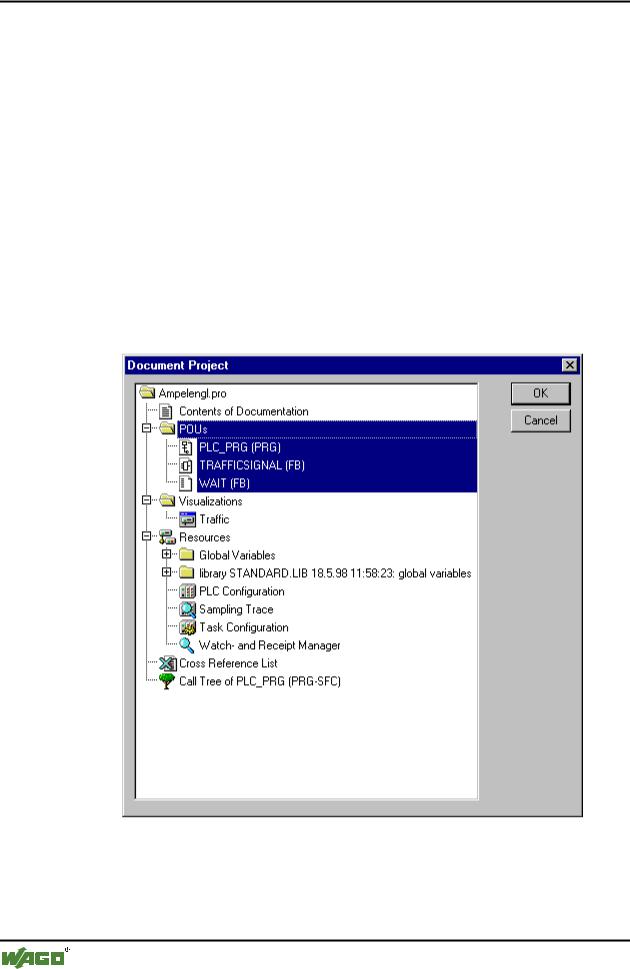
This command lets you print the documentation of your entire project. The elements of a complete documentation are:
The POUs,
the contents of the documentation,
the data types,
the visualizations
the resources ,global variables, variables configuration, the Sampling Trace, the PLC Configuration, the Task Configuration, the Watch and Receipt Manager)
the call trees of POUs and data types, as well as
the cross reference list.
For the last two items the project must have been built without errors. x Dialog box for project documentation
Only those areas in the dialog box are printed which are highlighted in blue.
If you want to select the entire project, then select the name of your project in the first line.
WAGO-I/O-SYSTEM 759 WAGO-I/O-PRO 32
Components of WAGO-I/O-PRO 32 |
• 101 |
Managing Projects |
|
|
|
If, on the other hand, you only want to select a single object, then click on the corresponding object or move the dotted rectangle onto the desired object with the arrow key. Objects which have a plus sign in front of their symbols are organization objects which contain other objects. With a click on a plus sign organization object is expanded, and with a click on the resulting minus sign it can be closed up again. When you select an organization object, then all relevant objets are also selected. By pressing the <Shift> key you can select a group of objects, and by pressing the <Ctrl> key you can select several individual objects.
Once you have made your selection, then click on OK. The Print dialog box appears. You can determine the layout of the pages to be printed with 'File' 'Printer setup'.
4.3.16'Project' 'Export'
With WAGO-I/O-PRO 32 projects can be exported or imported. That allows you to exchange programs between different IEC programming systems.
There is a standardized exchange format for POUs in IL, ST, and SFC (the Common Elements format of IEC 1131-3). For the POUs in LD and FBD and the other objects WAGO-I/O-PRO 32 has its own filing format since there is no text format for this in IEC 1131- 3.
The selected objects are written to an ASCII file.
POUs, data types, visualizations, and the resources can be exported. In addition, entries in the library manager, that is the linking information to the libraries, can be exported (not the libraries themselves!).
Note:
Re-importing an exported FBD or LD POU results in an error if a comment in the graphical editor contains a single quotation mark ('), as this will be interpreted as the beginning of a string !
Once you have made your selection in the dialog box window (the same way as with 'Project' 'Document' ), you can decide, whether you want to export the selected parts to one file or to export in separate files, one for each object.
Switch on or off the option One file for each object then click on OK. The dialog box for saving files appears. Enter a file name with the expansion ".exp" respectively a directory for the object export files, which then will be saved there with the file name <objectname.exp>.
4.3.17'Project' 'Import'
In the resulting dialog box for opening files select the desired export file.
The data is imported into the current project. If an object with the same name already exists in the same project, then a dialog box appears with the question "Do you want to replace it?": If you answer Yes, then the object in the project
WAGO-I/O-SYSTEM 759 WAGO-I/O-PRO 32

102• Components of WAGO-I/O-PRO 32
Managing Projects
is replaced by the object from the import file. If you answer No, then the name of the new objects receives as a supplement an underline and a digit ("_0", "_1", ..). With Yes, all or No, all this is carried out for all objects.
If the information is imported to link with a library, the library will be loaded and appended to the end of the list in the library manager. If the library was already loaded into the project, it will not be reloaded. If, however, the export file that is being imported shows a different storage time for the library, the library name is marked with a "*" in the library manager (e.g. standard.lib*30.3.99 11:30:14), similar to the loading of a project. If the library can not be found, then an information dialog appears: "Cannot find library {<path>\}<name> <date> <time>", as when a project is loaded.
In the message window the import is registered.
4.3.18'Project' 'Merge'
With this command you can merge objects (POUs, data types, visualizations, and resources) as well as links to libraries from other projects into your project.
When the command has been given, first the standard dialog box for opening files appears. When you have chosen a file there, a dialog box appears in which you can choose the desired object. The selection takes place as described with 'Project' 'Document' .
If an object with the same name already exists in the project, then the name of the new object receives the addition of an underline and a digit ("_1", "_2" ...).
4.3.19'Project' 'Compare'
This command is used to compare two projects or to compare the actual version of one project with that which was saved last.
Overview:
In the following the name 'actual project' will be used for the project which is currently under way, the name 'reference project' will be used for that project which has been called to get compared with.
After the command has been executed, the actual project and the reference project will be presented in 'compare mode' in a bipartited window. The names of the POUs, for which differences have been found, are marked by color. For editor POUs also the content of the POUs is displayed in a vis-a-vis way. The results and the way of presenting in compare mode depend on: 1. what filters have been activated for the compare run, affecting the consideration of whitespaces and comments during comparison; 2. whether modification within lines or networks or elements are evaluated as a completely new inserting of a POU or not.
WAGO-I/O-SYSTEM 759 WAGO-I/O-PRO 32
Components of WAGO-I/O-PRO 32 |
• 103 |
Managing Projects |
|
|
|
The version of the reference project can be accepted for single diffences or for 'all equally marked' differences. To accept means that the version of the reference project is taken over to the actual project.
Note:
In compare mode (see status bar: COMPARE) the project cannot get edited
!
Execute comparison:
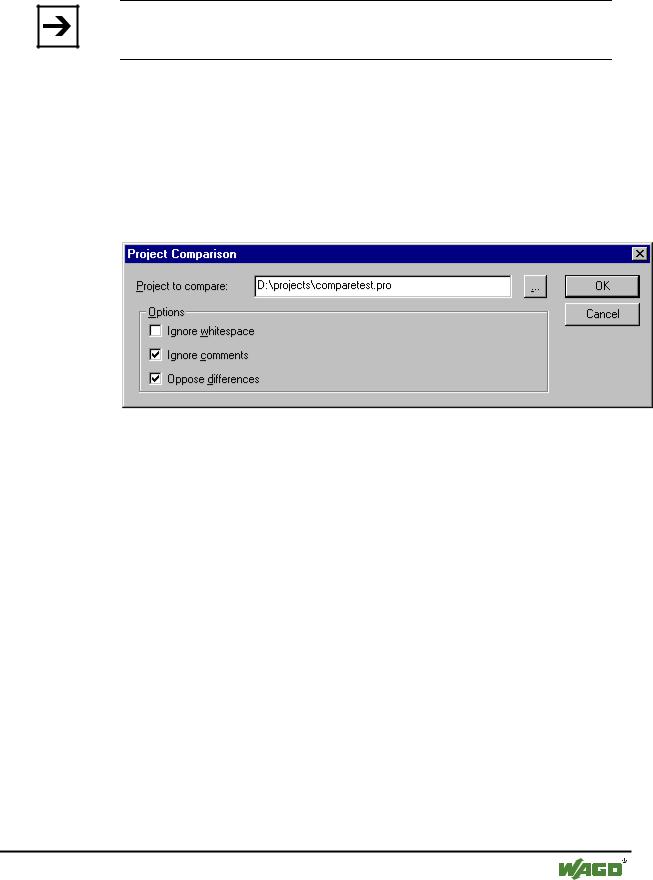
After executing the command 'Project' 'Compare' the dialog 'Project
Comparison' opens:
x Dialog for Project Comparison
Insert the path of the reference project at Project to compare. Press button
 if you want to use the standard dialog for opening a project. If you insert the name of the actual project, the current version of the project will be compared with the version which was saved last.
The following options concerning the comparison can be activated:
Ignore whitespaces: There will be detected no differences which consist in a different number of whitespaces.
Ignore comments: There will be detected no differences in comments.
Oppose differences: If a line, a network or an element wihthin a POU has been modified, in compare mode it will be displayed in the bipartited window directly opposite to the version of the other project (marked red, see below). If the option is deactivated, the corresponding line will be displayed in the reference project as 'deleted' and in the actual project as 'inserted' (blue/green, see below). This means it will not be displayed directly opposite to the same line in the other project.
Example:
Line 0005 has been modified in actual project (left side).
WAGO-I/O-SYSTEM 759 WAGO-I/O-PRO 32