Материал: m912201e
Components of WAGO-I/O-PRO 32 |
• 79 |
Options |
|
|
|
command 'Online' 'Create Boot project' sets up the boot project on the controller.
When an option is activated, a check appears next to the option.
By entering a Number of data you can determine how many storage segments are to be reserved for your project data in the controller. This space is required so that an Online Change can still be carried out when new variables are added. If during compilation the message "The global variables require too much storage; increase the number you have entered here".
In order to exert control over the compilation process you can set up two macros: the macro in the Macro before compile field is executed before the compilation process; the macro in the Macro after compile field afterwards. The following macro commands can not, however, be used here: file new, file open, file close, file save as, file quit, online, project compile, project check, project build, debug, watchlist.
All entries in the Build Options dialog are stored with the project.
When an option is activated, a check appears in front of it.
4.2.10Passwords
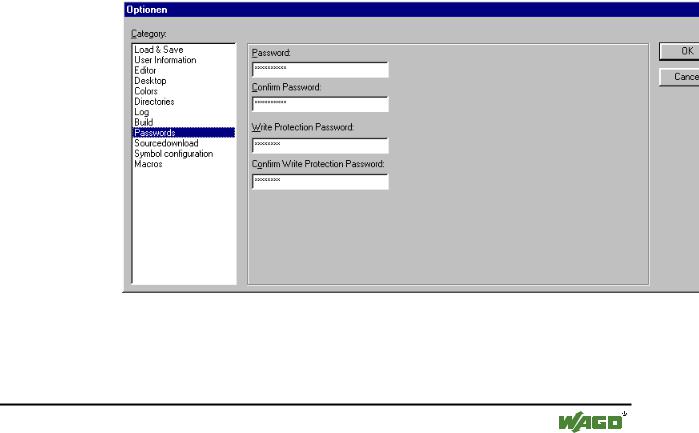
If you choose this category in the Options dialog box, then you get the following dialog box:
x Options dialog box of the category Passwords
To protect your files from unauthorized access WAGO-I/O-PRO 32 offers the option of using a password to protect against your files being opened or changed.
WAGO-I/O-SYSTEM 759 WAGO-I/O-PRO 32

80• Components of WAGO-I/O-PRO 32
Options
Enter the desired password in the field Password. For each typed character an asterisk (*) appears in the field. You must repeat the same word in the field Confirm Password. Close the dialog box with OK. If you get the message:
"The password does not agree with the confirmation",
then you made a typing error during one of the two entries. In this case repeat both entries until the dialog box closes without a message.
If you now save the file and then reopen it, then you get a dialog box in which you are requested to enter the password. The project can then only be opened if you enter the correct password. Otherwise WAGO-I/O-PRO 32 reports:
"The password is not correct."
Along with the opening of the file, you can also use a password to protect against the file being changed. For this you must enter a password in the field Write Protection Password and confirm this entry in the field underneath.
A write-protected project can be opened without a password. For this simply press the button Cancel, if WAGO-I/O-PRO 32 tells you to enter the writeprotection password when opening a file. Now you can compile the project, load it into the PLC, simulate, etc., but you cannot change it.
Of course it is important that you memorize both passwords. However, if you should ever forget a password, then contact the manufacturer of your PLC.
The passwords are saved with the project.
In order to create differentiated access rights you can define user groups and "Passwords for user groups").
4.2.11'Sourcedownload'
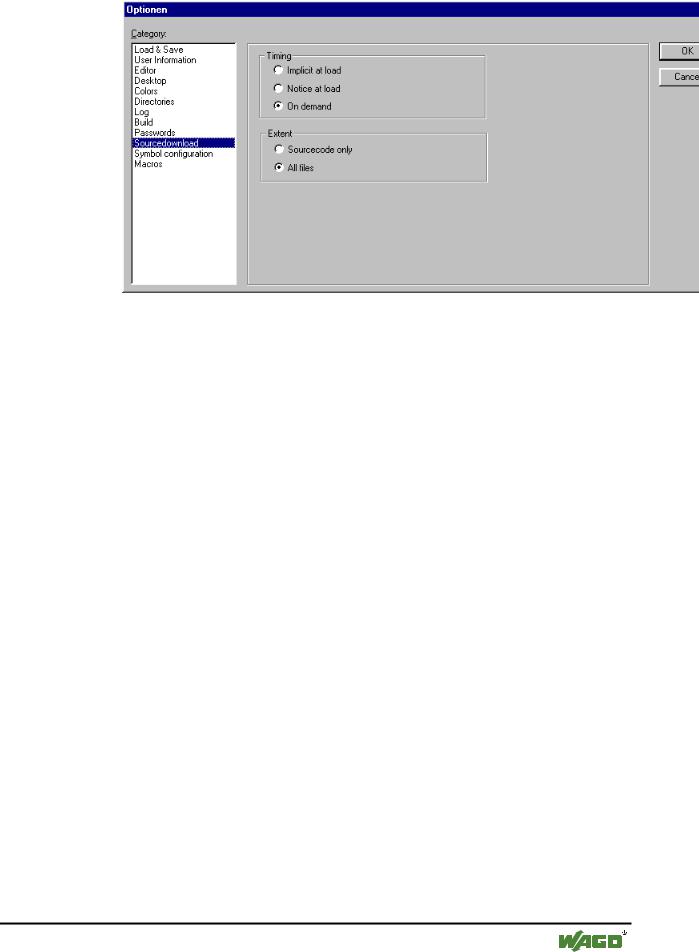
The following dialog will be opened when you select this category:
x Option dialog for the category Sourcedownload
WAGO-I/O-SYSTEM 759 WAGO-I/O-PRO 32
Components of WAGO-I/O-PRO 32 |
• 81 |
Options |
|
|
|
You can choose to which Timing and what Extent the project is loaded into the controller system. The option Sourcecode only exclusively involves just the WAGO-I/O-PRO 32 file (file extension .pro). The option All files also includes files such as the associated library files, visualization bitmaps, configuration files, etc.
Using the option Implicit at load allows the selected file range to be automatically loaded into the controller system on the command 'Online' 'Download'.
Using the option Notice at load offers a dialog, when the command 'Online' 'Download' is given, with the question "Do you want to write the source code into the controller system?". Pressing Yes will automatically load the selected range of files into the controller system, or you can alternatively finish with
No.
When using the option On demand the selected range of files must be expressly loaded into the controller system by giving the command 'Online' 'Sourcecode download'.
The project which is stored in the controller system can be retrieved by using 'File' 'Open' with Open project from PLC. The files will be unpacked in the process.
4.2.12Options for 'Symbol Configuration'
The dialog presented here is used for configuring the symbol file (text file *.sym and binary file *.sdb). These are necessary for data exchange with the controller via the symbol interface and are used for that purpose e.g. by OPCor GatewayDDE-Server.
If the option Create symbol entries is selected, then symbol entries for the project variables are automatically created in the file at each compilation of the project.
WAGO-I/O-SYSTEM 759 WAGO-I/O-PRO 32
82• Components of WAGO-I/O-PRO 32
Options
Note:
If option 'Symbol config from INI-file' is activated, then the symbol configuration will be read from the WAGO-I/O-PRO 32.ini file or from another ini-file which is defined there. (In this case the dialog 'Set object attributes' in WAGO-I/O-PRO 32 cannot be edited).
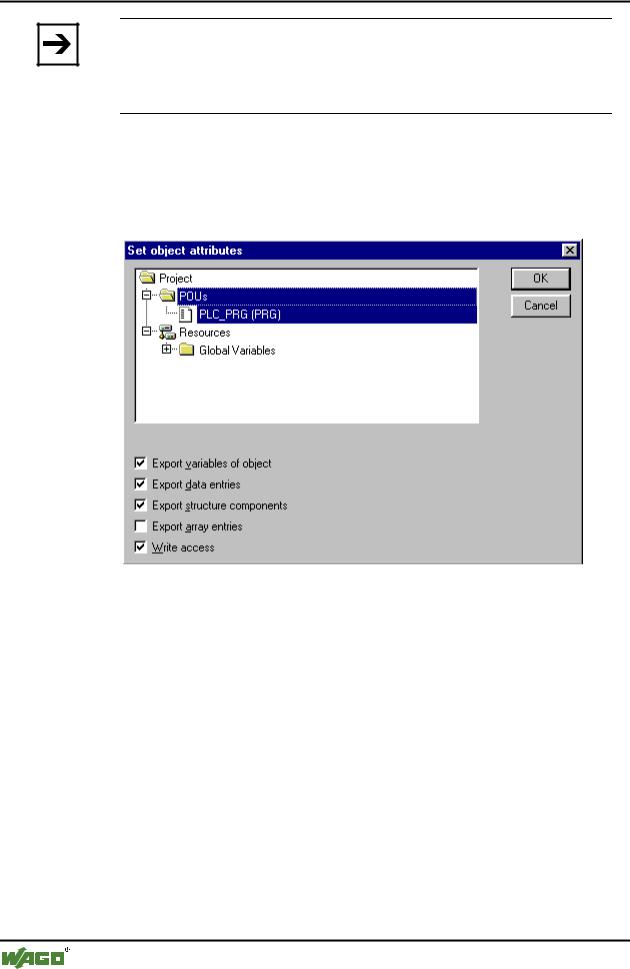
If option 'Symbol config from INI-file' is not activated, the symbol entries will be generated in accordance with the settings you can make in the 'Set object attributes' dialog. You get there using the Configure symbol file button:
x Set object attributes dialog (in option category Symbol configuration)
Use the tree-structured selection editor to select project POUs and set the desired options in the lower part of the dialog box by clicking the mouse on the corresponding small boxes. Activated options are checked. The following options can be set:
Export variables of object: The variables of the selected object are exported in the symbol file.
The following options can take effect only if the Export variables of object option is activated:
Export data entries: Entries for access to the global variables are created for object's structures and arrays.
Export structure components: An individual entry is created for each variable component of object's structures.
Export array entries: An individual entry is created for each variable component of object's arrays.
WAGO-I/O-SYSTEM 759 WAGO-I/O-PRO 32
Components of WAGO-I/O-PRO 32 |
• 83 |
Options |
|
|
|
Write Access: Object's variables may be changed by the OPC server.
Once the option settings for the currently selected POU are complete, other POUs can be also be selected and given an option configuration. This can be carried out for any desired number of POU selections, one after the other. When the dialog box is closed by selecting OK, all configurations carried out since the dialog box was opened are applied.
4.2.13Options for 'Macros'
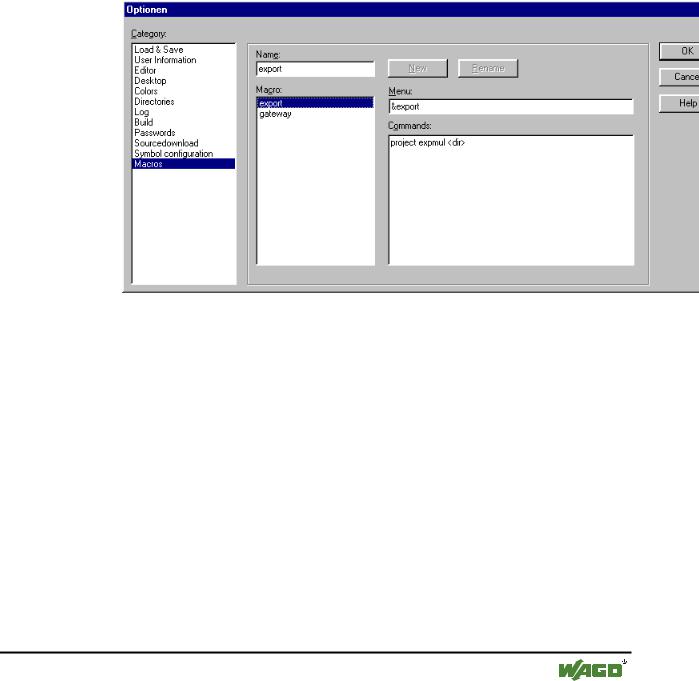
If you choose this category in the Options dialog, the following dialog box opens:
x Options dialog for the category Macros
In this dialog, macros can be defined using the commands of the WAGO-I/O- PRO 32 batch mechanism, which can then be called up in the 'Edit' 'Macros' menu.
In the input field Name, you enter a name for the macro to be created. After the New button is pressed, this name is transferred into the Macro field and marked as selected there. If the focus is on a selected macro, it can be deleted using the <Del> key or given a new name entered in Name by pressing the Rename button.
In the editor field Commands you define and/or edit the commands that are to constitute the newly created or selected macro. All the commands of the WAGO-I/O-PRO 32 batch mechanism are allowed; you can obtain a list by pressing the Help button.
A new command line is started by pressing <Ctrl><Enter>. The context menu with the common text editor functions is obtained by pressing the right mouse button. Command components that belong together can be grouped using quotation marks.
WAGO-I/O-SYSTEM 759 WAGO-I/O-PRO 32