Материал: m912201e
Components of WAGO-I/O-PRO 32 |
• 69 |
Options |
|
|
|
If you choose the option Create Backup, then WAGO-I/O-PRO 32 creates a backup file at every save with the extension ".bak". In this way you can always restore the versions before the last save.
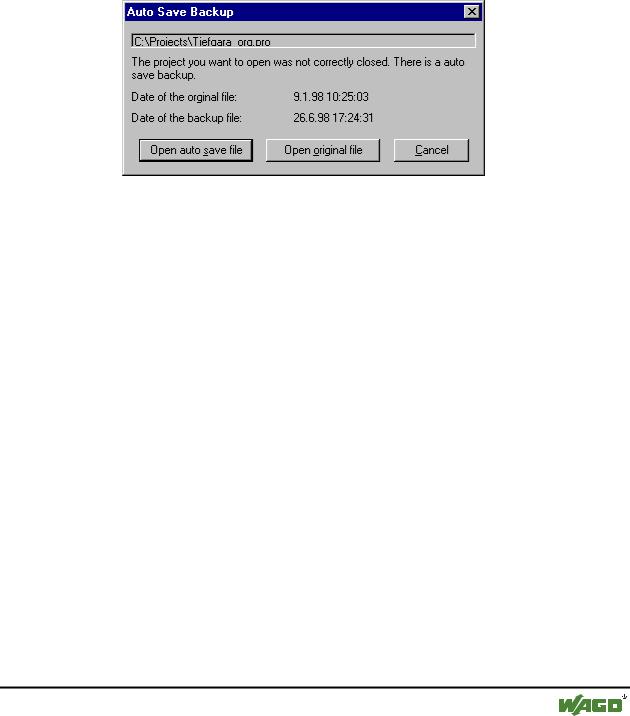
If you choose the option Auto Save , then while you work your project is constantly saved to a temporary file with the extension ".asd" according to a set time interval (Auto Save Interval). This file is erased at a normal exit from the program. If for any reason WAGO-I/O-PRO 32 is not shut down "normally" (e.g. due to a power failure), then the file is not erased. When you open the file again the following message appears:
x There is an auto save backup.
You can now decide whether you want to open the original file or the auto save file.
Ask for project info: When saving a new project or saving a project under a new name, the project info is automatically called. You can visualize the project info with the command 'Project' 'Project info' and also process it.
Auto Load:At the next start of WAGO-I/O-PRO 32 the last open project is automatically loaded. The loading of a project at the start of WAGO-I/O-PRO 32 can also take place by entering the project in the command line.
Save before compile: The project is saved before each compilation.
4.2.3 Options for User information
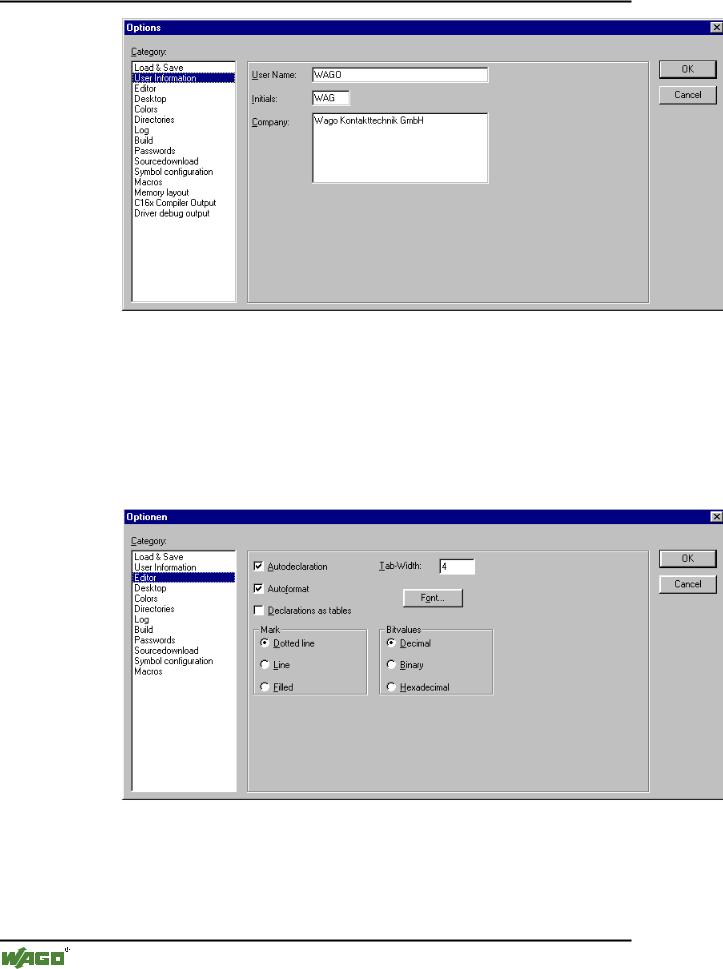
If you choose this category in the Options dialog box, then you get the following dialog box:
x Options dialog box of the category User information
WAGO-I/O-SYSTEM 759 WAGO-I/O-PRO 32
70• Components of WAGO-I/O-PRO 32
Options
To User information belong the Name of the user, his Initials and the Company for which he works. Each of the entries can be modified.
4.2.4 Options for Editor
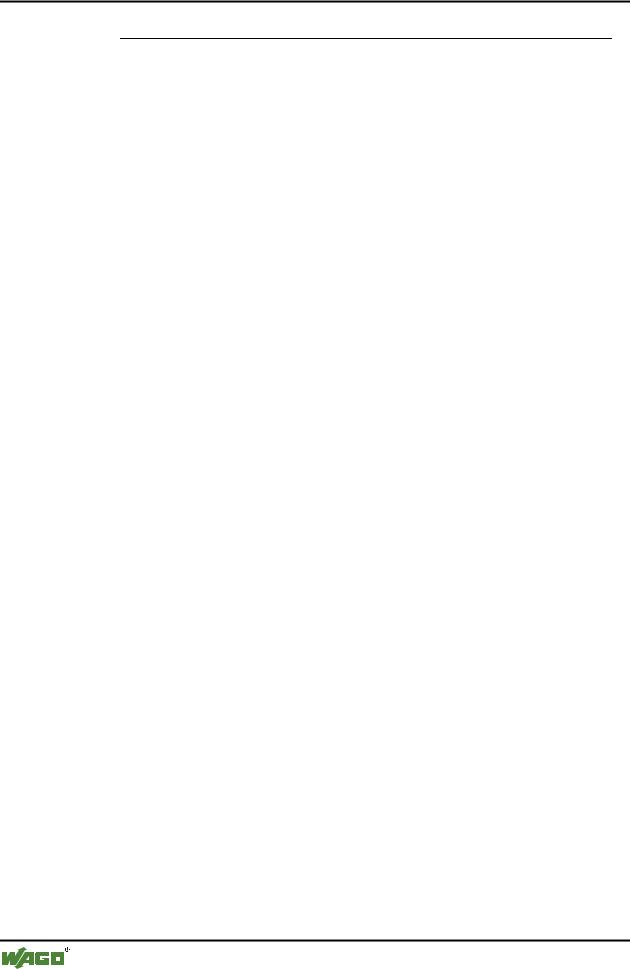
If you choose this category in the Options dialog box, then you get the following dialog box:
x Options dialog box of the category Editor
When activating an option, a check ( ) appears before the option.
You can make the following settings for the Editors:
Autodeclaration
Autoformat
WAGO-I/O-SYSTEM 759 WAGO-I/O-PRO 32

Components of WAGO-I/O-PRO 32 |
• 71 |
Options |
|
|
|
Declaration as table
Tab width
Font
Display of the text selection (Mark)
Display of the Bitvalues
4.2.4.1Autodeclaration
If you have chosen the Autodeclaration option in the Editor category of the options dialog box, then (following the input of a not-yet-declared variable) a dialog box will appear in all editors with which this variable can be declared.
When an option is activated, a check appears in front of it.
4.2.4.2 Autoformat
If the option Autoformat in the category Editor of the options dialog box has been chosen, then WAGO-I/O-PRO 32 executes automatic formatting in the IL editor and in the declaration editor. When you finish with a line, the following formatting is made:
Operators written in small letters are shown in capitals;
Tabs are inserted to that the columns are uniformly divided. When an option is activated, a check appears in front of it.
4.2.4.3Declarations as tables
If the option Declarations as tables in the Editor category in Options dialog box is selected, then you can edit variables in a table instead of using the usual declaration editor .
All editors for POUs (Program Organization Units) consist of a declaration part and a body. These are separated by a screen divider that can be dragged, as required, by clicking it with the mouse and moving it up or down. The body can consist of other a text or a graphic editor; the declaration portion is always a text editor.
4.2.4.4 Print margins
The vertical and horizontal margins that apply when the editor contents are printed, are shown by red dashed lines if the 'Show print range' option in the project options in the dialog 'Workspace' was selected. The properties of the printer that was entered apply, as well as the size of the print layout selected in the 'File' 'Printer Setup' menu. If no printer setup or no print layout is entered, a default configuration is used (Default.DFR and default printer). The horizontal margins are drawn as if the options 'New page for each object' or 'New page for each sub-object' were selected in 'Documentation settings'. The lowest margin is not displayed.
Note:
An exact display of the print margins is only possible when a zoom factor
WAGO-I/O-SYSTEM 759 WAGO-I/O-PRO 32
72• Components of WAGO-I/O-PRO 32
Options
of 100% is selected.
4.2.4.5 Comment
User comments must be enclosed in the special symbol sequences "(*" and "*)". Example: (*This is a comment.*)
Comments are allowed in all text editors, at any location desired, that is in all declarations, the IL and ST languages and in self-defined data types. If the Project is printed out using a template, the comment that was entered during variable declaration appears in text-based program components after each variable.
In the FBD and LD graphic editors, comments can be entered for each network. To do this, search for the network on which you wish to comment and activate 'Insert' 'Comment'. In CFC there are special comment POUs which can be placed at will.
In SFC, you can enter comments about a step in the dialog for editing step attributes.
Nested comments are also allowed if the appropriate option in the 'Project' 'Options' 'Build Options' dialog is activated.
In Online mode, if you rest the mouse cursor for a short time on a variable, the type and if applicable the address and comment of that variable are displayed in a tooltip.
Declaration Editor). This table is arranged as a card-index box in which there are register cards for input, output, local, and input/output variables. For each variable you have available the fields Name, Address, Type, Initial, and
Comment.
When an option is activated, a check appears in front of it.
4.2.4.6 Tab-Width
In the field Tab-Width in the category Editor of the Options dialog box you can determine the width of a tab as shown in the editors. The default setting is four characters, whereby the character width depends upon the font which is chosen.
4.2.4.7 Font
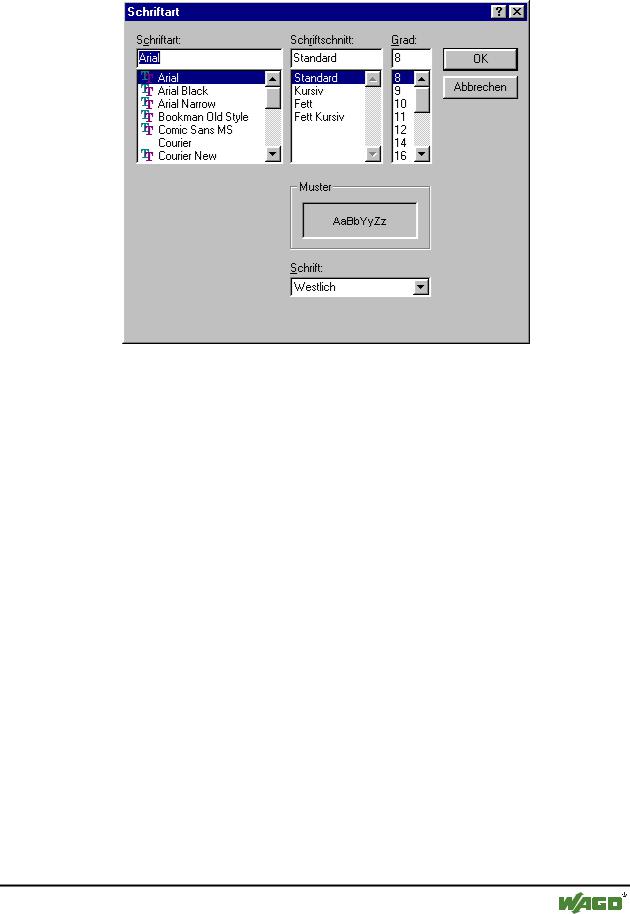
By clicking on the button Font in the category Editor of the Options dialog box you can choose the font in all WAGO-I/O-PRO 32 editors. The font size is the basic unit for all drawing operations. The choice of a larger font size thus enlarges the printout, even with each editor of WAGO-I/O-PRO 32.
After you have entered the command, the font dialog box opens for choosing the font, style and font size.
WAGO-I/O-SYSTEM 759 WAGO-I/O-PRO 32
Components of WAGO-I/O-PRO 32 |
• 73 |
Options |
|
|
|
x Dialog box for setting the font
4.2.4.8 Mark
When choosing Mark in the Editor category in the Options dialog box you can choose whether the current selection in your graphic editors should be represented by a dotted rectangle (Dotted), a rectangle with continuous lines (Line) or by a filled-in rectangle (Filled). In the last case the selection is shown inverted.
The selection is activated in front of which a ( ) point appears.
4.2.4.9 Bitvalues
When choosing Bitvalues in the category Editor of the Options dialog box you can choose whether binary data (type BYTE, WORD, DWORD) during monitoring should be shown Decimal, Hexadecimal, or Binary.
The selection is activated in front of which a ( ) point appears.
4.2.5 Options for the Desktop
If you choose this category in the Options dialog box, then you get the following dialog box:
x Options dialog box of the category Desktop
WAGO-I/O-SYSTEM 759 WAGO-I/O-PRO 32