Материал: m912201e
74• Components of WAGO-I/O-PRO 32
Options
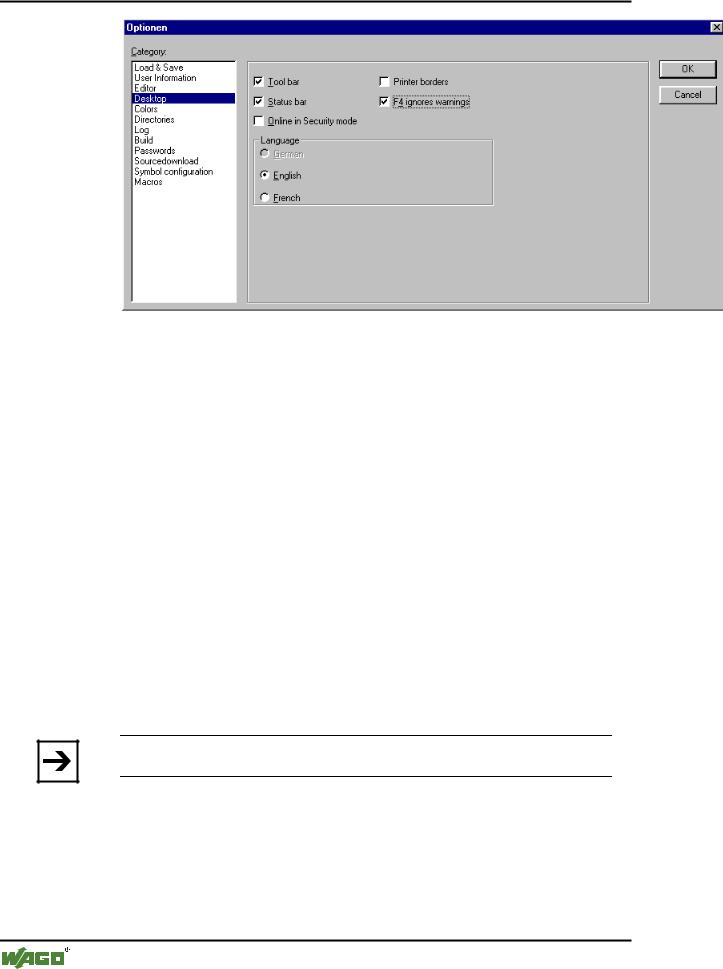
Tool bar: The tool bar with the buttons for faster selection of menu commands becomes visible underneath the menu bar.
Status bar: The status bar at the lower edge of the WAGO-I/O-PRO 32 main window becomes visible.
Online in Security mode: In Online mode with the commands 'Run', 'Stop', 'Reset' 'Toggle Breakpoint', 'Single cycle', 'Write values', 'Force values' and 'Release force', a dialog box appears with the confirmation request whether the command should really be executed. This option is saved with the project.
Display print ranges: In every editor window, the limits of the currently set print range are marked with red dashed lines. Their size depends on the printer characteristics (paper size, orientation) and on the size of the "Content" field of the set print layout (menu: 'File" "Documentation Settings").
F4 ignores warnings: After compilation, when F4 is pressed in a message window, the focus jumps only to lines with error messages; warning messages are ignored.
Language: Define here, in which language the menu and dialog texts should be displayed.
Note:
Please note, that the language choice is only possible under Windows NT !
When an option is activated, a check appears in front of it.
4.2.6 Options for Colors
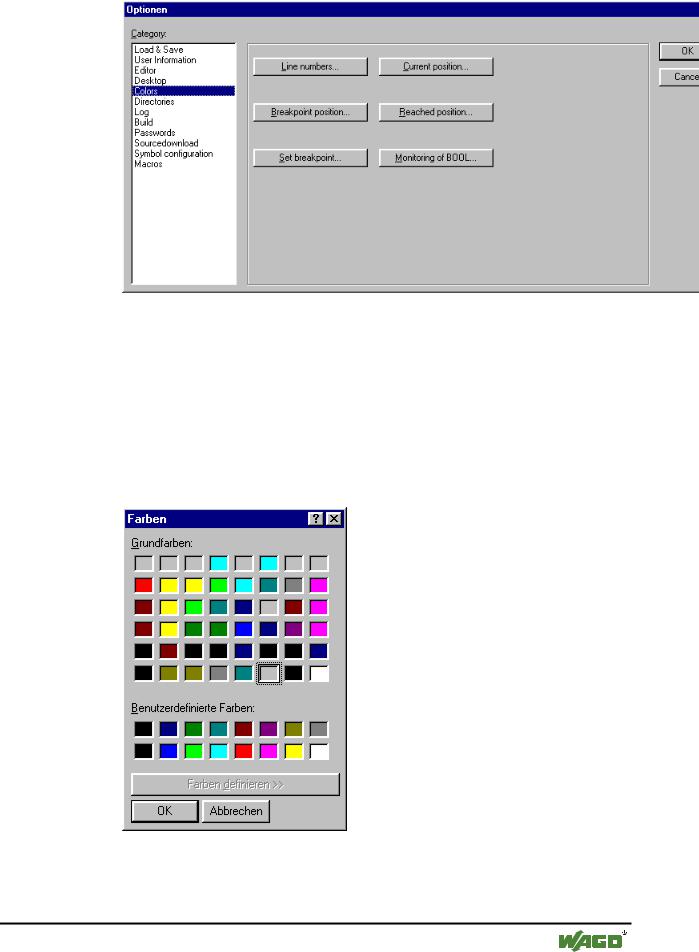
If you choose this category in the Options dialog box , then you get the following dialog box:
x Options dialog box of the category Color
WAGO-I/O-SYSTEM 759 WAGO-I/O-PRO 32
Components of WAGO-I/O-PRO 32 |
• 75 |
Options |
|
|
|
You can edit the default color setting of WAGO-I/O-PRO 32. You can choose whether you want to change the color settings for Line numbers (default presetting: light gray), for Breakpoint positions (dark gray), for a Set breakpoint (light blue), for the Current position (red), for the Reached Positions (green) or for the Monitoring of Boolean values (blue).
If you have chosen one of the indicated buttons, the dialog box for the input of colors opens.
x Dialog box for setting colors
4.2.7 Options for Directories
If you choose this category in the Options dialog box, then you get the following dialog box:
WAGO-I/O-SYSTEM 759 WAGO-I/O-PRO 32
76• Components of WAGO-I/O-PRO 32
Options
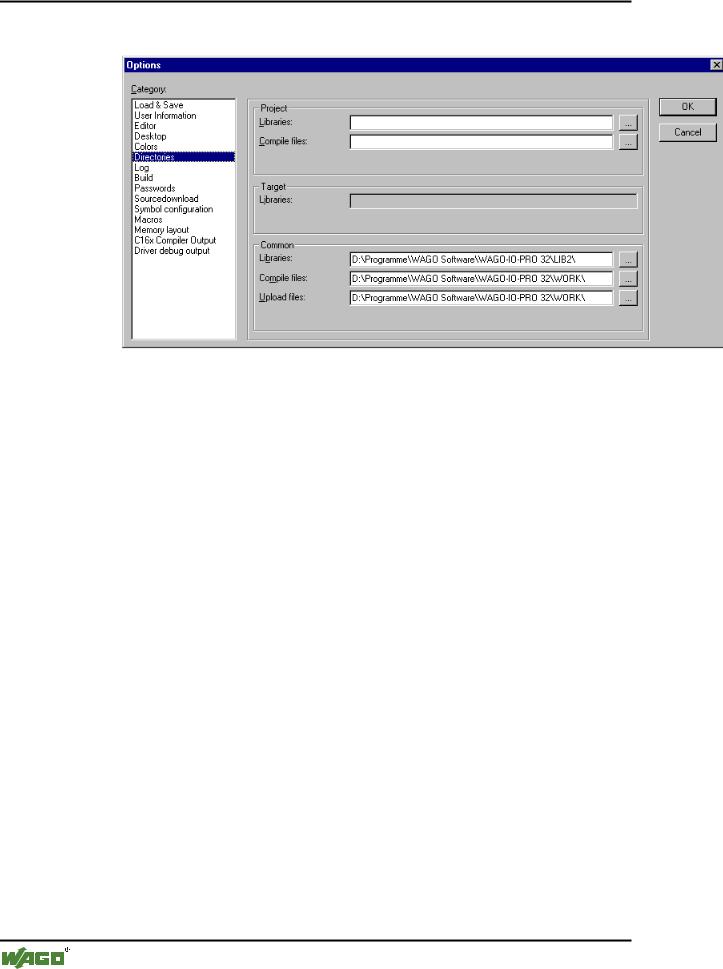
x Options dialog box of the category Directories
Directories can be entered in the Project and Common areas for WAGO-I/O- PRO 32 to use in searching for libraries and controller configuration files, as well as for storing compile and source-upload files. If you activate the button (...) behind a field, the directory selection dialog opens. For library and configuration files, several paths can be entered for each, separated by semicolons ";".
The information in the Project area is stored with the project; information in the Common area is written to the ini file of the programming system and thus apply to all projects.
The Target area displays the directories for libraries and configuration files set in the target system, e.g. through entries in the Target file. These fields cannot be edited, but an entry can be selected and copied (right mouse button context menu).
WAGO-I/O-PRO 32 generally searches first in the directories entered in 'Project', then in those in 'Target System' (defined in the Target file), and finally those listed under 'Common'. If two files with the same name are found, the one in the directory that is searched first will be used.
4.2.8 Options for Log
If you choose this category in the Options dialog box, then you get the following dialog box:
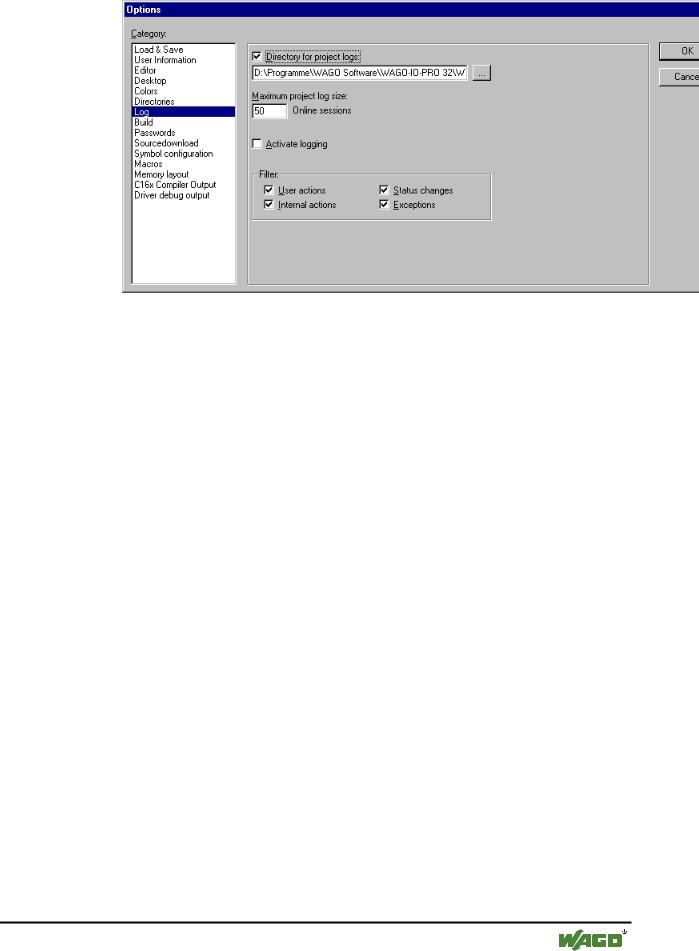
x Option dialogue for the category Log
WAGO-I/O-SYSTEM 759 WAGO-I/O-PRO 32
Components of WAGO-I/O-PRO 32 |
• 77 |
Options |
|
|
|
In this dialog, you can configure a file that acts as a project log, recording all user actions and internal processes during Online mode processing (see also: Log).
If an existing project is opened for which no log has yet been generated, a dialog box opens which calls attention to the fact that a log is now being set up that will receive its first input after the next login process.
The log is automatically stored as a binary file in the project directory when the project is saved. If you prefer a different target directory, you can activate the option Directory for project logs: and enter the appropriate path in the
edit field. Use the  button to access the "Select Directory" dialog for this purpose.
The log file is automatically assigned the name of the project with the extension .log. The maximum number of Online sessions to be recorded is determined by Maximum project log size. If this number is exceeded while recording, the oldest entry is deleted to make room for the newest.
The Log function can be switched on or off in the Option field Activate logging.
You can select in the Filter area which actions are to be recorded: User actions, Internal actions, Status changes, Exceptions. Only actions belonging to categories checked here will appear in the Log window and be written to the Log file. (For a description of the categories, please see Log).
The Log window can be opened with the command 'Window' 'Log'.
4.2.9 Options for Build
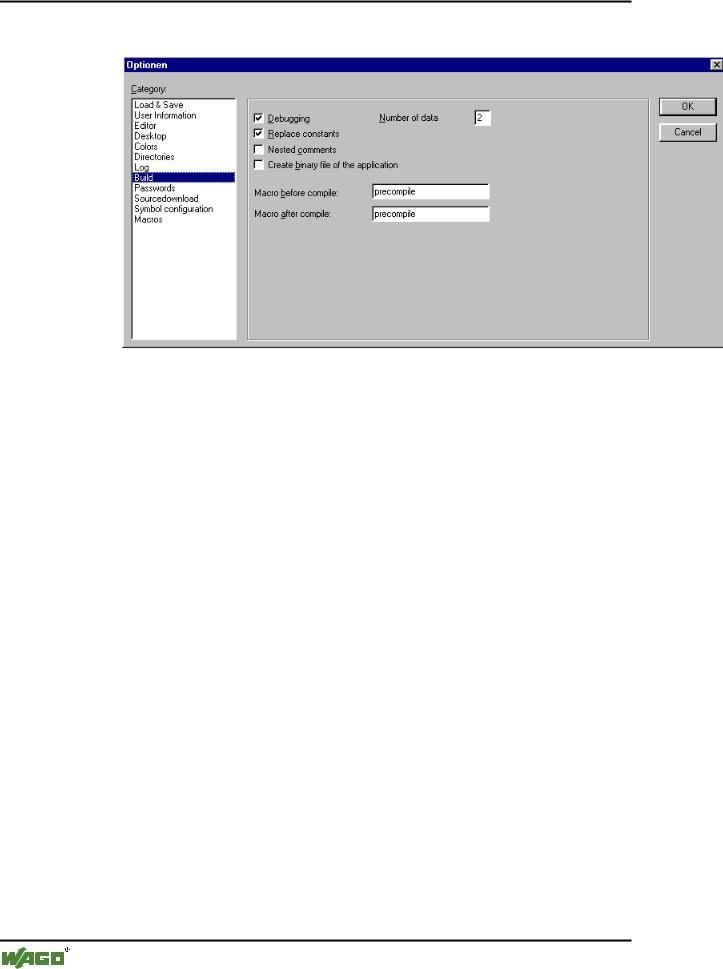
If you choose this category in the Options dialog box , then you get the following dialog box:
WAGO-I/O-SYSTEM 759 WAGO-I/O-PRO 32
78• Components of WAGO-I/O-PRO 32
Options
x Options dialog box of the category Build
When the Debugging option is selected, additional debugging code is created, that is the code can become considerably larger. The debugging code is needed in order to make use of the debugging functions offered by WAGO- I/O-PRO 32 (e.g. breakpoints). When you switch off this option, project processing becomes faster and the size of the code decreases. The option is stored with the project.
When the Replace constants option is selected, the value of each constant is loaded directly, and in Online mode the constants are displayed in green. Forcing, writing and monitoring of a constant is then no longer possible. If the option is deactivated, the value is loaded into a storage location via variable access (this does in fact allow writing the variable value, but implies longer processing time).
If the Nested comments option is active, comments can be placed within other comments. Example:
(*
a:=inst.out; (* to be checked *)
b:=b+1;
*)
Here, the comment that begins with the first bracket is not closed by the bracket following "checked," but only by the last bracket.
If the option Create binary file of the application is activated, a binary image of the generated code (boot project) is created in the project directory during compilation. File name: <project_name>.bin. By comparison, the
WAGO-I/O-SYSTEM 759 WAGO-I/O-PRO 32