Материал: m912201e

84• Components of WAGO-I/O-PRO 32
Managing Projects
The Menu field is used to define the menu entry with which the macro will appear in the 'Edit' 'Macros' menu. In order to be able to use a single letter as a short-cut, the letter must be preceded by the symbol '&'. Example: the name "Ma&cro 1" generates the menu entry "Macro 1".
The actual writing of the macros into the project occurs upon leaving the dialog box by selecting OK.
The macro menu entries in the 'Edit' 'Macros' menu are displayed in the order in which they were defined.
The macros are first tested when a menu selection is made.
4.3 Managing Projects
The commands which refer to entire project are found under the menu items 'File' and 'Project'.
4.3.1 'File' 'New'
Symbol: 
With this command you create an empty project with the name "Untitled". This name must be changed when saving.
4.3.2 'File' 'Open'
Symbol: 
With this command you open an already existing project. If a project has already been opened and changed, then WAGO-I/O-PRO 32 asks whether this project should be saved or not.
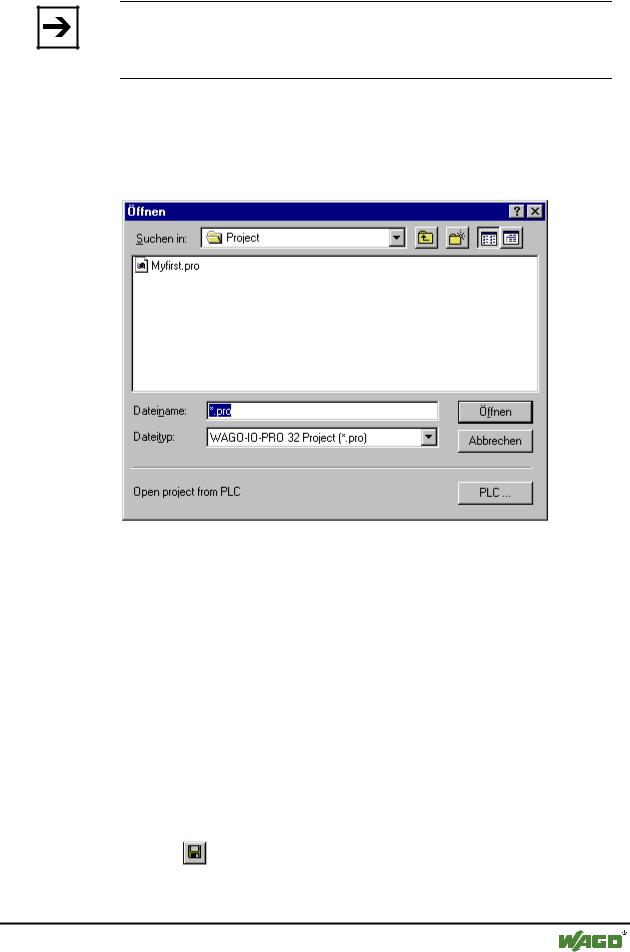
The dialog box for opening a file appears, and a project file with the extension "*.pro" or a library file with the extension "*.lib" must be chosen. This file must already exist. It is not possible to create a project with the command "Open".
To upload a project file from the PLC, press PLC at Open project from PLC. You will obtain, as next, the dialog Communication parameters (see menu 'Online' 'Communication parameters') for setting the transmission parameters when no connection exists yet to the PLC. Once an on-line connection has been created, the system checks whether the same named project files already exist in the directory on your computer hard disc. When this is the case you receive the dialogue Load the project from the controller where you can decide whether the local files should be replaced by those being used by the controller. (This sequence is the reverse of the sequence of 'Online' 'Load source code', with which the project source file is stored in the controller. Do not confuse with 'Create Boot project'!)
WAGO-I/O-SYSTEM 759 WAGO-I/O-PRO 32
Components of WAGO-I/O-PRO 32 |
• 85 |
Managing Projects |
|
|
|
Note:
Please note, that you in any case have to give a new name to a project, when you load it from the PLC to your local directory, otherwise it is unnamed.
If there has not yet been loaded a project to the PLC, you get an error message.
(See also 'Project' 'Options' category 'Sourcedownload').
x Dialog box for opening a file
The most recently opened files are listed under the command 'File' 'Exit'. If you choose one of them, then this project is opened.
If Passwords or User groups have been defined for the project, then a dialog box appears for entering the password.
4.3.3 'File' 'Close'
With this command you close the currently-open project. If the project has been changed, then WAGO-I/O-PRO 32 asks if these changes are to be saved or not.
If the project to be saved carries the name "Untitled", then a name must be given to it (see 'File' 'Save as').
4.3.4 'File' 'Save'
Symbol: |
Shortcut: <Ctrl>+<S> |
With this command you save any changes in the project. If the project to be saved is called "Untitled", then you must give it a name (see 'File' 'Save as').
WAGO-I/O-SYSTEM 759 WAGO-I/O-PRO 32
86• Components of WAGO-I/O-PRO 32
Managing Projects
4.3.5 'File' 'Save as'
With this command the current project can be saved in another file or as a library. This does not change the original project file.
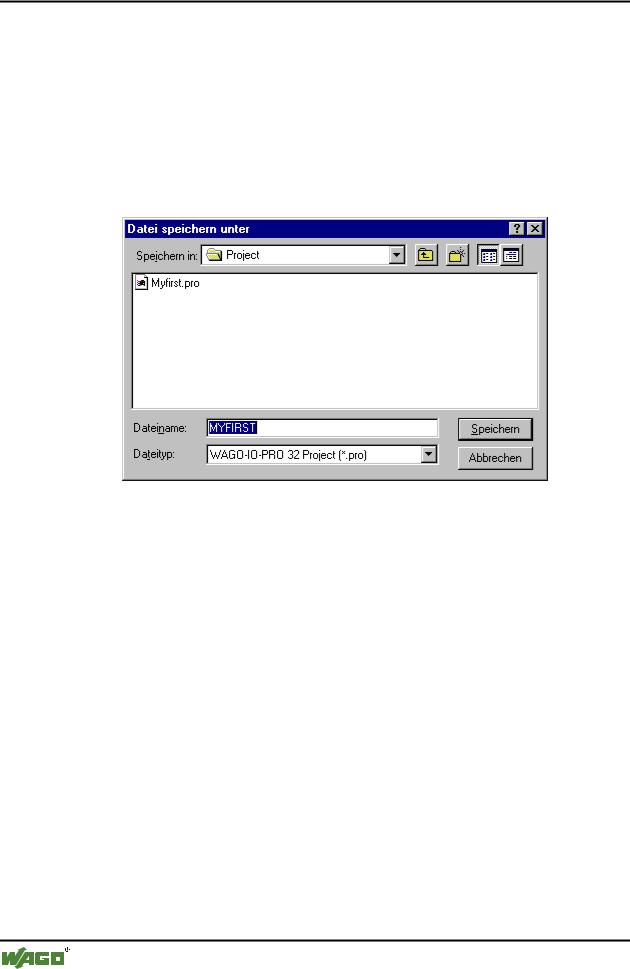
After the command has been chosen the Save dialog box appears. Choose either an existing File name or enter a new file name and choose the desired file type.
x Dialog box for Save as
If the project is to be saved under a new name, then choose the file type
WAGO-I/O-PRO 32 Project (*.pro).
you choose the file type Project Version 1.5 (*.pro) or 2.0 (*.pro) or 2.1 (*.pro), then the current project is saved as if it were created with the version 1.5 or 2.0 or 2.1 . Specific data of the version 2.2 can thereby be lost! However, the project can be executed with the version 1.5 or 2.0 or 2.1.
You can also save the current project as a library in order to use it in other projects. Choose the file type Internal library (*.lib) if you have programmed your POUs in WAGO-I/O-PRO 32.
Choose the file type External library (*.lib) if you want to implement and integrate POUs in other languages (e.g. C). This means that another file is also saved which receives the file name of the library, but with the extension "*.h". This file is constructed as a C header file with the declarations of all POUs, data types, and global variables. If external libraries are used, in the simulation mode the implementation, written for the POUs in WAGO-I/O-PRO 32, will be executed. Working with he real hardware the implementation written in C will be executed.
Then click OK. The current project is saved in the indicated file. If the new file name already exists, then you are asked if you want to overwrite this file.
WAGO-I/O-SYSTEM 759 WAGO-I/O-PRO 32
Components of WAGO-I/O-PRO 32 |
• 87 |
Managing Projects |
|
|
|
When saving as a library, the entire project is compiled. If an error occurs thereby, then you are told that a correct project is necessary in order to create a library. The project is then not saved as a library.
4.3.6 'File' 'Save/Mail Archive'
This command is used to set up and create a project archive file. All files which are referenced by and used with a WAGO-I/O-PRO 32 project can be packed in a compressed zip file. The zip file can be stored or directly can be sent in an email. This is useful if you want to give forward a set of all project relevant files.
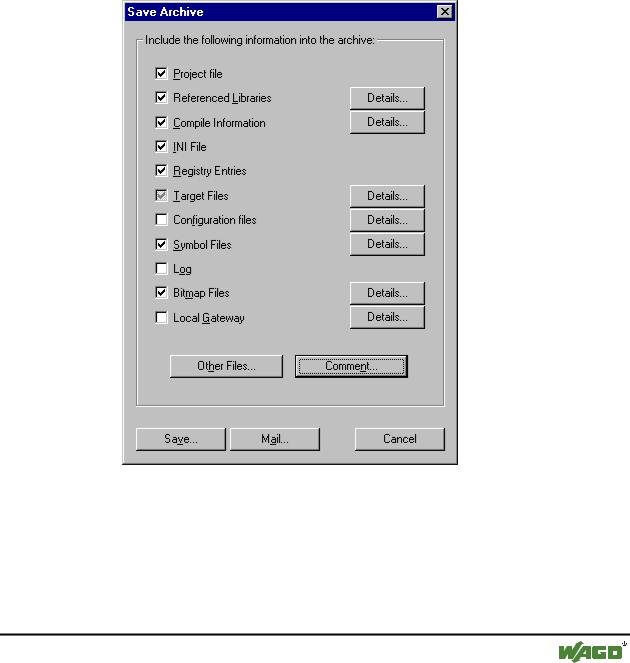
When the command is executed, the dialog box Save Archive opens:
x Dialog box for Setting up an Archive ZIP
Here you can define which file categories should be added to the archive zip file: Select or deselect a category by activating/deactivating the corresponding checkbox. Do this by a single mouseclick in the checkbox or by a doubleclick on the category name. If a category is marked with  , all files of this category will be added to the zip file, if it is marked with
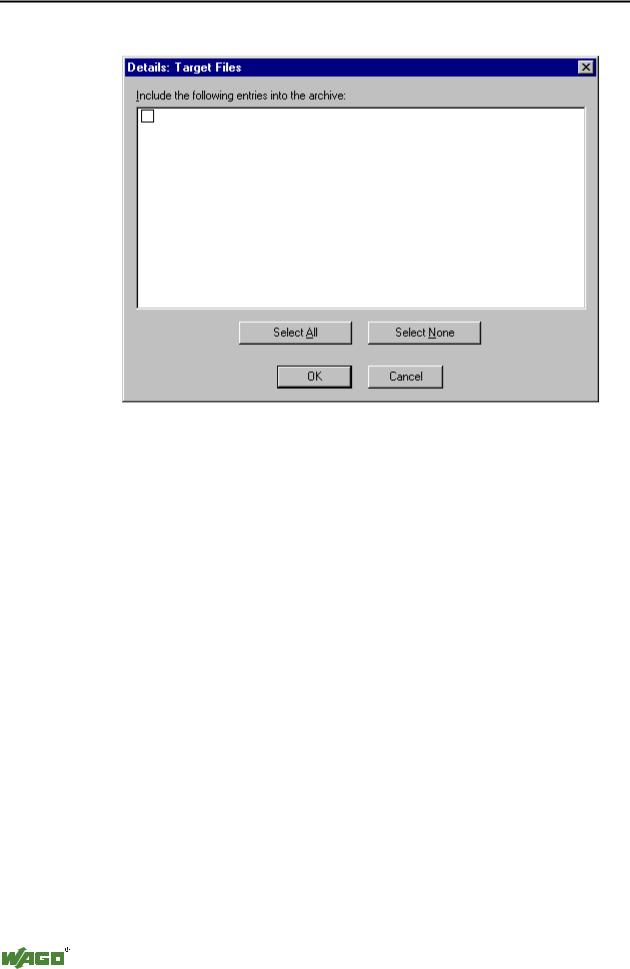
  , none of the files will be added. To select single files of a category press the corresponding button Details. The dialog Details will open with a list of available files.
WAGO-I/O-SYSTEM 759 WAGO-I/O-PRO 32
88• Components of WAGO-I/O-PRO 32
Managing Projects
x Dialog box for detailled selection of files for the Archive ZIP
In this dialog select/deselect the desired files: With the button Select All all files of the list are selected, with Select None none of them. A single file can be selected/deselected by a mouseclick in the checkbox, also by a doubleclick on the list entry or by pressing the spacebar when the list entry is marked.
Close the Details dialog with Save to store the new settings.
In the main dialog the checkbox of categories, for which not all files are selected, will appear with a grey background color  .
.
The following file categories are available, the right column of the table shows which files can be added to the zip file:
Project File |
projectname.pro (the WAGO-I/O-PRO 32 project file) |
Referenced Libraries |
*.lib, *.obj, *.hex (libraries and if available the |
|
corresponding object and hex-files) |
Symbol Files |
*.sdb, *.sym (symbolic information) |
Compile Information |
*.ci (compile information), |
|
*.ri (download/reference information) |
|
<temp>.* (temporary compile and download files) |
|
also for simulation |
Log |
*.log (project log file) |
INI File |
WAGO-I/O-PRO 32.ini |
Configuration files |
files used for PLC configuration (configuration files, device |
|
files, icons etc.): e.g. *.cfg, *.con, *.eds, *.dib, *.ico .... |
|
|
|
WAGO-I/O-SYSTEM 759 |
|
WAGO-I/O-PRO 32 |