Материал: m912201e
64• Components of WAGO-I/O-PRO 32
The Main Window
4 Components of WAGO-I/O-PRO 32
4.1 The Main Window
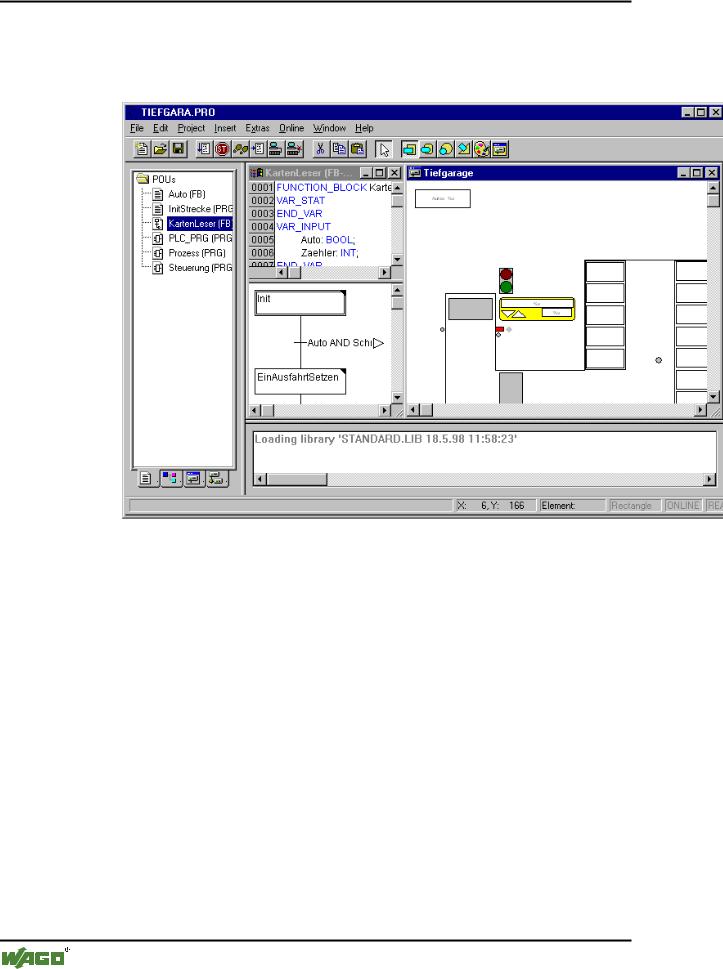
The following elements are found in the main window of WAGO-I/O-PRO 32 (from top to bottom):
The Menu bar
The Tool bar (optional); with buttons for faster selection of menu commands.
The Object Organizer with register cards for POUs, Data types, Visualizations, and Resources
A vertical screen divider between the Object Organizer and the Work space of WAGO-I/O-PRO 32
The Work space in which the editor windows are located
The Message window (optional)
The Status bar (optional); with information about the current status of the project
4.1.1Menu bar
The menu bar is located at the upper edge of the main window. It contains all menu commands.
WAGO-I/O-SYSTEM 759 WAGO-I/O-PRO 32
Components of WAGO-I/O-PRO 32 |
• 65 |
The Main Window |
|
|
|
4.1.2 Tool bar
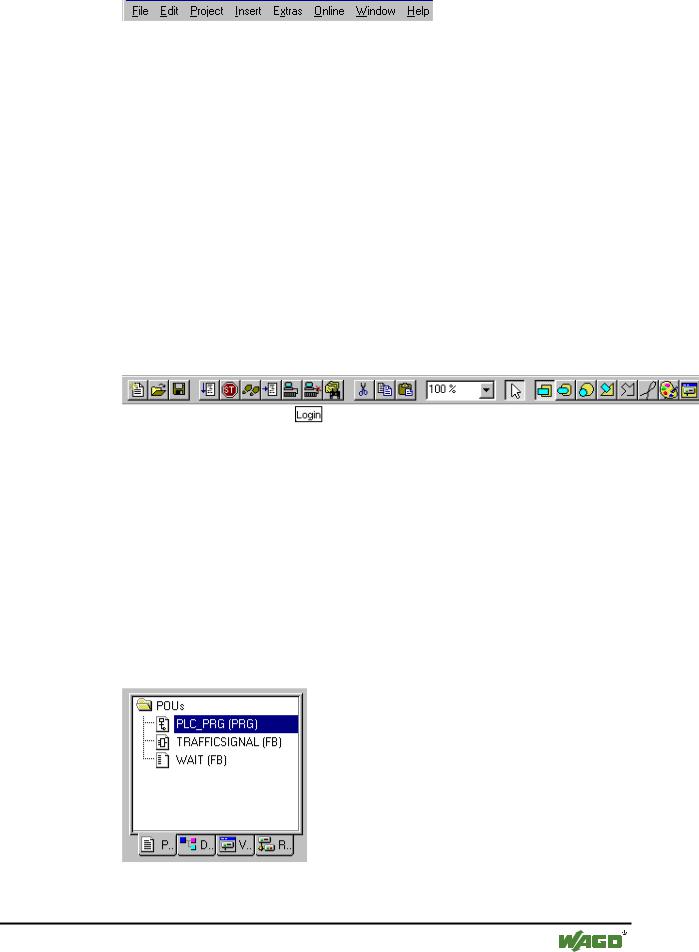
By clicking with the mouse on a symbol you can select a menu command more quickly. The choice of the available symbols automatically adapts itself to the active window.
The command is only carried out when the mouse button is pressed on the symbol and then released.
If you hold the mouse pointer for a short time on a symbol in the tool bar, then the name of the symbol is shown in a Tooltip.
In order to see a description of each symbol on the tool bar, select in Help the editor about which you want information and click on the tool bar symbol in which you are interested.
The display of the tool bar is optional (see 'Project' 'Options' category
Desktop).
4.1.3 Object Organizer
The Object Organizer is always located on the left side of WAGO-I/O-PRO 32. At the bottom there are four register cards with symbols for the four types
of objects 
POUs,  Data types,
  Visualizations and
  Resources. In order to change between the respective object types click with the mouse on the corresponding register card or use the left or right arrow key.
You will learn in chapter Managing Objects in a Project how to work with the objects in the Object Organizer.
WAGO-I/O-SYSTEM 759 WAGO-I/O-PRO 32

66• Components of WAGO-I/O-PRO 32
The Main Window
4.1.4 Screen divider
The screen divider is the border between two non-overlapping windows. In WAGO-I/O-PRO 32 there are screen dividers between the Object Organizer and the Work space of the main window, between the interface (declaration part) and the implementation (instruction part) of POUs and between the Work space and the message window.
You can move the screen divider with the mouse pointer. You do this by moving the mouse with the left mouse button pressed.
Make sure the screen divider always remains at its absolute position, even when the window size has been changed. If it seems that the screen divider is no longer present, then simply enlarge your window.
4.1.5 Work space
The Work space is located on the right side of the main window in WAGO- I/O-PRO 32. All editors for objects and the library manager are opened in this area. The current object name appears in the title bar; in the case of POUs an abbreviation for the POU type and the programming language currently in use appears in brackets after it.
You find the description of the editors in the chapter The Editors
Under the menu item 'Window' you find all commands for window management.
4.1.6 Message window
The message window is separated by a screen divider underneath the work space in the main window.
It contains all messages from the previous compilations, checks or comparisons. Search results and the cross-reference list can also be output here.
If you doubleclick with the mouse in the message window on a message or press <Enter>, the editor opens with the object. The relevant line of the object is selected. With the commands 'Edit' 'Next error' and 'Edit' 'Previous error' you can can quickly jump between the error messages.
The display of the message window is optional (see 'Window' 'Messages').
4.1.7 Status bar
The status bar at the bottom of the window frame of the main window in WAGO-I/O-PRO 32 gives you information about the current project and about menu commands.
WAGO-I/O-SYSTEM 759 WAGO-I/O-PRO 32
Components of WAGO-I/O-PRO 32 |
• 67 |
Options |
|
|
|
If an item is relevant, then the concept appears on the right side of the status bar in black script, otherwise in gray script.
When you are working in online mode, the concept Online appears in black script. If you are working in the offline mode it appears in gray script.
In Online mode you can see from the status bar whether you are in the simulation (SIM), the program is being processed (RUNS), a breakpoint is set (BP), or variables are being forced (FORCE).
With text editor the line and column number of the current cursor position is indicated (e.g. Line:5, Col.:11). In online mode 'OV' is indicated black in the status bar. Pressing the <Ins> key switches between Overwrite and Insert mode.
If the mouse point is in a visualization, the current X and Y position of the cursor in pixels relative to the upper left corner of the screen is given. If the mouse pointer is on an Element, or if an element is being processed, then its number is indicated. If you have an element to insert, then it also appears (e.g.
Rectangle).
If you have chosen a menu command but haven't yet confirmed it, then a short description appears in the status bar.
The display of the statusbar is optional (see 'Project' 'Options' category
Desktop).
4.1.8 Context Menu
Shortcut: <Shift>+<F10>
Instead of using the menu bar for executing a command, you can use the right mouse button. The menu which then appears contains the most frequently used commands for a selected object or for the active editor. The choice of the available commands adapts itself automatically to the active window. The choice of the available commands adapts itself automatically to the active window.
4.2 Options
About WAGO-I/O-PRO 32 there can be of course only one viewpoint. In WAGO-I/O-PRO 32, however, you can configure the view of the main window (and have more than one viewpoint). In addition you can make other settings. For this you have the command 'Project' 'Options' at your disposal. The settings you make thereby are, unless determined otherwise, saved in the file "WAGO-I/O-PRO 32.ini" and restored at the next WAGO-I/O-PRO 32 startup.
WAGO-I/O-SYSTEM 759 WAGO-I/O-PRO 32
68• Components of WAGO-I/O-PRO 32
Options
4.2.1 'Project' 'Options'
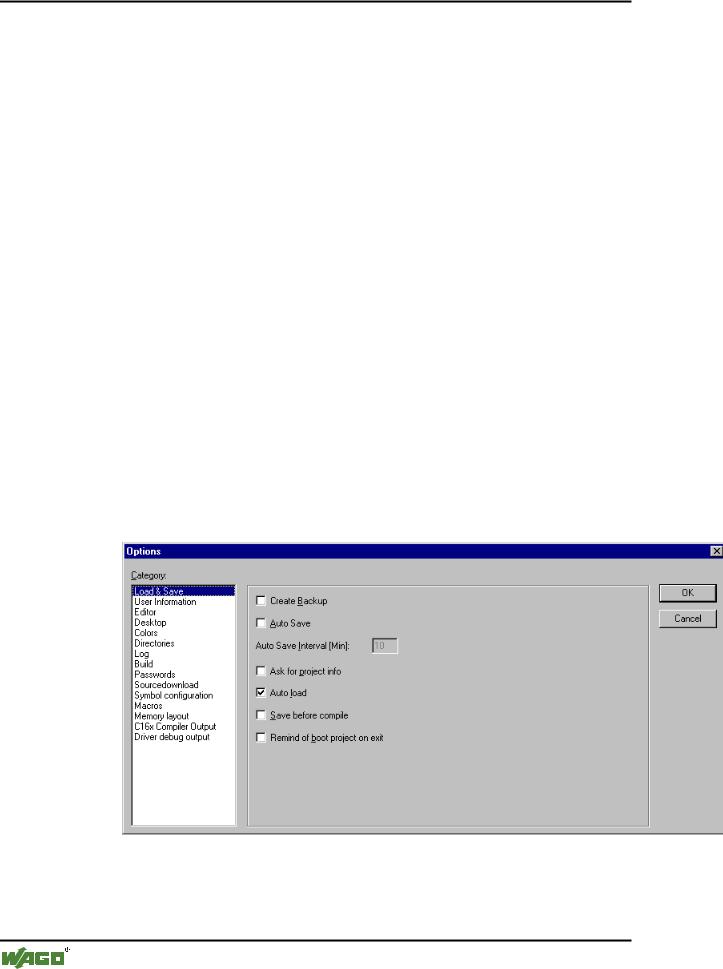
With this command the dialog box for setting options is opened. The options are divided into different categories. Choose the desired category on the left side of the dialog box by means of a mouse click or using the arrow keys and change the options on the right side.
You have at your disposal the following categories:
Load & Save
User information
Editor
Desktop
Color
Directories
Log
Build
Passwords
Sourcedownload
Symbol configuration
Macros
4.2.2Options for Load & Save
If you choose this category in the Options dialog box , then you get the following dialog box:
x Option dialog box of the category Load & Save
When activating an option, a check ( ) appears before the option.
WAGO-I/O-SYSTEM 759 WAGO-I/O-PRO 32