Материал: Английский Косова
*Special word-processing features
Most word-processing programs allow you to create, edit, format, print, and save documents. Some of them also allow you to perform more complex functions. The following are two examples of the sophisticated features that some programs have. SPELLING CHECKERS
Some word-processing programs come with a spelling checker. A spelling checker works with a word-processing program to find misspelled words in your document. It does this by matching each word in your document with a list of words that have been programmed into its memory. This list is usually called a dictionary, but the name is misleading. Spelling checkers have no way of knowing what a word means. Their "dictionaries" are simply lists of properly spelled words.
When a spelling checker finds a word that does not match any of the words in its dictionary, it displays that word. Then you decide whether to change it or, if it is spelled correctly, add it to the spelling checker's dictionary. This is often necessary, since the dictionary does not contain every word you will want to use. Unusual words, technical terms, and proper names will usually need to be added to the dictionary.
While a spelling checker can help you with your writing, it is not a substitute for good language skills. Because it only matches combinations of letters, a spelling checker cannot determine whether you are using words correctly. For example if you use too in a sentence that requires two, a spelling checker will not detect the error because too is spelled correctly.
If you are typing the sentence "I wish I were at the beach" and you make a mistake and type "I fish I were at the beach," the spelling checker will not detect the error, since fish is properly spelled.
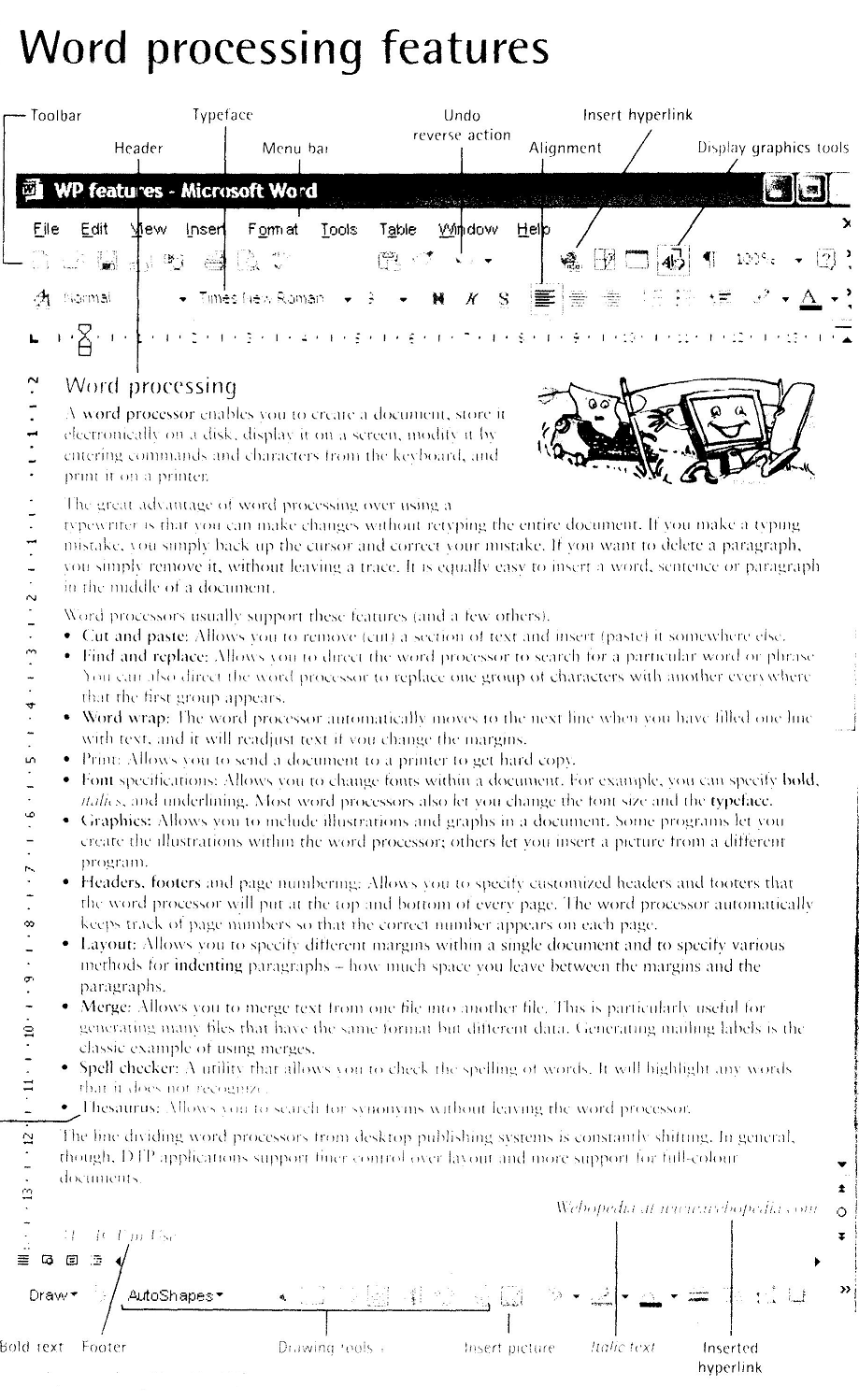
**Match words from the opposite page with these definitions.
-
a program used for preparing documents and letters
-
a row of words that open up menus when selected
-
the distinctive design of letters and characters, e.g. Arial, Courier
-
text printed in the top margin
-
text printed in the bottom margin
-
the way text is arranged on the page, including margins, paragraph format, columns, etc.
-
a function that enables you to combine two files into one
*Label these word processing icons with the correct function
|
a cut and paste |
b graphics |
c align left |
d undo |
e insert hyperlink |

**Complete these statements with a term from A opposite.
1 A ……………………….. consists of three elements: typeface, type style and type size; tor example Arial
bold at 9 points.
2 Notice that when you get to the end of each line. Word starts a new line automatically It lines the word eon are typing to a new line when ir enters an invisible margin running down the right-hand side of the screen. This feature is called …………………………………. .
3 ……………….. and ……………….. lets you find a word and change it into another word throughout the text.
4 A good ……………………………. program can be used not only to rectify accidental spelling mistakes spelling mistakes and typing errors, but also to speed typing input.
5 Many word processors include a , so you can look for words with similar meanings.
6 The …………………… contains a row of icons that perform particular actions when clicked.
7 ……………… a paragraph involves moving your writing in from the margins of the page, for sample, a left indent is the distance between the left margin and the text.
|
|
Mercury Robots 49 Charles Place London SW10 6BA Phone 020 7385 1541 Mr Vazquez Fax 020 7 385 1 390 Alonso Cano, 52 Madrid (1) Thank you tor your interest in Mercury industrial robots. (2) ……………. some descriptive leaflets with the technical details of six robots - Cobra and Hercules models. I would like to draw your attention to the Cobra M2 which is designed for arc welding. The prices shown in our leaflets are net, but we offer discounts by negotiation. Mercury Warranty provides 2-year coverage. (3) ……………. deliver one of our robot systems on approval, for your inspection. Please do not hesitate to contact us (4) I look forward to hearing from you again soon. Liz Brown Sales Office Manager |
|
**Selecting a word-processing program
What makes a good word-processing program? That depends entirely on how the person who is buying it intends to use it. A novelist would want certain features. A student might want different ones. And the owner of a store might want still others. Someone who is choosing a word-processing program should start by asking three questions:
1. What tasks do I want to accomplish?
What tasks can this word-processing program accomplish?
How easily can this word-processing program accomplish these tasks? The first question is the most important one. Potential buyers must know
what kind of writing they plan to do with a word-processing program before they can choose the program that's best for them. For example, someone who plans to use the program for simple writing tasks like letters and school reports doesn't need sophisticated functions like the ability to merge two different files. A simple, basic program will do. On the other hand, someone who plans to use the word-processing program to produce a community newsletter should look for a more sophisticated program with many features, such as one that allows the user to select a variety of type styles.
Once a potential buyer has made a list of necessary features, it should be a simple matter to find a program that offers just those features. It should be, but it often isn't. Many software packages will have all the features except one or will come with one or two extra features that are not on the list. Then the buyer will have to decide whether it is worth it to pay extra for features that aren't really necessary or if it's better to give up a feature or two in order to save some money. Last but not least, the buyer should check how easily the word-processing program performs these functions. The best way to do that is to load the program, type in some text, and then try editing it. Some programs are easier to operate than others. Buyers have to determine which software is the easiest for them to work with.
**Graphics and design
Types of graphics software
Computer graphics are pictures created, changed or
p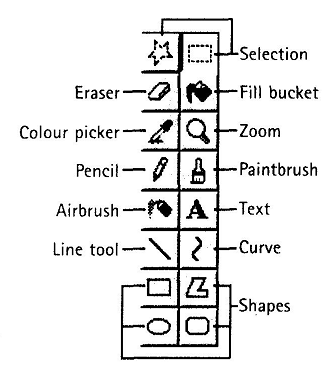 rocessed
by computers. There are two categories.
rocessed
by computers. There are two categories.
1 Bitmapped graphics represent images as bitmaps; they are stored as pixels and can become a bit distorted when they are manipulated. The density of dots, known as the resolution and expressed in dots per inch, determines how sharp the image is.
2 Vector graphics represent images as mathematical formulae, so they can be changed or scaled without losing quality. They are ideal for high-resolution output.
There are different types of graphics software.
Image manipulation programs let you edit your favourite images. For example, you can scan a picture into your PC or transfer a photo from your camera and then add different effects, or filters.
P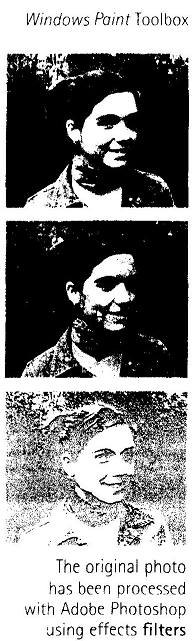 ainting
and drawing programs, also called illustration packages, offer
facilities for freehand drawing, with a wide choice of pens and
brushes, colours and patterns. One example is Windows Paint.
ainting
and drawing programs, also called illustration packages, offer
facilities for freehand drawing, with a wide choice of pens and
brushes, colours and patterns. One example is Windows Paint.
Business graphics programs, also called presentation software, let you create pie charts, bar charts and line graphs of all kinds for slide shows and reports. You can import data from a database or spreadsheet to generate the graphs.
Computer-aided design (CAD) is used by engineers and architects to design everything from cars and planes to buildings and furniture. First they make a wireframe, a drawing with edges and contour lines. Then if they want to colour the objects and add texture, they create a surface for the object; this is called 'filling the surface'. Finally, the design is rendered to make the object look realistic. Rendering is a process that adds realism to graphics by using shading, light sources and reflections.
Desktop publishing (DTP) is based around a page layout program, which lets you import text from a word processor, clip-art (ready- made pictures) from graphics packages, and images from scanners or cameras, and arrange them all on a page. It is used to design and publish books, newspapers, posters, advertisements, etc.
Digital art, or computer art, is done with applets that use mathematical formulae to create beautiful bright shapes called fractals. A fractal is a geometrical figure with spec'al properties, e.g. the Koch snowflake or the Mandelbrot set. Fractals can also be used to model real objects like clouds, coastlines or landscapes.
Computer animation uses graphics programs (e.g. digital cartooning systems) to create or edit moving pictures. Each image in a sequence of images is called a 'frame'.
Geographic information systems (GIS) allow cartographers to create detailed maps.
**Read A opposite and decide which type of graphics software is best for these users.
1 a person who wants to edit photos at home
2 an economist who wants to present statistics in a form that can he easily understood
3 engineers who need to design the interior and exterior of a new aeroplane
4 a company which needs to design and publish a magazine
5 an artist who wants to produce illustrations and freehand drawings for a book
6 an organization that needs to make maps and 3D virtual models of the surface of the Earth
7 computer animators who make movies like Toy Story and Shrek
8 a mathematician who wants to make fractal shapes of natural phenomena
**Complete the sentences with words from the box.
1 Painting programs work by giving a colour to each pixel in an image, creating a …………. . Unlike vector graphics, the image is a single layer, so once something is painted, it becomes part of the whole picture.
2 In painting programs and image editors, are special effects that can be applied to a picture, including drop shadows, textures, distortions, etc.
3 The model is the simplest interpretation of a true three-dimensional object. Here the object is represented by its edges and contours and is therefore similar in form to a normal engineering drawing or sketch.
3 …………… adds textures to each surface, and generates realistic reflections, shadows and highlights.
5 Most illustration packages come with a bundle of resources that include ready-made images and a selection of fonts.
6 ………………are geometrical patterns that are repeated at a small scale to generate
irregular shapes, some of which are similar to objects in nature.
**Look at the Windows Paint toolbox opposite and find the tools that match these definitions.
1 This in like a magnifying glass which changes your view of a drawing.
2 This brush lets you paint in different shapes and patterns.
3 This is used to draw curves in different thicknesses.
4 This rubs out the part of the picture you drag it over.
5 This tool lets you pick a colour from an area of an image, instead of choosing the colour from the colour palette.
6 This tool is used to fill a shape with a colour of your choice.
7 This makes straight lines.
8 This basic tool is used to draw freehand, i.e. to draw free-form shapes.
9 This group tools is used for drawing shapes: rectangles, ellipses and polygons.
10 This produces individual pixels of colour in a spray pattern.
11 These tools let you make rectangular or freehand selections around the things you want to select.
12 This is used to type text.
Health and safety
Computer ergonomics
There are a number of health and safety problems that may result from continuous use of
computers.
-
Typing constantly at high speed may provoke repetitive strain injury or RSI, which causes pain in the neck, arms, wrists, hands and fingers.
-
Bad work postures and sitting in uncomfortable chairs may cause backache and stress.
-
Looking at the screen for long periods of time, and lights reflecting off the screen, can cause headaches and eye strain, pain and fatigue of the eyes.
-
Cathode Ray Tube monitors can emit electromagnetic radiation which can be dangerous to health.
The study of how people interact safely and efficiently with machines and their work conditions is called ergonomics. In computing, ergonomics is about designing computer facilities so they are safe and comfortable. Here are a few tips.
-
G
 et
an adjustable chair so you can change its height and angle.
et
an adjustable chair so you can change its height and angle. -
Make sure your feet rest firmly on the ground or on a foot rest.
-
Ensure you have enough leg room under the desk.
-
Put the monitor at eye level or just below.
-
Sit at arms' length from the monitor (40-80 cm). Don't sit near the sides or back of CRT monitors; or use LCD screens, which are free from radiation.
-
Use a document holder, in line with the screen, to reduce awkward neck and eye movements between the document and the screen.
-
Position the keyboard at the same height as your elbows, with your arms parallel to the work surface. Try to keep your wrists straight and flat when typing.
-
Take regular breaks from the computer and look away from the screen at regular intervals.
Electronic rubbish
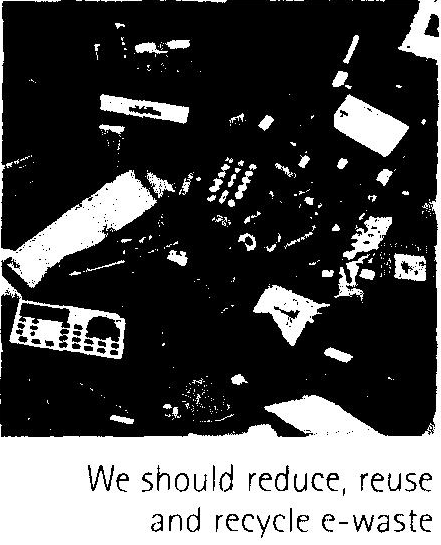
Irresponsible disposal of electronic waste, from old computers and mobile phones to hi-fi and video systems, can cause severe environmental and public health problems. For example, children or workers who come into contact with the toxic components of electronic products may suffer from skin and breathing problems.
-
We should recycle or treat ICT equipment (e.g. plastics from mobiles could be used to make pens and rulers).
-
Manufacturers should pay to finance recycling programs.
The risks of using mobiles and in-car computers
Frequent use of mobile phones has been the cause of concern and there is ongoing research into whether radiation emitted causes health problems.
A serious risk is the use of mobiles and navigation systems in cars; this can distract the driver and cause accidents.
■ Don't use your mobile while driving.
Another health problem is Internet addiction, including obsessive game playing, gambling, etc.
■ If you are an Internet addict, you should ask for help from specialists.
Match the numbers on the picture to the correct tips in the checklist.
T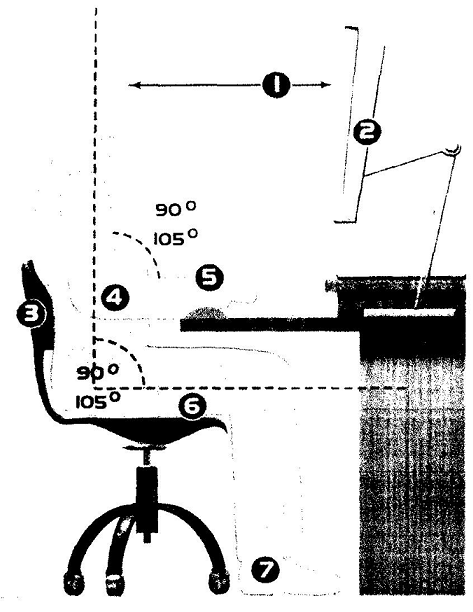 ips
for a user-friendly workstation
ips
for a user-friendly workstation
a Consistent chair support tor the lower hack. Seat height and .ingle acljustahlc.
b Feet flat on the floor.
c Document holder beside the screen, at the same height and distance as the screen.
d Text oil the screen in line with tile eves. Viewing distance ai arm's length,
e Thighs horizontal, with feet on the floor. Adequate room for legs beneath the desk,
f Keyboard height at a comfortable open angle for the elbows and arms.
g Wrists and hands in a neutral position, in line with the forearms. Optional rest for wrists at the same height as the keyboard.
Complete the sentences with words.
1. Experts believe the best way to reduce musculoskeletal injuries is through……………..
designing jobs to fit people instead of making people fit the job. It can mean everything from adjusting the height of a desk to buying a new chair or overhauling a production line.
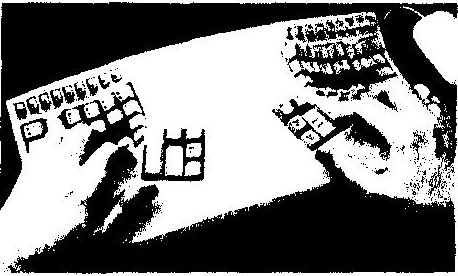
2. The Safetype ergonomic keyboard may look strange, but its makers claim that it can prevent ……………………………or RSI.
3. Visual problems, such as and irritation, are often reported
by computer users. Causes of these problems include glare, poor lighting, and focusing the eyes on the screen for a prolonged period.
4. Some companies have begun to test ways to and dispose of ……………………………………….. . For example, Epson Portland sponsored an electronics collection day