Материал: m912201e
The Editors • 189
The Graphic Editors
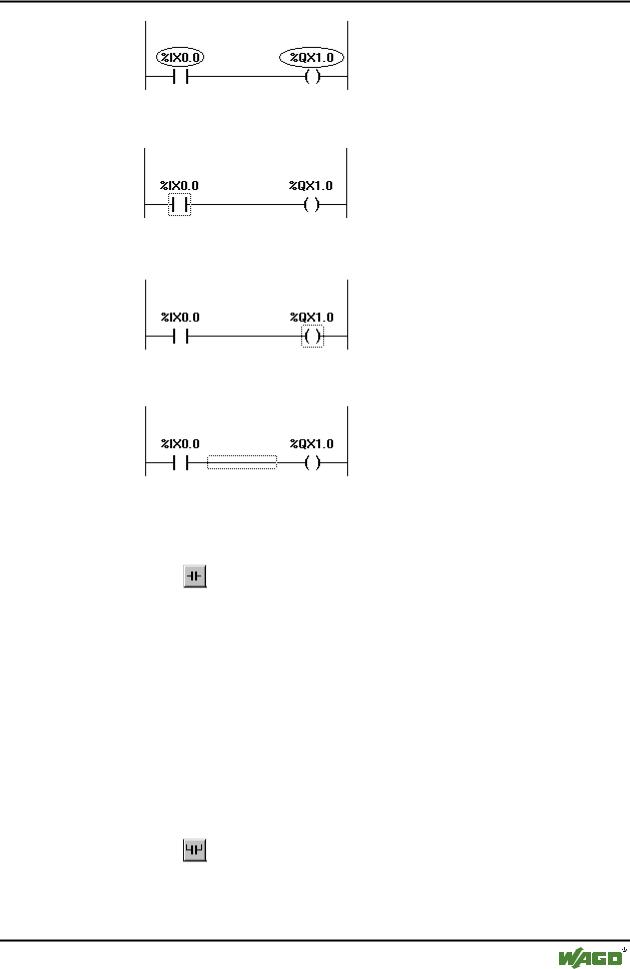
2.Every Contact or Function Block
3.Every Coil
4.The Connecting Line between the Contacts and the Coils.
The Ladder Diagram uses the following menu commands in a special way:
5.4.3.2 'Insert' 'Contact'in LD
Symbol: |
Shortcut: <Ctrl>+<O> |
Use this command in the LD editor in order to insert a contact in front of the marked location in the network.
If the marked position is a coil or the connecting line between the contacts and the coils, then the new contact will be connected serially to the previous contact connection.
The contact is preset with the text "???". You can click on this text and change it to the desired variable or the desired constant. For this you can also use the Input Assistant.
5.4.3.3 'Insert' 'Parallel Contact'
Symbol: |
Shortcut: <Ctrl>+<R> |
Use this command in the LD editor to insert a contact parallel to the marked position in the network.
WAGO-I/O-SYSTEM 759 WAGO-I/O-PRO 32
190 • The Editors
The Graphic Editors
If the marked position is a coil or the connection between the contacts and the coils, then the new contact will be connected in parallel to the entire previous contact connection.
The contact is preset with the text "???". You can click on this text and change it to the desired variable or the desired constant. For this you can also use the Input Assistant.
5.4.3.4 'Insert' 'Function Block in LD'
Shortcut: <Ctrl>+<B>
Use this command in order to insert an operator, a function block, a function or a program as a POU. For this, the connection between the contacts and the coils, or a coil, must be marked. The new POU at first has the designation AND. If you wish, you can change this designation to another one. For this you can also use the Input Assistant. Both standard and self-defined POUs are available.
The first input to the POU is placed on the input connection, the first output on the output connection; thus these variables must definitely be of type BOOL. All other inand outputs of the POU are filled with the text "???". These prior entries can be changed into other constants, variables or addresses. For this you can also use the Input Assistant.
5.4.3.5 'Insert''Coil' in LD
Symbol: |
Shortcut: <Ctrl>+<L> |
You can use this command in the LD editor to insert a coil in parallel to the previous coils.
If the marked position is a connection between the contacts and the coils, then the new coil will be inserted as the last. If the marked position is a coil, then the new coil will be inserted directly above it.
The coil is given the text "???" as a default setting. You can click on this text and change it to the desired variable. For this you can also use the Input Assistant.
5.4.3.6 POUs with EN Inputs
If you want to use your LD network as a PLC for calling up other POUs , then you must merge a POU with an EN input. Such a POU is connected in parallel to the coils. Beyond such a POU you can develop the network further, as in the Function Block Diagram. You can find the commands for insertion at an EN POU under the menu item 'Insert' 'Insert at Blocks'
An operator, a function block, a program or a function with EN input performs the same way as the corresponding POU in the Function Block Diagram, except that its execution is controlled on the EN input. This input is annexed at
WAGO-I/O-SYSTEM 759 WAGO-I/O-PRO 32
The Editors • 191
The Graphic Editors
the connecting line between coils and contacts. If this connection carries the information "On", then the POU will be evaluated.
If a POU has been created once already with EN input, then this POU can be used to create a network. This means that data from usual operators, functions, and function blocks can flow in an EN POU and an EN POU can carry data to such usual POUs.
If, therefore, you want to program a network in the LD editor, as in FBD, you only need first to insert an EN operator in a new network. Subsequently, from this POU, you can continue to construct from your network, as in the FBD editor. A network thus formed will perform like the corresponding network in FBD.
5.4.3.7 'Insert' 'Box with EN in LD'
Use this command to insert a function block, an operator, a function or a program with EN input into a LD network.
The marked position must be the connection between the contacts and the coils (Cursor Position 4) or a coil (Cursor Position 3). The new POU is inserted in parallel to the coils and underneath them; it contains initially the designation "AND". If you wish, you can change this designation to another one. For this you can also use the Input Assistant.
5.4.3.8 'Insert' 'Function Block with EN'
With this command you can insert a function block with EN input into a LD network.
The marked position must be the connection between the contacts and the coils (Cursor Position 4) or a coil (Cursor Position 3). The new function block is inserted in parallel to the coils, below them. From the Input Assistantdialog box that appears, you can select whether to insert a user-defined, or a standard (default) function block.
5.4.3.9 'Insert' 'Function with EN'
With this command you can insert a function with EN input into an LD network.
The marked position must be the connection between the contacts and the coils (Cursor Position 4) or a coil (Cursor Position 3). The new function is inserted in parallel to the coils, below them. From the Input Assistantdialog box that appears, you can select whether to insert a user-defined, or a standard function block.
5.4.3.10'Insert' 'Insert at blocks in LD
With this command you can insert additional elements into a POU that has already been inserted (also a POU with EN input). The commands below this
WAGO-I/O-SYSTEM 759 WAGO-I/O-PRO 32

192 • The Editors
The Graphic Editors
menu item can be executed at the same cursor positions as the corresponding commands in the Function Block Diagram.
With Input you can add a new input to the POU.
With Output you can add a new output to the POU.
With POU, you insert a new POU. The procedure is similar to that described under 'Insert' 'POU'.
With Assign you can insert an assignment to a variable. At first, this is shown by three question marks "???", which you edit and replace with the desired variable. Input assistance is available for this purpose.
5.4.3.11'Insert' 'Jump' in LD
With this command you can insert a parallel jump in the selected LD editor, in parallel, at the end of the previous coils. If the incoming line delivers the value "On", then the jump will be executed to the indicated label.
The marked position must be the connection between the contacts and the coilsor a coil.
The jump is present with the text "???". You can click on this text and make a change in the desired label.
5.4.3.12'Insert' 'Return' in LD
In the LD editor, you can use this command to insert a Return instruction in parallel at the end of the previous coils. If the incoming line delivers the value "On," then the processing of the POU in this network is broken off.
The marked position must be the connection between the contacts and the coilsor a coil.
5.4.3.13'Extras' 'Paste after' in LD
Mit diesem Befehl fügen Sie im KOP-Editor den Inhalt der Zwischenablage als seriellen Kontakt nach der Markierungsstelle ein. Dieser Befehl ist nur möglich, wenn der Inhalt der Zwischenablage und die markierte Stelle Netzwerke aus Kontakten sind.
5.4.3.14'Extras' 'Paste below'in LD
Shortcut: <Ctrl>+<U>
Use this command in the LD editor to insert the contents of the clipboard as parallel contact below the marked position. This command is only possible if the contents of the clipboard and the marked position are networks comprised of contacts.
WAGO-I/O-SYSTEM 759 WAGO-I/O-PRO 32
The Editors • 193
The Graphic Editors
5.4.3.15'Extras' 'Paste above' in LD
Use this command in the LD editor to insert the contents of the clipboard as parallel contact above the marked position. This command is only possible if the contents of the clipboard and the marked position are networks comprised of contacts.
5.4.3.16'Extras' 'Negate' in LD
Symbol: |
Shortcut: <Strg>+<N> |
Use this command to negate a contact, a coil, a jump or return instruction, or an input or output of EN POUs at the present cursor position .
Between the parentheses of the coil or between the straight lines of the contact, a slash will appear ((/) or |/|). If there are jumps, returns, or inputs or outputs of EN POUs, a small circle will appear at the connection, just as in the FBD editor.
The coil now writes the negated value of the input connection in the respective Boolean variable. Right at this moment, a negated contact switches the status of the input to the output, if the respective Boolean variable carries the value FALSE.
If a jump or a return is marked, then the input of this jump or return will be negated.
A negation can be canceled through renewed negation.
5.4.3.17'Extras' 'Set/Reset' in LD
If you execute this command on a coil, then you will receive a Set Coil. Such a coil never overwrites the value TRUE in the respective Boolean variable. This means that once you have set the value of this variable to TRUE, it will always remain at TRUE. A Set Coil is designated with an "S" in the coil symbol.
If you execute this command once again, then you will be given a Reset coil. Such a coil never overwrites the value FALSE in the respective Boolean variable. This means that once you have set the value of this variable to FALSE, it will always remain at FALSE. A Reset Coil is designated with an "R" in the coil symbol.
If you execute this command repeatedly, the coil will alternate between set, reset and normal coil.
5.4.3.18The Ladder Diagram in the Online Mode
In Online mode, the contacts and coils in the Ladder Diagram that are in the "On" state are colored blue. Likewise, all lines over which the "On" is carried are also colored blue. At the inputs and outputs of function blocks, the values of the corresponding variables are indicated.
WAGO-I/O-SYSTEM 759 WAGO-I/O-PRO 32