Материал: m912201e
194 • The Editors
The Graphic Editors
Breakpoints can only be set on networks; by using stepping, you can jump from network to network.
If you place the mouse pointer briefly above a variable, then the type, the address and the comment about the variable will be displayed in a Tooltip.
5.4.4 The Sequential Function Chart Editor
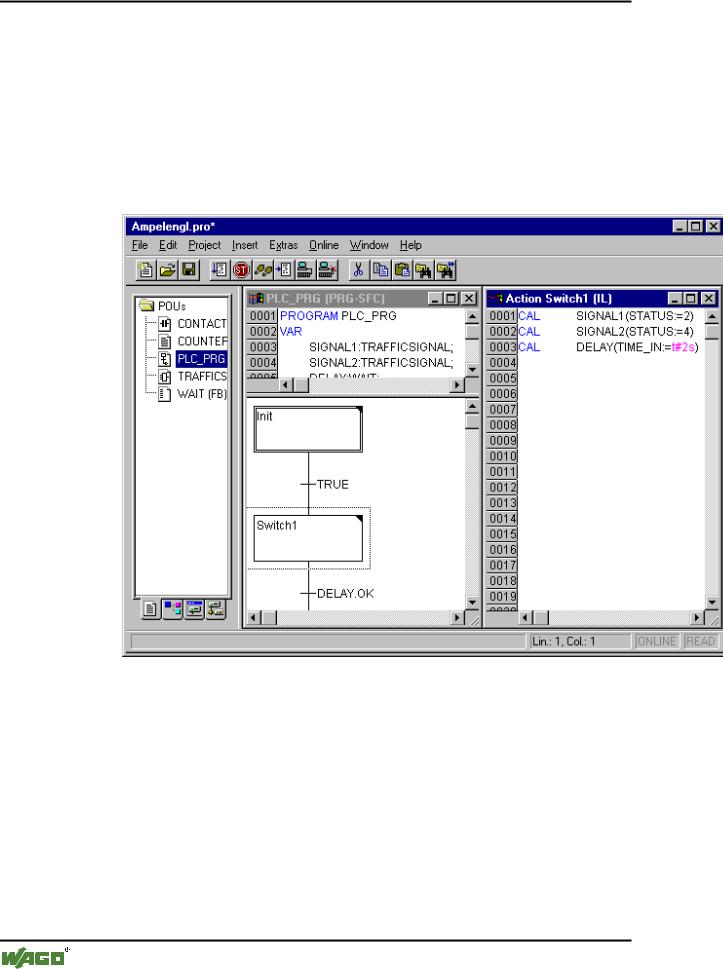
This is how a POU written in the SFC appears in the WAGO-I/O-PRO 32 editor:
All editors for POUs consist of a declaration part and a body. These are separated by a screen divider.
The Sequential Function Chart editor is a graphic editor. The most important commands are found in the context menu (right mouse button or <Ctrl><F10>). Tooltips show in Offline as well as in Online mode and in the zoomed state the full names or expressions of steps, transitions, jumps, jump labels, qualifiers or associated actions.
For information about the Sequential Function Chart see 'Sequential Function Chart'.
The editor for the Sequential Function Chart must agree with the particulars of the SFC. In reference to these, the following menu items will be of service.
WAGO-I/O-SYSTEM 759 WAGO-I/O-PRO 32
The Editors • 195
The Graphic Editors
5.4.4.1 Marking Blocks in the SFC
A marked block is a bunch of SFC elements that are enclosed in a dotted rectangle.
You can select an element (a step, a transition, or a jump) by pointing the mouse on this element and pressing the left mouse button, or you can use the arrow keys. In order to mark a group of several elements, press <Shift> for a block already marked, and select the element in the lower left or right corner of the group. The resulting selection is the smallest cohesive group of elements that includes both of these elements.
Observe that all commands can only be executed, if they do not contradict the conventions of the language.
5.4.4.2 'Insert' 'Step Transition (before)'
Symbol: |
Shortcut: <Ctrl>+<T> |
This command inserts a step in the SFC editor followed by a transition in front of the marked block.
5.4.4.3 'Insert' 'Step Transition (after)'
Symbol: |
Shortcut: <Ctrl>+<E> |
This command inserts a step in the SFC editor followed by a transition after the first transition in the marked block.
5.4.4.4 'Insert' 'Alternative Branch (right)'
Symbol: |
Shortcut: <Ctrl>+<A> |
This command inserts an alternative branch in the SFC editor as a right branch of the marked block. For this the marked block must both begin and end with a transition. The new branch is then made up of one transition.
5.4.4.5 'Insert' 'Alternative Branch (left)'
Symbol: 
This command inserts an alternative branch in the SFC editor as the left branch of the marked block. For this the marked block must both begin and end with a transition. The new branch is then made up of one transition.
5.4.4.6 'Insert' "Parallel Branch (right)"
Symbol: |
Shortcut: <Ctrl>+<L> |
WAGO-I/O-SYSTEM 759 WAGO-I/O-PRO 32
196 • The Editors
The Graphic Editors
This command inserts a parallel branch in the SFC editor as the right branch of the marked block. For this the marked block must both begin and end with a step. The new branch is then made up of one step. To allow jumps to the parallel branches that have been created, these must be provided with a jump label.
5.4.4.7 'Insert' 'Parallel Branch (left)'
Symbol: 
'This command inserts a parallel branch in the SFC editor as the left branch of the marked block. For this the marked block must both begin and end with a step. The new branch is then made up of one step. To allow jumps to the parallel branches that have been created, these must be provided with a jump label (see 'Extras' 'Add label to parallel branch').
5.4.4.8 'Insert' 'Jump'
'This command inserts a jump in the SFC editor at the end of the branch, to which the marked block belongs. For this the branch must be an alternative branch.
The inserted text string 'Step' in the inserted jump can then be selected and replaced by the step name or the jump label of a parallel branch to be jumped to.
5.4.4.9 'Insert' 'Transition-Jump'
Symbol: 
This command inserts a transition in the SFC editor, followed by a jump at the end of the selected branch. For this the branch must be a parallel branch.
The inserted text string 'Step' in the inserted jump can then be selected and replaced by the step name or the jump label of a parallel branch to be jumped to.
5.4.4.10'Insert' 'Add Entry-Action'
With this command you can add an entry action to a step. An entry-action is only executed once, right after the step has become active. The entry-action can be implemented in a language of your choice.
A step with an entry-action is designated by an "E" in the bottom left corner.
5.4.4.11'Insert' 'Add Exit-Action'
With this command you can add an exit-action to a step. An exit-action is only executed once, before the step is deactivated. The exit-action can be implemented in a language of your choice.
WAGO-I/O-SYSTEM 759 WAGO-I/O-PRO 32
The Editors • 197
The Graphic Editors
A step with an exit-action is designated by an "X" in the lower right corner.
5.4.4.12'Extras' 'Paste Parallel Branch (right)'
This command pastes the contents of the clipboard as a right parallel branch of the marked block. For this the marked block must both begin and end with a step. The contents of the clipboard must, likewise, be an SFC block that both begins and ends with a step.
5.4.4.13'Extras' 'Add label to parallel branch'
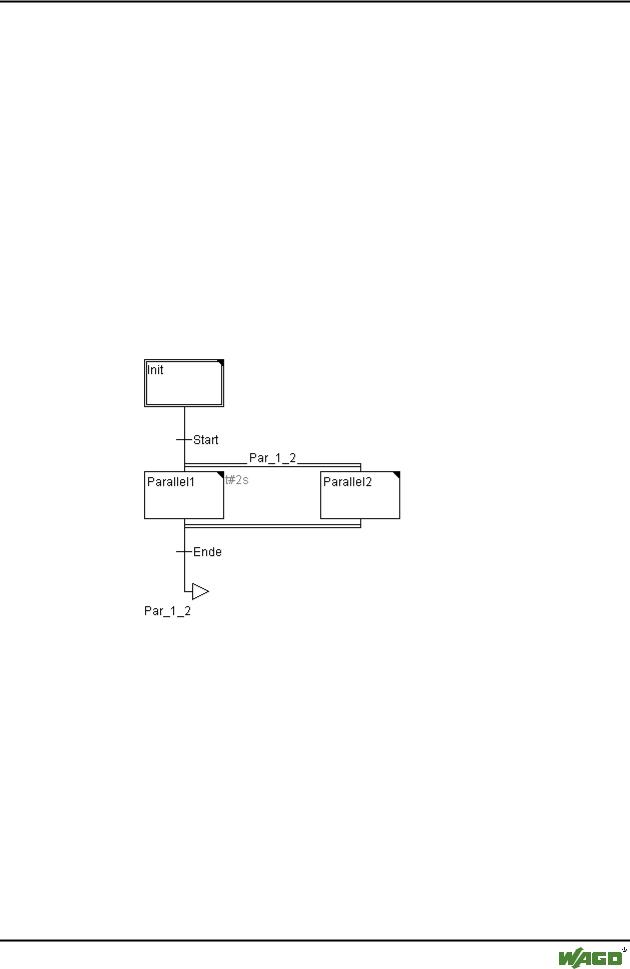
In order to provide a newly inserted parallel branch with a jump label, the transition occurring before the parallel branching must be marked and the command 'Add label to parallel branch' must be executed. At that point, the parallel branch will be given a standard name consisting of "Parallel" and an appended serial number, which can be edited according to the rules for identifier names. In the following example, "Parallel" was replaced by "Par_1_2" and the jump to the transition "End" was steered to this jump label.
5.4.4.14Delete a label
A jump label can be deleted by deleting the label name.
5.4.4.15'Extras' 'Paste after'
This command pastes the SFC block on the clipboard after the first step or the first transition of the marked block. (Normal copying pastes it in front of the marked block.) This will now be executed, if the resulting SFC structure is correct, according to the language norms.
5.4.4.16'Extras' 'Zoom Action/Transition'
Shortcut: <Alt>+<Enter>
The action of the first step of the marked block or the transition body of the first transition of the market block is loaded into the editor in the respective
WAGO-I/O-SYSTEM 759 WAGO-I/O-PRO 32
198 • The Editors
The Graphic Editors
language, in which it has been written. If the action or the transition body is empty, then the language must be selected, in which it has been written.
5.4.4.17'Extras' "Clear Action/Transition"
With this command you can delete the actions of the first step of the marked block or of the transitions body of the first transition.
If, during a step, you implement either only the action, the entry-action, or the exit-action, then the same will be deleted by the command. Otherwise a dialog box appears, and you can select which action or actions are to be deleted.
If the cursor is located in the action of an IEC step, then only this association will be deleted. If an IEC step with an associated action is selected, then this association will be deleted. During an IEC step with several actions, a selection dialog box will appear.
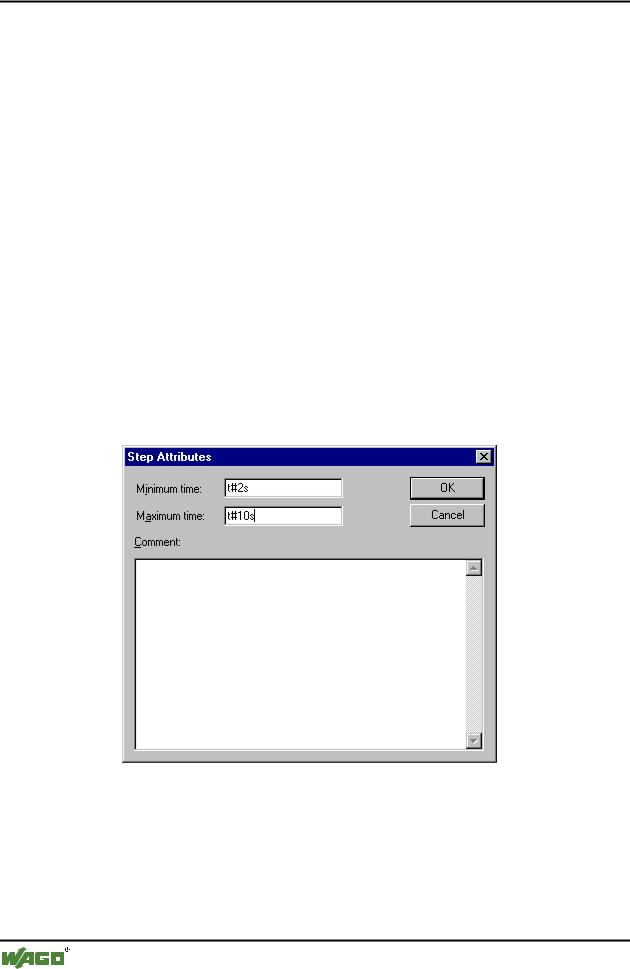
5.4.4.18'Extras' 'Step Attributes'
With this command you can open a dialog box in which you can edit the attributes for the marked step.
x Dialog Box for Editing Step Attributes
You can take advantage of three different entries in the step attribute dialog box. Under Minimum Time, you enter the minimum length of time that the processing of this step should take. Under the Maximum Time, you enter the maximum length of time that the processing of this step should take. Note that the entries are of the TIME type, so you use a TIME constant (i.e. T#3s) or a variable of the TIME type.
WAGO-I/O-SYSTEM 759 WAGO-I/O-PRO 32