Материал: m933302e
2 - The Visualization Editor in CoDeSys
Variables
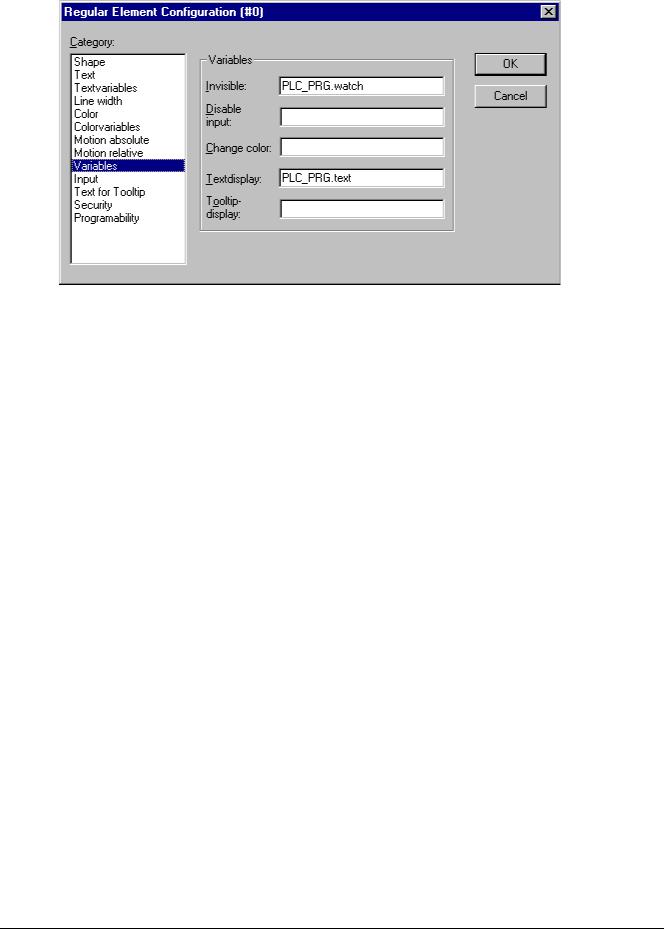
Visualization Element Configuration Dialog Box (Variables Category)
You can enter the variables that describe the status of the visualization elements in the Variable category within the dialog box for configuring visualization elements. The simplest way to enter variables in the fields is to use the Input Assistant.
Note: |
In online mode the variables which are set in the 'Motion absolute' dialog will override the values of |
|
structure components which additionally might be used to define the same property |
|
('Programability'). |
|
In case of multiple definition of an element property consider the specific order of precedence |
|
concerning according to which a value might be overwritten in online mode by another. |
You can enter Boolean variables in the Invisible and Change color fields. The values in the fields determine their actions. If the variable of the Invisible field contains the value FALSE, the visualization element will be visible. If the variable contains the value TRUE, the element will be invisible.
Disable input: If the variable entered here is TRUE, all settings of category 'Input' will be ignored.
Change color: If the variable which is defined in this field, has the value FALSE, the visualization element will be displayed in its default color. If the variable is TRUE, the element will be displayed in its alarm color.
Textdisplay:
oIf you have inserted a "%s" in the Content field of the Text category or if you have included "%s" in the textstring, then the value of the variable which is defined in 'Textdisplay' will be displayed in online mode in the visualization object. "%s" will be replaced by the value.
oIf you have inserted resp. included a "%<PREFIX>" in the Content field of the Text category ("PREFIX" must be a sequence of letters), then the variable resp. the numeric value which is entered here in 'Textdisplay' will be interpreted as an ID, which in combination with the prefix serves as a reference on a text, which is described in a XML-file. This text will be displayed in online mode instead of "%<PREFIX>" in the visualization object. Thus a dynamic modification of the text display is possible. See further information in the description of the dialog 'Settings', category Language.
oIf you want to edit the value of the variable in Online mode using the keyboard, you can do this via the 'Text input of variable' 'Textdisplay' in the Input category.
Tooltip-display: Enter here a variable of type STRING whose value should be displayed in a tooltip for the element in online mode.
2-20 |
The CoDeSys Visualization |
2 - The Visualization Editor in CoDeSys
Input
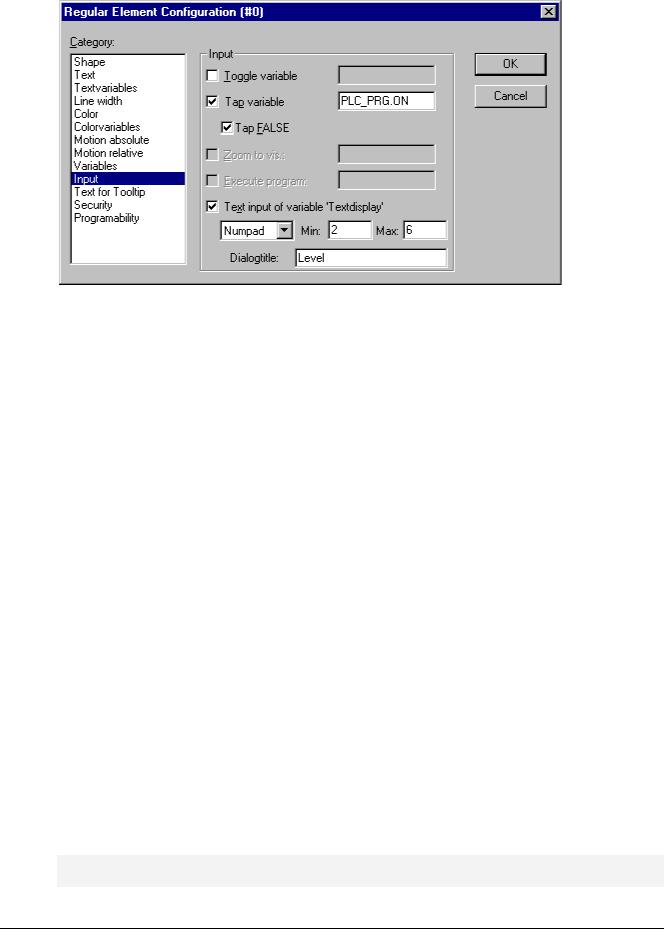
Dialog for configuring the visualization elements (Category Input)
Toggle variable: If this option is activated, in online mode you will toggle the value of the variables which are located in the input field by each mouse click on the visualization element. You can obtain input assistance for data entry via <F2>. The value of the Boolean variable changes with each mouse click from TRUE to FALSE and then back to TRUE again at the next mouse click, etc.
Tap Variable: If this option is activated, in online mode you can switch the value of the Boolean variable which is located in the input field, between TRUE and FALSE. Place the mouse cursor on the element, press the mouse-key and hold it depressed. If option Tap FALSE is activated, the value is set to FALSE as soon as the mouse key is pressed, otherwise it is set to TRUE at this moment. The variable changes back to its initial value as soon as you release the mouse key.
Zoom to Vis...: If this option is activated, you can enter in the edit field the name of a visualization object of the same project to which you want to jump by a mouse-click on the element in online mode. In this case always first the window of the target visualization will be opened before that of the current one will be closed.
The following entries are allowed:
•The name of a visualization object of the current project (see Object Organizer)
•If a visualization instance that contains placeholders is to be jumped to, the placeholders can be directly replaced by variable names or text when called up. For this purpose, conform to the following syntax:
<Visuname>(<Placeholder1>:=<Text1>, <Placeholder2>:=<Text2>,..., <Placeholder n>:=<Textn>). During compilation of the visualization it will be checked, whether the text matches with one of the defined replacement values defined in the placeholder list, if it does not, a warning will be output.
Example:
Calling the visualization visu1, whereby the placeholders $var_ref1$ and $var_ref2$ used in visu1 are replaced by the variables PLC_PRG.var1 and PROG.var1 respectively:
visu1(var_ref1:=PLC_PRG.var1, var_ref2:=PROG.var1)
•If a program variable of the type STRING (e.g. PLC_PRG.xxx) has been entered instead of a visualization object, then this variable can be used to define the name of the visualization object (e.g. ,visu1') which the system should change to when a mouse click occurs (e.g. xxx:= ,visu1).
•If you issue the command „ZOOMTOCALLER" in the Zoom to vis. field, a backward jump into the calling visualization is achieved in Online mode by a mouse click on the element, if such a constellation was configured.
Note: The implicit variable CurrentVisu (type STRING, for implicit (system) variables see here) describes the name of the currently opened visualization object. For example it can be used in the application to
The CoDeSys Visualization |
2-21 |
2 - The Visualization Editor in CoDeSys
control which visualization should be opened resp. to see which is the currently opened. But this will only work if the names of the visualization objects are defined in capital letters (see 'Create a visualization object'). Example: CurrentVisu:='PLC_VISU';
Execute program: If this option is activated you can enter ASSIGNor special "INTERN"-commands in the input field, which will be executed in online mode as soon as you perform a mouse-click on the element. Press button "..." to get the dialog Configure programs where you can select the desired commands (Add) and arrange them in the desired order (Before, After).
Note: This feature especially is important if the visualization will be the only operating interface of a system (pure operating version). See a description of the commands: Special input possibilities for the
CoDeSys operating version.
If you select the Text input of variable 'Textdisplay', then in Online mode you will get the possibility to enter an value in this visualization element which will upon pressing <Enter> be written to the variable that appears in the Textdisplay field of the Variables category.
Select in the scroll box which kind of input should be possible later in online mode. Text: An edit field will open, where you can enter the value. Numpad resp. Keypad: A window will open showing an image of the numeric resp. alphabetic keypad, where you can enter a value by activating the appropriate key elements. This might be useful if the visualization must be operatable via a touch screen. The range of valid input values can be restricted by defining a minimum and a maximum value in the edit fields Min: and Max:.
ToolTip
The dialog Text for Tooltip offers an input field for text which appears in a text field as soon as the mouse cursor is passed over the object in online mode. The text can be formatted with line breaks by using the key combination <Ctrl> + <Enter>.
Security
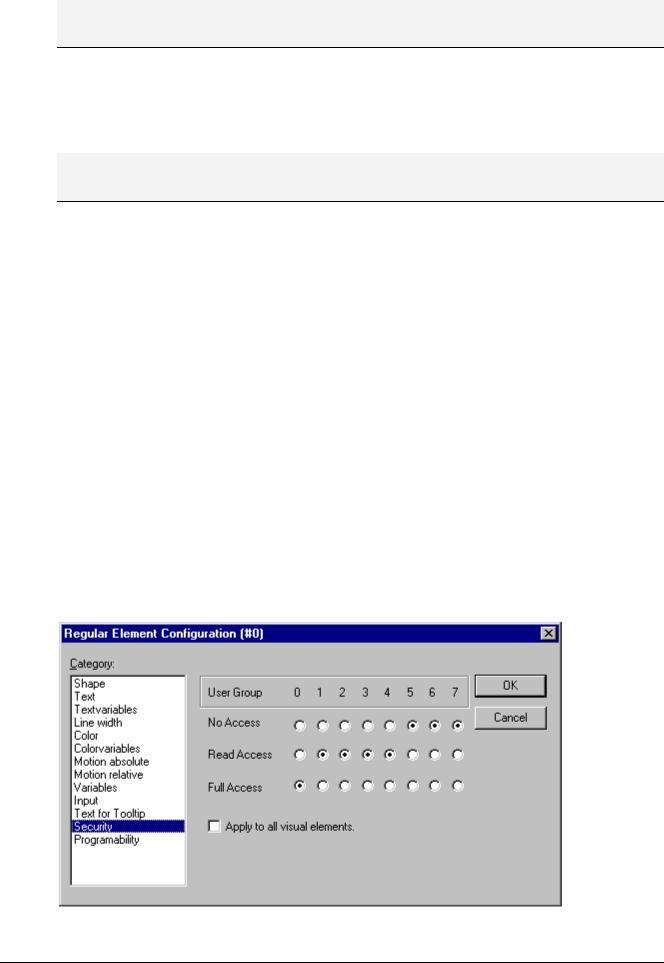
It might be useful that different user groups get different operating possibilities and display of a visualization. This can be reached by assigning different access rights concerning particular visualization elements. You can do this for the eight user groups which are available in CoDeSys (see also 'Project' 'Object' 'Properties' resp. 'Project' 'User Group Passwords'). The access rights can be assigned by activating the appropriate option in the configuration dialog 'Access rights' for a visualization element:
Visualization Element Configuration Dialog Box (Category Security)
2-22 |
The CoDeSys Visualization |
2 - The Visualization Editor in CoDeSys
The access rights for a visualization element and their effect in online mode:
No Access |
Element will not be visible |
|
|
|
|
Read Access |
Element will be visible but not operable (no inputs |
|
|
allowed) |
|
|
|
|
Full Access |
Element is not visible and not operable |
|
|
|
If you want to assign the access rights also to all other elements of the visualization object, activate option Apply to all visual elements.
Note: Please regard, that the access rights which are set for the visualization object in the 'Project' 'Object' 'Properties' dialog, are independent on those of the particular visualization elements !
Programability
The properties of a visualization element can not only be defined by a static setting or by a "normal" project variable, but also by the components of a structure variable, which is exclusively used for programming visualization elements.
For this purpose the structure VisualObjectType is available in the library SysLibVisu.lib. Its components can be used to define most of the element properties.
Note: In case of multiple definition of a element property the value of the "normal" project variables will overwrite that of the structure variable and both will overwrite a static definition.
In order to configure the element properties by using a structure variable, do the following:
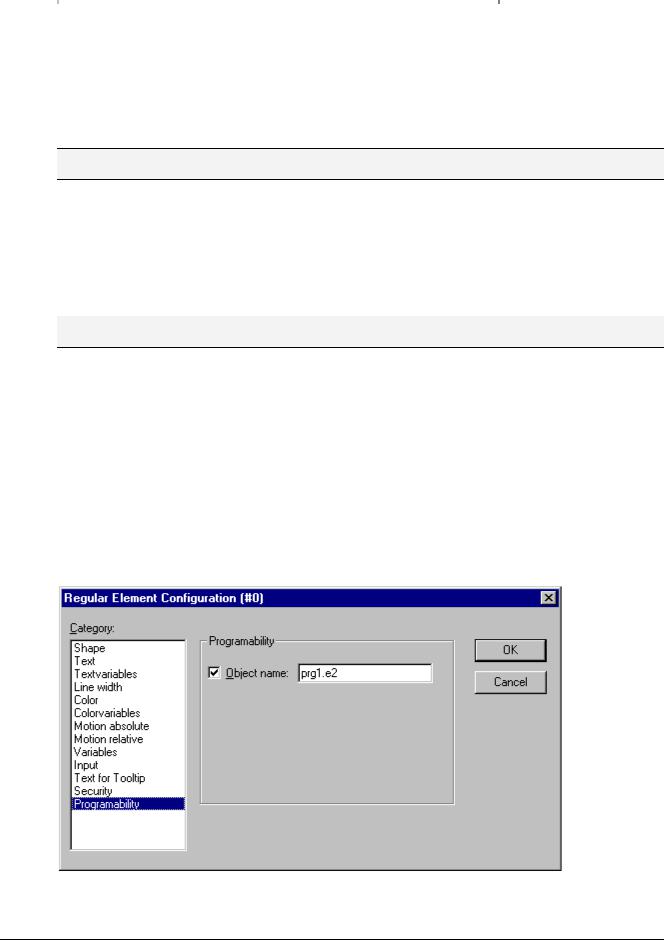
Open the configuration dialog, category 'Programmability' and enter a new, unique (!) variable name in the field Object Name:. For this purpose you must activate the option by a mouse-click in the checkbox. The variable automatically will be declared with type VisualObjectType, a structure which is contained in the library SysLibVisu.Lib. The declaration is done implicitely and not visible for the user. Make sure that the library is included in the library manager.
After the next compile the newly assigned structure variable will be available in the project. (Hint: Activate the Intellisense functionality 'List components' in the project options, category Editor, in order to get the structure components in a selection list as soon as the variable name followed by a dot is entered).
Example: If you have defined a Object Name "visu1_line" for a visualization element, then you can program the line width of this element by e.g. "visu1_line.nLIneWidth:=4".
Dialog for configuring a visualization element (Category Programmability)
The CoDeSys Visualization |
2-23 |

2 - The Visualization Editor in CoDeSys
The structure VisualObjectType:
The following table will show you all components of the structure and references to the corresponding items in the different categories of the configuration dialog:
At the beginning of the component name the data type is integrated: n INT
dw DWORD b BOOL
st STRING
Component |
Effect |
Example |
corresponding entries in |
||
(+Data type) |
|
|
(the Object Name "vis1" has been defined |
configuration dialog: |
|
|
|
|
for the element) |
|
|
|
|
|
|
||
nXOffset : INT; |
Shift element in X- |
vis1.nXOffset:=val2; |
- Cat. Motion absolute: |
||
|
direction |
(element is set to position X=val2) |
X-Offset |
||
|
|
|
|
||
nYOffset : INT; |
Shift element in Y- |
vis1.nYOffset:=22; |
- Cat. Motion |
||
|
direction |
(element is set to position Y=val2) |
absolute: Y-Offset |
||
|
|
|
|
||
nScale : INT; |
Change of the size |
vis1.nScale:=plc_prg.scale_var; |
- Cat. Motion |
||
|
|
|
(element size changes linear with change |
absolute: Scaling |
|
|
|
|
of value of plc_prg.scale_var) |
|
|
|
|
|
|
||
nAngle : INT; |
Rotating element |
vis1.anglevar:=15; |
- Cat. Motion |
||
|
around its center |
(element rotates clockwise by 15 ) |
absolute: angle |
||
|
|
|
|
||
bInvisible : BOOL; |
Element is visible / |
vis1.visible:=TRUE; |
- Cat. Color: No |
||
|
invisible |
(element is invisible) |
color inside + |
||
|
|
|
|
No frame color |
|
|
|
|
|
- Cat.Colorvariables: |
|
|
|
|
|
Fillcolor + |
|
|
|
|
|
Framecolor |
|
|
|
|
|
||
stTextDisplay : |
Text is displayed in |
vis1.TextDisplay:='ON / OFF'; |
- Cat. Text: entry at |
||
STRING; |
element |
element is inscribed with this text |
Content' |
||
|
|
|
|
||
bToggleColor : BOOL; |
color change when |
vis1.bToggleColor:=alarm_var; |
- Cat. Input: Toggle |
||
|
toggling between |
(As soon as alarm_var gets TRUE, the |
variable + |
||
|
TRUE and FALSE |
element gets the color defined via the |
- Cat. Variables: |
||
|
|
|
components dwFillColorAlarm, |
change color |
|
|
|
|
dwFrameColorAlarm resp. via the settings |
|
|
|
|
|
in category 'Colorvariables' or 'Color'. |
|
|
|
|
|
|
||
bInputDisabled: |
if FALSE: Inputs in |
vis1.bInputDisabled:=FALSE; |
- Cat. Variables: |
||
BOOL; |
category 'Input' are |
(no input is possible for this elementt) |
Disable Input' |
||
|
ignored |
|
|
||
|
|
|
|
||
stTooltipDisplay: |
Text of the tooltip |
vis1.stTooltipDisplay:='Switch |
- Cat. Text for Tooltip: |
||
STRING; |
|
|
for .....'; |
'Entry in Content:' |
|
|
|
|
|
||
dwTextFlags: |
Text position: |
vis1.dwTextFlags:=24; |
- Cat. Text: Horizontal |
||
DWORD; |
1 |
left justified |
(Text will be placed in the center of the |
and Vertical options |
|
|
2 |
right justified: |
element (4 + 20) |
- Cat. Textvariables: |
|
|
|
Textflags |
|||
|
4 |
centered |
|
||
|
horizontally |
|
|
||
|
8 |
top |
|
|
|
|
10 bottom |
|
|
||
|
20 |
centered vertically |
|
|
|
|
Note: Always set a |
|
|
||
|
horizontal and a |
|
|
||
|
vertical position |
|
|
||
|
(addition of values)! |
|
|
||
|
|
|
|
||
dwTextColor : |
Text color (definition |
vis1.dwTextColor := |
- Cat. Text: Font | Color |
||
DWORD; |
of colors see |
16#00FF0000; |
- Cat. Textvariables: |
||
|
subsequent to this |
(Text is blue-colored) |
Textcolor |
||
|
table) |
|
|
||
|
|
|
|
|
|
2-24 |
The CoDeSys Visualization |