Материал: m912201e
Important Comments |
• 9 |
Important Informations
1.12 Important Informations
When working with WAGO-I/O-PRO 32 please observe the following information:
Warning!
If during a status change from "Run" to "Stop" outputs are still active (e.g. for motor contactors or valves), they will remain active! Software cut-outs (e.g. by initiators) are then ineffective as the programme is not processed any more! The change of operation mode takes place internally at the end of a programme cycle!
Note:
In the event of an endless loop the outputs deactivate via the Watchdog of the output terminal blocks. In this case, a communication with the controller is impossible. (To restore communication, switch the supply voltage of the controller off and on again. You can re-establish the communication by pressing the function selector. This selector must then be either in the top or central position.)
The Programmer has to ensure that no endless loop can occur!
WAGO-I/O-SYSTEM 759 WAGO-I/O-PRO 32

10• WAGO-I/O-PRO 32 V2.2 Overview
What is WAGO-I/O-PRO 32
2 WAGO-I/O-PRO 32 V2.2 Overview
2.1 What is WAGO-I/O-PRO 32
WAGO-I/O-PRO 32 is a complete development environment for your PLC. (WAGO-I/O-PRO 32 stands for Controlled Developement System).
WAGO-I/O-PRO 32 puts a simple approach to the powerful IEC language at the disposal of the PLC programmer. Use of the editors and debugging functions is based upon the proven development program environments of advanced programming languages (such as Visual C++).
2.2 Overview of WAGO-I/O-PRO 32 Functions
2.2.1 How is a project structured?
A project is put into a file named after the project. The first POU (Program Organization Unit) created in a new project will automatically be named PLC_PRG. The process begins here (in compliance with the main function in a C program), and other POUs can be accessed from the same point (programs, function block s and functions).
Once you have defined a Task Configuration, it is no longer necessary to create a program named PLC_PRG. You will find more about this in the Task Configuration chapter.
There are different kinds of objects in a project: POUs, data types, display elements (visualizations) and resources.
The Object Organizer contains a list of all the objects in your project.
2.2.2 How do I set up my project?
First you should configure your PLC in order to check the accuracy of the addresses used in the project.
Then you can create the POUs needed to solve your problem.
Now you can program the POUs you need in the desired languages.
Once the programming is complete, you can compile the project and remove errors should there be any.
2.2.3 How can I test my project?
Once all errors have been removed, activate the simulation, log in to the simulated PLC and "load" your project in the PLC. Now you are in Online mode.
WAGO-I/O-SYSTEM 759 WAGO-I/O-PRO 32

WAGO-I/O-PRO 32 V2.2 Overview |
• 11 |
Project Components |
|
|
|
Now open the window with your PLC Configuration and test your project for correct sequence. To do this, enter input variables manually and observe whether outputs are as expected. You can also observe the value sequence of the local variables in the POUs. In the Watch and Receipt Manager you can configure data records whose values you wish to examine.
2.2.4 Debugging
In case of a programming error you can set breakpoints. If the process stops at such a breakpoint, you can examine the values of all project variables at this point in time. By working through sequentially (single step) you can check the logical correctness of your program.
2.2.5 Additional Online Functions
Further debugging functions:
You can set program variables and inputs and outputs at certain values.
You can use the flow control to check which program lines have been run.
A Log records operations, user actions and internal processes during an online session in a chronological order.
The Sampling Trace allows you to trace and display the actual course of variables over an extended period of time.
Optional a PLC Browser is available to request certain information from the PLC.
Once the project has been set up and tested, it can be loaded down to the hardware and tested as well. The same online functions as you used with the simulation will be available.
2.2.6 Additional WAGO-I/O-PRO 32 Features
The entire project can be documented or exported to a text file at any time.
2.2.7 Summary
WAGO-I/O-PRO 32 is a complete development tool used to program your PLC which will save you a measurable amount of time setting up your applications.
2.3 Project Components
2.3.1 Project
A project contains all of the objects in a PLC program. A project is saved in a file named after the project. The following objects are included in a project:
WAGO-I/O-SYSTEM 759 WAGO-I/O-PRO 32

12• WAGO-I/O-PRO 32 V2.2 Overview
Project Components
POUs (Program Organization Units), data types, visualizations, resources, and libraries.
2.3.2 POU (Program Organization Unit)
Functions, function blocks, and programs are POUs which can be supplemented by actions.
Each POU consists of a declaration part and a body. The body is written in one of the IEC programming languages which include IL, ST, SFC, FBD, LD or CFC.
WAGO-I/O-PRO 32 supports all IEC standard POUs. If you want to use these POUs in your project, you must include the library standard.lib in your project.
POUs can call up other POUs. However, recursions are not allowed.
2.3.3 Function
A function is a POU, which yields exactly one data element (which can consist of several elements, such as fields or structures) when it is processed, and whose call in textual languages can occur as an operator in expressions.
When declaring a function do not forget that the function must receive a type. This means, after the function name, you must enter a colon followed by a type.
A correct function declaration can look like this example:
FUNCTION Fct: INT
In addition, a result must be assigned to the function. That means that function name is used as an output variable.
A function declaration begins with the keyword FUNCTION.
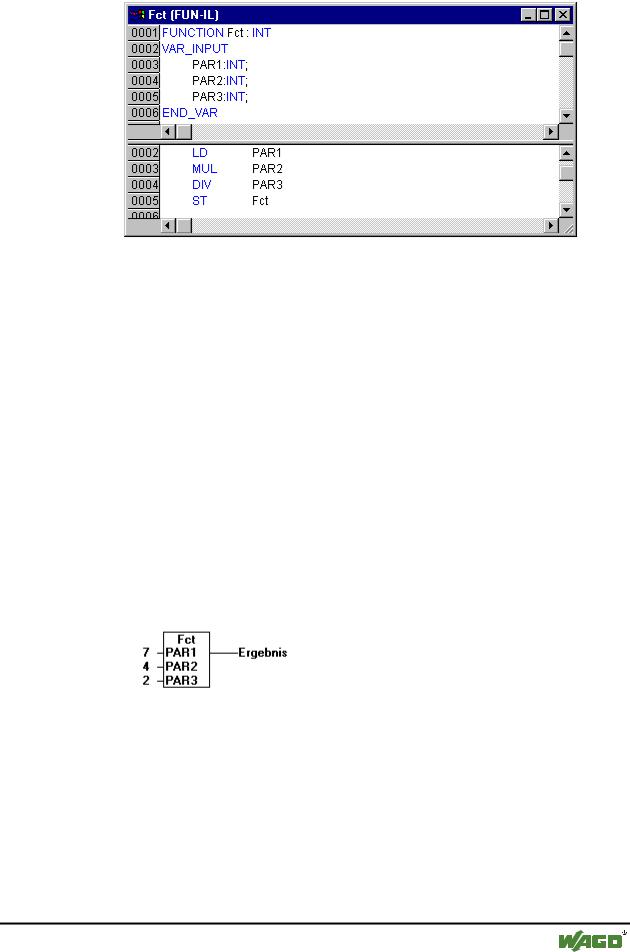
Example in IL of a function that takes three input variables and returns the product of the first two divided by the third:
x Example of a function in IL
WAGO-I/O-SYSTEM 759 WAGO-I/O-PRO 32
WAGO-I/O-PRO 32 V2.2 Overview |
• 13 |
Project Components |
|
|
|
The call of a function in ST can appear as an operand in expressions.
Functions do not have any internal conditions. That means that calling up a function with the same argument (input parameters) always produces the same value (output).
In SFC a function call can only take place within a step or a transition.
in IL:
LD |
7 |
Fct |
2,4 |
ST |
Result |
in ST:
Result := Fct(7, 2, 4);
in FBD:
If you define a function in your project with the name CheckBounds, you can use it to check range overflows in your project! The name of the function is defined and may have only this identifier. For further description please see chapter Operators of the Online Help chapters, DIV.
If you define functions in your project with the names CheckDivByte,
CheckDivWord, CheckDivDWord and CheckDivReal, you can use them to check the value of the divisor if you use the operator DIV, for example to avoid a division by 0.
WAGO-I/O-SYSTEM 759 WAGO-I/O-PRO 32