Материал: m912201e
134• Components of WAGO-I/O-PRO 32
General Online Functions
4.6.10'Online' 'Reset (original)'
This command resets all variables including the remanent ones (RETAIN and PERSISTENT) to their initialization values and erases the user program on the controller. The controller is returned to its original state. See in this connection also 'Online' 'Reset' and 'Online' 'Cold Reset'
4.6.11'Online' 'Toggle Breakpoint'
Symbol: |
Shortcut: <F9> |
This command sets a breakpoint in the present position in the active window. If a breakpoint has already been set in the present position, that breakpoint will be removed.
The position at which a breakpoint can be set depends on the language in which the POU in the active window is written.
In the Text Editors (IL, ST), the breakpoint is set at the line where the cursor is located, if this line is a breakpoint position (recognizable by the dark-gray color of the line number field). You can also click on the line number field to set or remove a breakpoint in the text editors.
In FBD and LD, the breakpoint is set at the currently selected network. In order to set or remove a breakpoint in the FBD or LD Editor, you can also click on the network number field.
In SFC, the breakpoint is set at the currently selected step. In SFC you can also use <Shift> with a doubleclick to set or remove a breakpoint.
If a breakpoint has been set, then the line number field or the network number field or the step will be displayed with a light-blue background color.
If a breakpoint is reached while the program is running, the program will stop, and the corresponding field will be displayed in a red background color. In order to continue the program, use the 'Online' 'Run', 'Online' 'Step in', or 'Online' 'Step Over' commands.
You can also use the Breakpoint dialog box to set or remove breakpoints.
4.6.12'Online' 'Breakpoint Dialog Box'
This command opens a dialog box to edit breakpoints throughout the entire project. The dialog box also displays all breakpoints presently set.
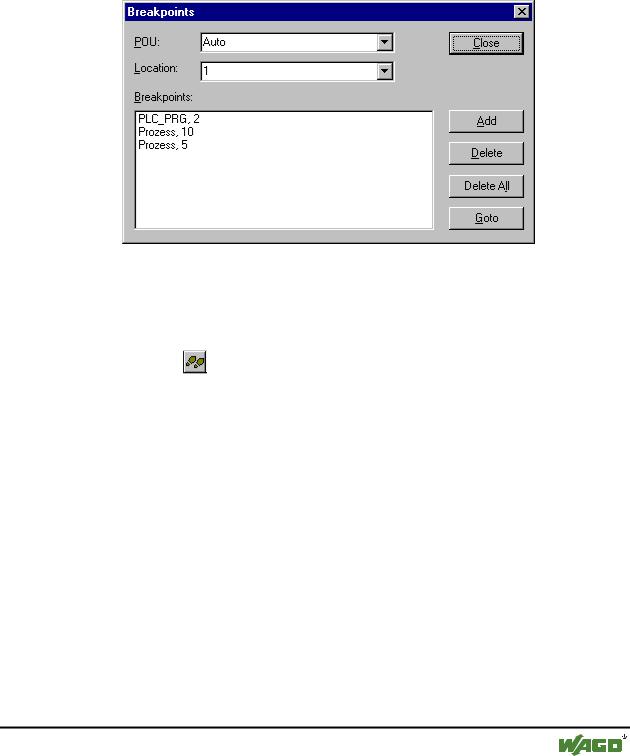
In order to set a breakpoint, choose a POU in the POU combobox and the line or the network in the Location combobox where you would like to set the breakpoint; then press the Add button. The breakpoint will be added to the list.
WAGO-I/O-SYSTEM 759 WAGO-I/O-PRO 32
Components of WAGO-I/O-PRO 32 |
• 135 |
General Online Functions |
|
|
|
In order to delete a breakpoint, highlight the breakpoint to be deleted from the list of the set breakpoints and press the Delete button.
The Delete All button can be used to delete all the breakpoints.
In order to go to the location in the editor where a certain breakpoint was set, highlight the respective breakpoint from the list of set breakpoints and press the Go to button.
x Breakpoint Editing Dialog Box
To set or delete breakpoints, you can also use the 'Online' 'Toggle Breakpoint' command.
4.6.13'Online' 'Step over'
Symbol: |
Shortcut: <F10> |
This command causes a single step to execute. If a POU is called, the program stops after its execution. In SFC a complete action is executed.
If the present instruction is the call-up of a function or of a function block, then the function or function block will be executed completely. Use the 'Online' 'Step In' command, in order to move to the first instruction of a called function or function block.
If the last instruction has been reached, then the program will go on to the next instruction in the POU.
4.6.14'Online' 'Step in'
Shortcut: <F8>
A single step is executed. The program is stopped before the first instruction of a called POU.
WAGO-I/O-SYSTEM 759 WAGO-I/O-PRO 32
136• Components of WAGO-I/O-PRO 32
General Online Functions
If necessary, there will be a changeover to an open POU.
If the present position is a call-up of a function or of a function block, then the command will proceed on to the first instruction in the called POU.
In all other situations, the command will function exactly as 'Online' 'Step Over'.
4.6.15'Online' 'Single Cycle'
Shortcut: <Ctrl>+<F5>
This command executes a single PLC Cycle and stops after this cycle.
This command can be repeated continuously in order to proceed in single cycles.
The Single Cycle ends when the 'Online' 'Run' command is executed.
4.6.16'Online' 'Write values'
Shortcut: <Ctrl>+<F7>
With this command, one or more variables are set – one time only! – to user defined values at the beginning of a cycle. (see 'Online' 'Force values' for setting permanently)
The values of all single-element variables can be changed, so long as they are also visible in Monitoring.
Before the command 'Write values' can be executed, a variable value must be ready to be written:
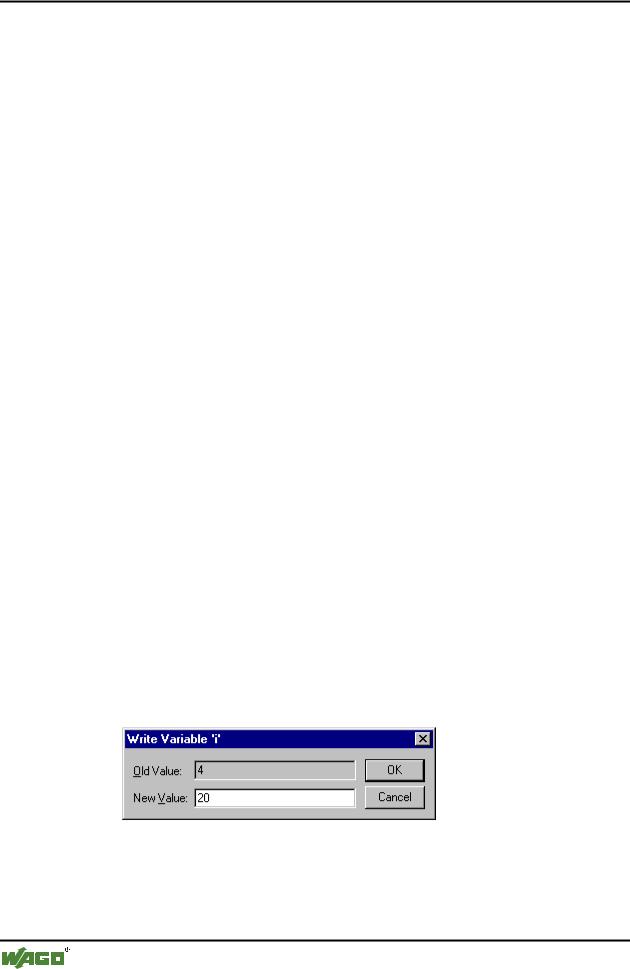
For non-boolean variables a double mouse click in performed on the line in which a variable is declared, or the variable is marked and the <Enter> key is pressed. The dialog box 'Write variable <x>' then appears, in which the value to be written to the variable can be entered.
x Dialog for writing of variables
For boolean variables, the value is toggled (switched between TRUE and FALSE, with no other value allowed) by double-clicking on the line in which the variable is declared; no dialog appears.
WAGO-I/O-SYSTEM 759 WAGO-I/O-PRO 32
Components of WAGO-I/O-PRO 32 |
• 137 |
General Online Functions |
|
|
|
The value set for Writing is displayed in brackets and in turquoise colour behind the former value of the variable. e.g. a=0 <:=34>.
Note:
Exception: In the FBD and LD Editor the value is shown turquoise without brackets next to the variable name.
Set the values for as many variables as you like.
The values entered to be written to variables can also be corrected or deleted in the same manner. This is likewise possible in the 'Online' 'Write/Force dialog' (see below).
The values to be written that were previously noticed are saved in a writelist (Watchlist), where they remain until they are actually written, deleted or transferred to a forcelist by the command 'Force values'.
The command to Write Values can be found at two places:
Command 'Write Values' in the menu 'Online'.
Button 'Write Values' in the dialog 'Editing the writelist and the forcelist'. When the command 'Write values' is executed, all the values contained in the writelist are written, once only , to the appropriate variables in the controller at the beginning of the cycle, then deleted from the writelist. (If the command 'Force values' is executed, the variables in question are also deleted from the writelist, and transferred to the forcelist!)
Note:
In the sequential function chart language (SFC), the individual values from which a transition expression is assembled cannot be changed with 'Write values'. This is due to the fact that in monitoring the 'Total value' of the expression, not the values of the individual variables are displayed (e.g. "a AND b" is only displayed as TRUE if both variables actually have the value TRUE).
In FBD, on the other hand, only the first variable in an expression, used for example as input to a function block, is monitored. Thus a 'Write values' command is only possible for this variable.
4.6.17'Online' 'Force values'
Shortcut: <F7>
With this command, one or more variables are permanently set (see 'Online' 'Write values' for setting only once at the beginning of a cycle) to user-defined values. The setting occurs in the run-time system, both at the beginning and at the end of the cycle.
The time sequence in one cycle: 1.Read inputs, 2. Force values 3. Process code, 4. Force values 5. Write outputs.
WAGO-I/O-SYSTEM 759 WAGO-I/O-PRO 32
138• Components of WAGO-I/O-PRO 32
General Online Functions
The function remains active until it is explicitly suspended by the user (command 'Online' 'Release force') or the programming system is logged-out.
For setting the new values, a writelist is first created, just as described under 'Online' 'Write values'. The variables contained in the writelist are accordingly marked in Monitoring. The writelist is transferred to a forcelist as soon as the command 'Online' 'Force values' is executed. It is possible that an active forcelist already exists, in which case it is updated as required. The writelist is then emptied and the new values displayed in red as 'forced'. Modifications of the forcelist are transferred to the program with the next 'Force values' command.
Note:
The forcelist is created at the first forcing of the variables contained in the writelist, while the writelist existed prior to the first writing of the variables that it contains.
The command for forcing a variable, which means that it will be entered into the forcelist can be found at the following places:
Command 'Force Values' in the menu 'Online'.
Button 'Force Values' in the dialog 'Editing the writelist and the forcelist'.
Note:
In the sequential function chart language, the individual values from which a transition expression is assembled cannot be changed with 'Force values'. This is due to the fact that in monitoring the 'Total value' of the expression, not the values of the individual variables are displayed (e.g. "a AND b" is only displayed as TRUE if both variables actually have the value TRUE).
In FBD, on the other hand, only the first variable in an expression, used for example as input to a function block, is monitored. Thus a 'Force values' command is only possible for this variable.
4.6.18'Online' 'Release force'
Shortcut: <Shift>+<F7>
This command ends the forcing of variable values in the controller. The variable values change again in the normal way.
Forced variables can be recognized in Monitoring by the red color in which their values are displayed. You can delete the whole forcelist, but you can also mark single variables for which the forcing should be released.
To delete the whole forcelist, which means to release force for all variables, choose one of the following ways:
Command 'Release Force' in menu 'Online'.
Button 'Release Force' in dialog 'Editing the writelist and the forcelist'
WAGO-I/O-SYSTEM 759 WAGO-I/O-PRO 32